Chapter 3 Web Interface of RDU501
RDU501 Intelligent Monitoring Unit User Manual
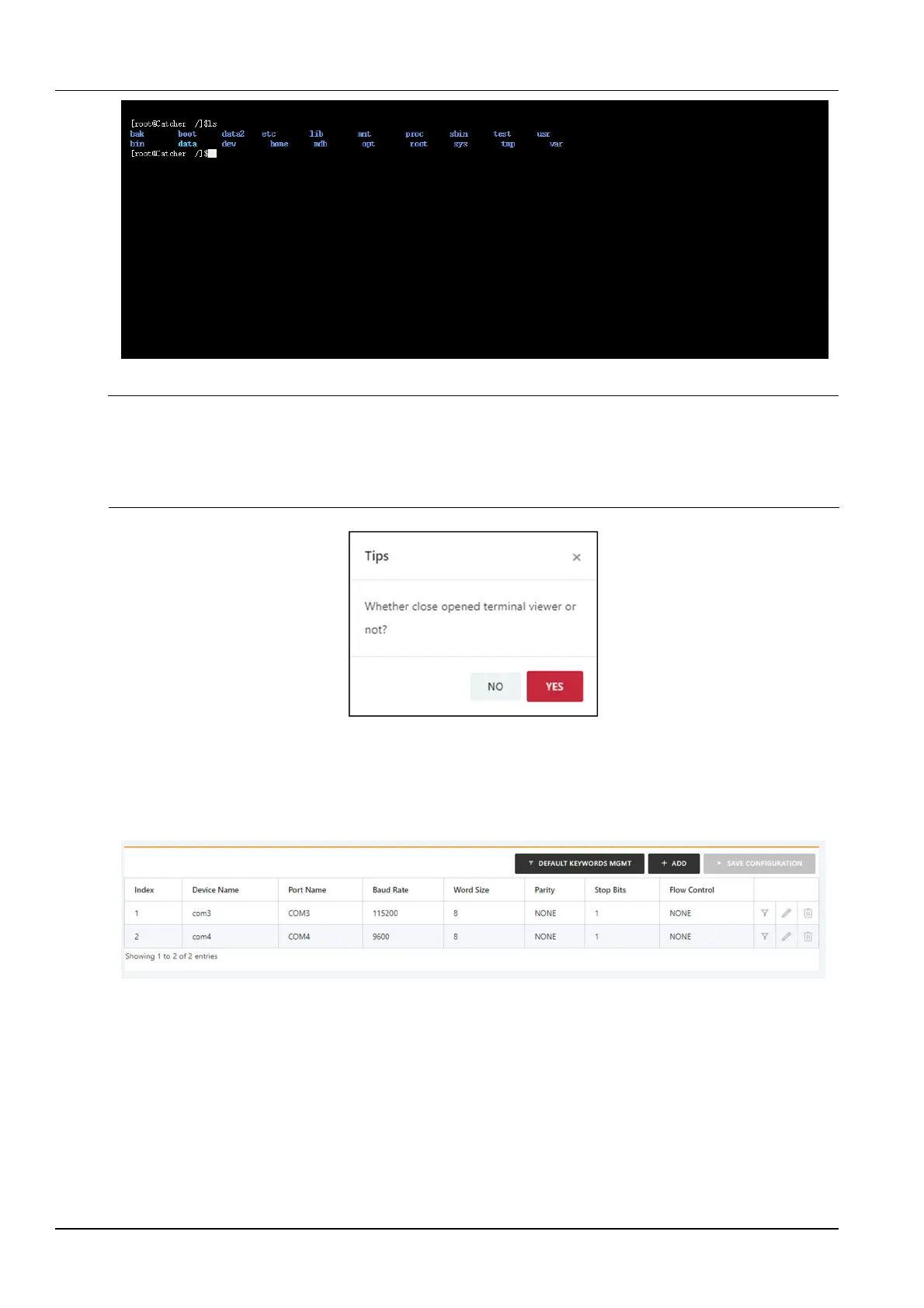
Figure 3-46 Console window
Note
1.
A serial port device can only be accessed by one user at a time, so multiple web users can only access their own serial port
devices at the same time.
2.
After opening the serial port device, if you leave the Console device list page, a prompt box as shown in Figure 3-47 will pop
up asking if you want to close the open terminal viewer. Clicking the No button will not close the opened window, clicking the
Yes button will close the opened window.
2.
Console device management
Figure 3-47 Leave the page of console device list
Click the Console Device Management submenu under the IT Management menu. Select a console device to
modify, add, or delete the device's keywords. You can also modify or delete the device information, as shown in
Figure 3-48.
Figure 3-48 Console Device Management
Click the default keyword management button to open the default keyword management page, click the Add
button, enter the keyword you want to add, click the OK button, as shown in Figure 3-49. When you add a keyword to
a specific device, you can directly select the keywords that have been added in the default keyword. The RDU501
can filter the input/output information of the serial port target device through user-defined keywords and generate an
event when the keyword matches.



 To Next Page