Chapter 3 Web Interface of RDU501
RDU501 Intelligent Monitoring Unit User Manual
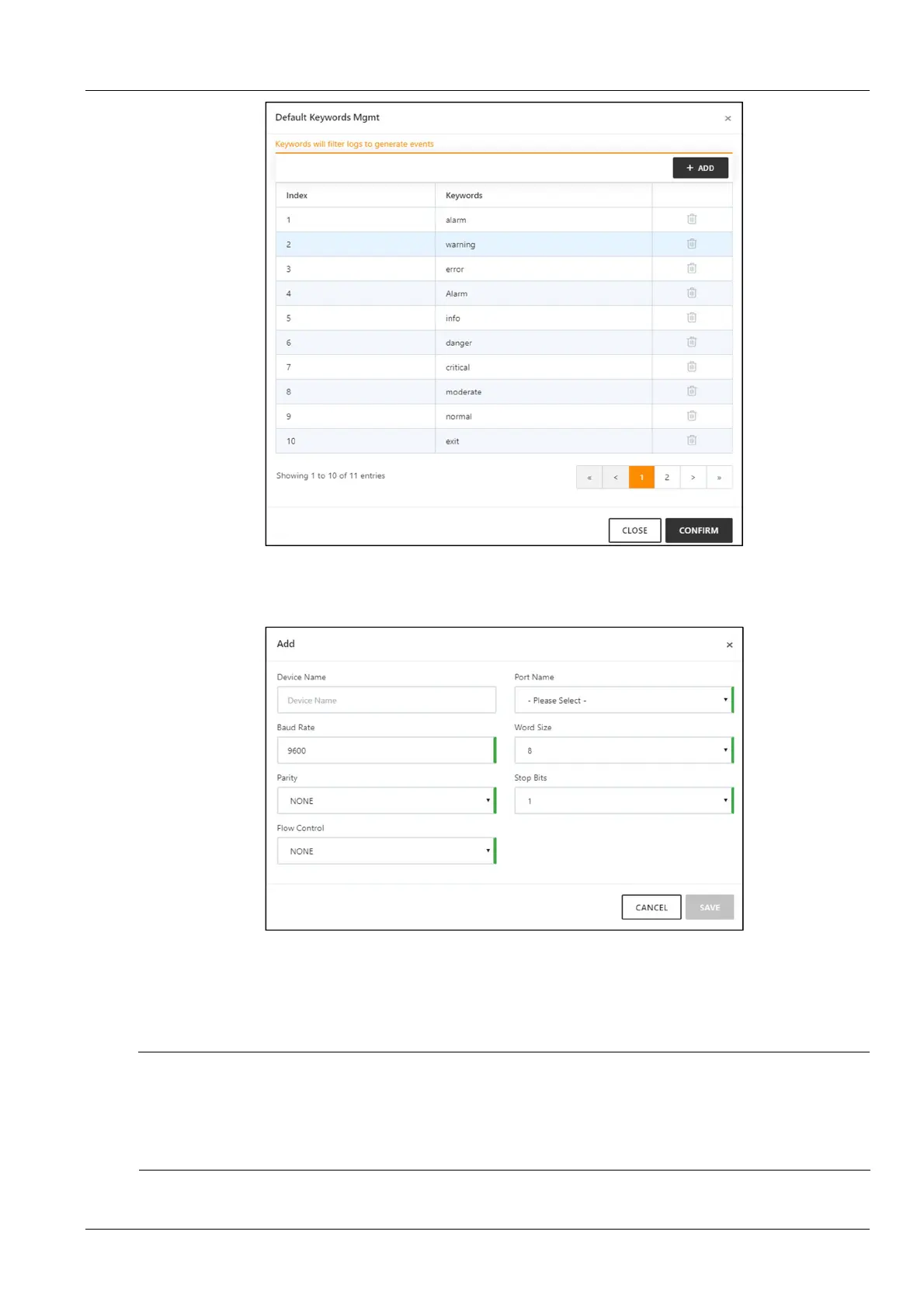
Figure 3-49 Add default keywords
Click the Add button to open the page for adding devices. After entering the device information, click the Save
button, as shown in Figure 3-50.
Figure 3-50 Add a console device
After modifying the device information, you need to click the Save Configuration button to make the configuration
take effect. After clicking Save Configuration, the User Security Verification dialog box pops up, prompting you to
enter the current user's login password. After entering the correct password, click the OK button to complete the save
operation.
Note
1.
Users can define keywords for each serial port target device, up to a maximum of 20.
2.
If you have not modified any device information, you cannot click the Save Configuration button.
3.
After modifying the device information, if you leave the page without clicking the Save Configuration button, a prompt box
as shown in Figure 3-41 will pop up asking if you want to confirm leaving the page. Clicking the Cancel button will stay in the
current page, and clicking the OK button will leave the page and ignore the modification information.
3.
Console log data



 To Next Page