Chapter 3 Web Interface of RDU501
RDU501 Intelligent Monitoring Unit User Manual
Note
1.
If 2D modeling is not completed, when accessing the thermal management page, prompt “Please configure 2D modeling”.
Click on "Please configure 2D modeling" and you will be taken to the 2D modeling page.
2.
To view the temperature field of the IT equipment in a single rack, you need to configure the temperature signal of the IT
equipment. Select the temperature signal in the Smart Solution Modeling -> Assets on Shelf -> Shelf Device Asset Properties.
3.
When the sensor is not configured, the color in the rack is grayed out. The range and color of the module's temperature field
level can be modified in the module temperature field color of the Smart Solution Modeling -> 2D Modeling -> Temperature
Field Color setting.
Power management
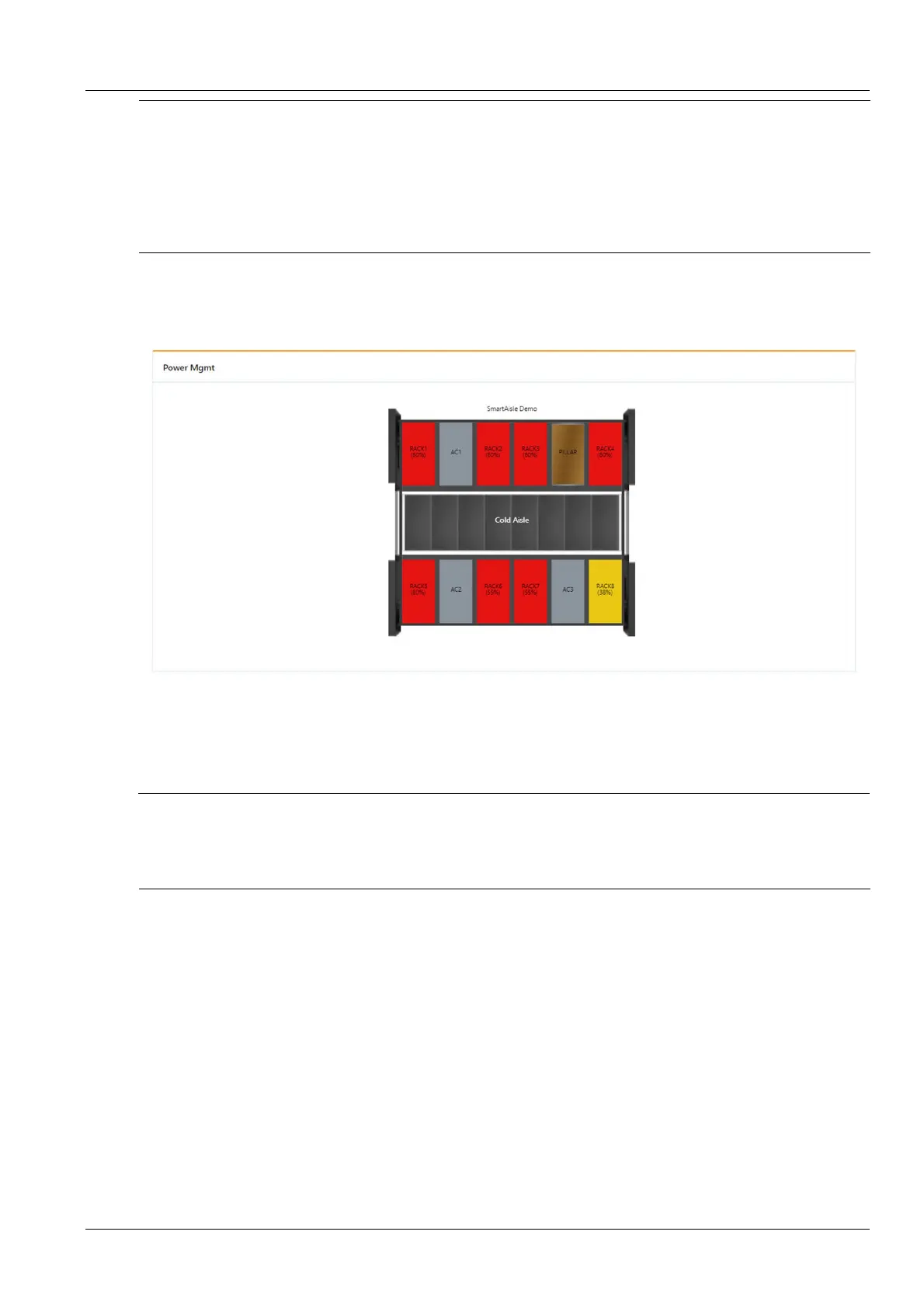
Click the Power Management submenu under the Smart Solution modeling menu to open the page shown in
Figure 3-96.
Figure 3-96 Power management
The power management page displays the power supply capacity of each rack in the module in 2D mode. If the
power distribution signal of the rack is configured, the power supply capacity = the sum of the power consumption of
the rack (power distribution signal) / the rated power of the rack; if the power distribution signal is not configured, the
power supply capacity = the sum of the rated power of the equipment in the rack of the rack / rack rated power.
Note
1.
If 2D modeling is not completed, when accessing the power management page, prompt “Please configure 2D modeling”. Click
on "Please configure 2D modeling" and you will be taken to the 2D modeling page.
2.
The range and color of the power supply capacity level can be modified in the power supply capacity color of the Smart
Solution Modeling -> 2D Modeling -> Capacity Color setting.
Asset Management
Click the Asset Management submenu under the Smart Solution Modeling menu to open the page shown in
Figure 3-97.



 To Next Page