Chapter 3 Web Interface of RDU501
RDU501 Intelligent Monitoring Unit User Manual
Note
1.
The user must first select the notification mode before the Alarm Notification Configuration Table at the bottom of the page
can be edited;
2.
When you select a device name, all devices are configured with the same alarm level.
3.
When you select a low-level alarm, all alarms above this level will be selected.
4.
When you select a device, the Critical alarm of the highest level is selected by default.
5.
When the alarm is not confirmed or not completed, the system will send an alarm notification every 4 hours, up to 3 times.
2. IT device alarm notification settings
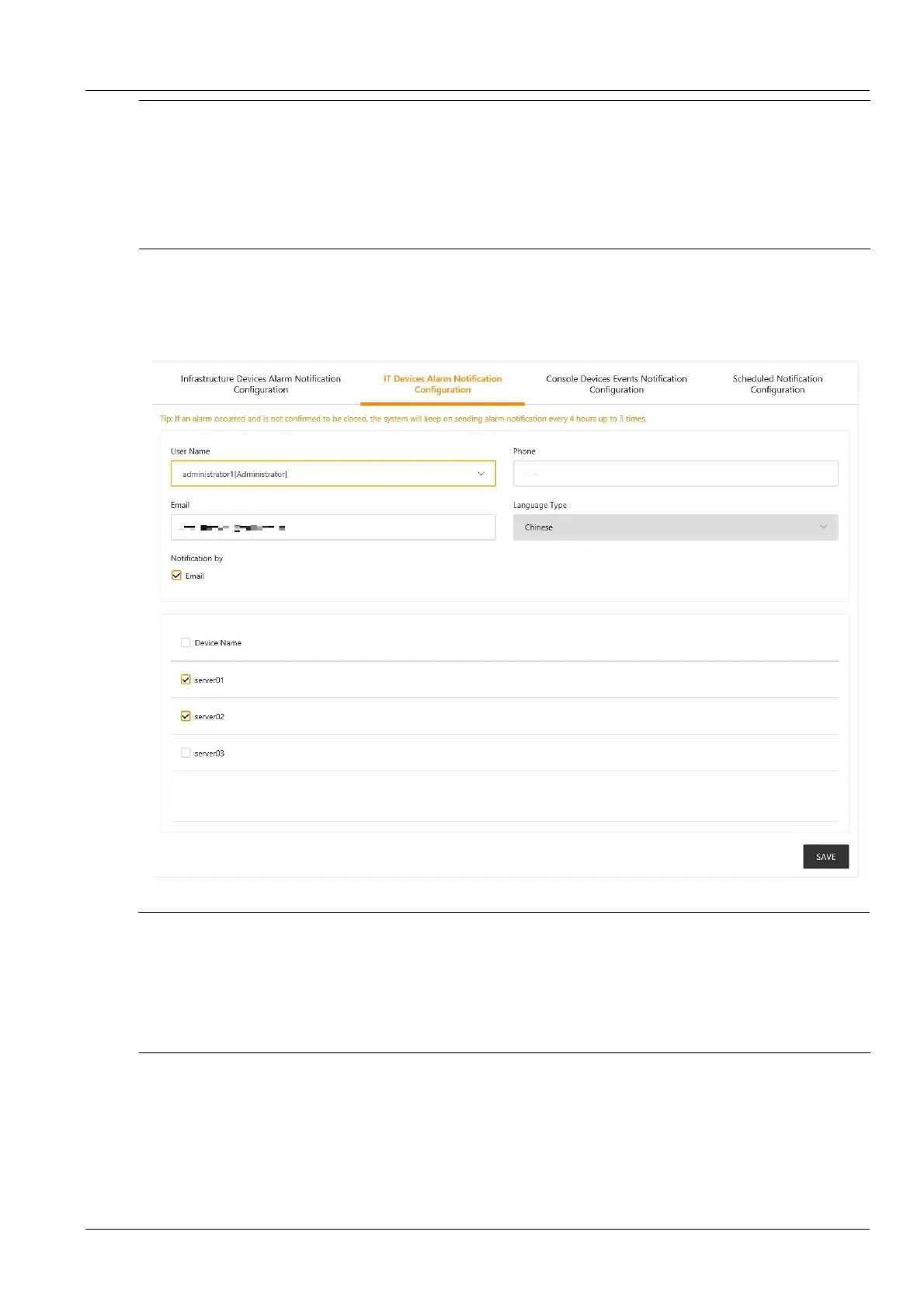
Click the Notification Mode Configuration submenu under the Configuration Management menu, and then click
the IT Device Alarm Notification Settings tab to bring up the page shown in Figure 3-123. The user can choose to
receive the alarms of which IPMI device by email notification.
Figure 3-123 IT device alarm notification settings
Note
1.
The user must first select the Notification Mode, and the Alarm Notification Configuration Table at the bottom of the page
can be edited;
2.
When the device name is selected, all devices are configured with alarm notifications at the same time.
3.
The notification language cannot be modified here, and it is consistent with the setting of the Power and Environment Device
Alarm Notification;
4.
When the alarm is not confirmed or not completed, the system will send an alarm notification every 4 hours, up to 3 times.
3. Console device event notification settings
Click the Notification Mode Configuration submenu under the Configuration Management menu, and then click
the Console Device Event Notification Settings tab to bring up the page shown in Figure 3-124. Users can choose
which console devices to receive alarm notifications by email notification. The user can choose to receive the alarms
of which console device by email notification.



 To Next Page