EasyManua.ls Logo

Videx GSM4K - User Manual

Videx GSM4K
56 pages
Print Icon
To Next Page IconTo Next Page
Loading...
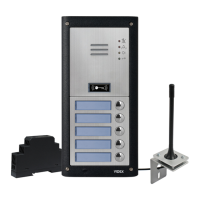
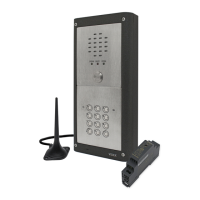
GSM AUDIO INTERCOM KIT
4000 Series GSM Audio Intercom with Proximity
ENUK
V1.4
25/01/17
We recommend
This equipment is installed by a
Competent Electrician, Security or
Communications Engineer.
Technical Manual
English
GSM4K
GSM4KC

Questions and Answers

  • T
    Todd HallJul 31, 2025
    What to do if the Videx GSM4K call keeps dropping out?
    • C
      Christina GarciaJul 31, 2025
      If the Videx Intercom System call keeps dropping out, increase the call time (SPT) in programming. Also, check the signal strength and if necessary, move or change the antenna or try a different SIM card provider.
  • A
    Alison KellyAug 4, 2025
    Why Videx GSM4K panel does not respond to SMS messages?
    • C
      Candace WaltersAug 4, 2025
      If the Videx Intercom System panel does not respond to SMS messages, first check that the SIM card has an SMS service centre number stored. You can check this by putting the SIM card into a mobile phone. Contact the SIM card provider if you are unsure. Also, verify that you are sending the message to the correct number (the number of the SIM card in the GSM PRO intercom panel). If a long beep is heard, the message was either not understood or the 4 digit master code was incorrect. You can also try resetting the 4 digit master code to 1111 by powering up with terminals g & 7 shorted.
  • H
    heather42Aug 8, 2025
    How to fix interference on Videx GSM4K Intercom System speech?
    • E
      Eric MejiaAug 8, 2025
      For the Videx Intercom System, interference on speech can occur if the signal strength is too low. The GSM module increases its power to compensate, causing interference with the speech circuits. Try relocating the antenna or using a more powerful or directional antenna. Ensure the antenna cables are not running close to the power supply cables or the microphone wires inside the intercom panel. Try a different SIM card from a different service provider as they may have better coverage in that area.
  • D
    deborahcalhounAug 12, 2025
    Why does Videx GSM4K Intercom System speech echoes and feeds back?
    • G
      George LopezAug 12, 2025
      If you hear speech echoes and feedback from the Videx Intercom System, try lowering the speaker volume using the dip-switches on the back of the GSM PRO intercom. You can also try adjusting the volume using the programmable settings during a call. Check the microphone is fitted correctly in the intercom panel and that the mic hole is not blocked in any way.
  • K
    kristinagonzalesAug 17, 2025
    What does long beep mean on Videx GSM4K when button is pressed?
    • M
      Michele WatsonAug 17, 2025
      If you hear a long beep when the button is pressed on the Videx Intercom System, check the programming to ensure a telephone number is set up for that button. Also, check the SIM card is fitted correctly.
  • A
    Amanda FloresAug 22, 2025
    Why Videx Intercom System panel beeps twice and the name plate does not illuminate?
    • D
      dominic82Aug 22, 2025
      If the Videx Intercom System panel repeatedly beeps twice and the back lit name plate of the module does not illuminate, check the power supply has adequate voltage. Try a full reset, powering up with terminals g & 8 shorted. Also, try a different SIM card. The GSM PRO intercom module may have a fault.
  • J
    Jillian JacksonAug 26, 2025
    What to do if Videx Intercom System returns ERROR message in SMS programming?
    • C
      Carolyn HerreraAug 26, 2025
      If you receive an ERROR message in SMS when programming the Videx Intercom System, or no SMS is returned even with a '?' at the end of the message, double-check the message you sent and compare it with the examples in the manual to identify any common errors in the message format.

Summary

Introduction

System Introduction

Explains the GSM intercom system's functionality, features, and how it works like mobile phones.

System Components and Available Versions

Description

Outlines the system's components, modular design, and customization options.

Art. 4810 GSM (PRO) Intercom Available Versions

Details the different versions of the GSM intercom panel based on button configuration.

Art. 4800 M Codelock

Details the codelock module features, including relay outputs and inputs.

GSM4 K Audio Kits

Lists available GSM4K kit configurations for flush and surface mounting.

GSM4 KC Audio Kits

Lists available GSM4KC kit configurations including codelock module.

Technical Information

Art.4810 GSM (PRO) Module

Provides a diagram and overview of the GSM PRO module, including connections and indicators.

Terminal Connections and Jumper JP2

Lists terminal connections and the function of jumper JP2 for illumination adjustment.

Technical Specification

Lists the detailed technical specifications of the GSM intercom system.

Art. 4800 M Codelock Module

Provides specifications, diagrams, and back EMF protection details for the codelock module.

Connecting the Codelock to the GSM Intercom

Shows wiring diagrams for connecting the Art.4800M codelock to the Art.4810 GSM intercom.

Initial Programming

Guides on the initial setup and programming of the Art.4800M codelock using its keypad.

Re-programming the Codelock

Describes how to change existing access codes on the Art.4800M codelock.

Wiring Diagrams

GSM4 K Connections

Illustrates the wiring connections for a GSM4K-1 / GSM4K-1S audio kit.

GSM4 KC Connections

Illustrates the wiring connections for a GSM4KC-1 / GSM4KC-1S audio kit.

Connecting to a Gate Controller (Using the Art.120 Opto-Isolator PCB)

Details connecting the GSM intercom to gate controls via the Art.120 opto-isolator PCB.

Auxiliary Inputs;Outputs

Auxiliary Output A02

Details the functionality and uses of Auxiliary Output AO2 for switching devices.

General Directions for Installation

Lock Release Wiring and Back EMF Protection

Details wiring and back EMF protection (capacitor or diode) for electric lock releases.

Mains Connection

Outlines requirements for connecting the system to mains power via an all-pole circuit breaker.

Fitting a SIM Card

Guides on how to properly insert the SIM card into the GSM module holder.

Reset Procedure

Full System Reset

Resets all settings, telephone numbers, and proximity cards to factory defaults.

4000 Series Back Box Installation

Installing a Surface Mount Door Station

Provides detailed steps for installing the surface mount door station, including fixing and sealing.

Installing a Flush Mounting Door Station

Guides on installing the flush mounting door station, including linking back boxes and sealing.

Programming the GSM Intercom

Programming the GSM Intercom

Introduces the methods for programming the GSM PRO intercom via text or PC software.

Programming by Text Message

Details how to customize settings and manage numbers using SMS messages.

Storing the Call Button Telephone Numbers (STN, STD, STE and STF)

Explains how to store primary and divert telephone numbers for call buttons.

Storing a Telephone Number for Dial In Door Release (STR)

Guides on storing numbers for the dial-in door release feature, allowing remote access.

Set Auxiliary Output AO1 Mode (A1 M, Modes 00 -05)

Explains the six different modes for Auxiliary Output AO1 functionality.

Store;Query a Proximity Fob;Card (FOB, 000-999)

Stores and queries proximity fob/card data using memory locations.

System Operation

Making a Call from the GSM Intercom

Explains how to initiate a call from the intercom panel and interpret LEDs.

Releasing the Door;Gate by Dialling the GSM PRO Intercom (Dial in Door Release STR)

Describes how to release the door/gate by dialling the intercom panel's number.

User Commands

User Command Tables

Lists user commands for during calls and SMS messages for system control.

Additional User Information

Troubleshooting

System Checks and Testing

Offers a table to diagnose and resolve potential installation and system issues.

Videx GSM4K Specifications

General IconGeneral
CameraYes
Relay Outputs2
Operating Temperature-20°C to +55°C
GSM Frequency850/900/1800/1900MHz
Number of RFID Keys1000
Number of PIN Codes1000
ConnectivityGSM
CompatibilityVidex systems
Power Supply12V DC
Operating Voltage12V DC
Dimensions45mm (D)
Weight0.5 kg
SIM Card TypeMini SIM

Related product manuals