Recording Mode Behavior
Loop Recording
( Including Motion Detection )
DCIM / Movie
DCIM / Movie / RO
DCIM / Parking
Emergency Recording
( Locked Video )
Parking recording ( Auto Event
Detection / Time-lapse Recording
/ Low Bitrate Recording )
Video File Storage Location
Parking Recording
( Locked Video )
DCIM / Parking / RO
Snapshot
DCIM / Photo
The VIOFO app allows you to control your camera
remotely by using a smartphone. Features include full
camera control, live preview, playback and video
recording.
Android users can download the app from Google Play,
or download the APK directly from our official website:
https://viofo.com/en/content/13-app/
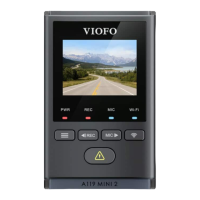
• Step 1: Use the phone to connect A119 Mini 2 Wi-Fi. When
the phone is connected with the dashcam, the LED light on
the camera shows solid blue.
• Step 2: Open VIOFO app and choose "Connect your
camera" to use your phone to control the dashcam.
• Step 3: Now you can see the live view of both cameras.
You can change the settings and check the files on the app.
Turn on the Wi-Fi in the menu or long press the [ ]
button. When the Wi-Fi is on, a Wi-Fi status icon, Wi-Fi name
(SSID) and the password appear on the camera LCD screen.
Connect to Smartphone
Android Device
IOS users can download the app from the App store.
IOS Device
Connect VIOFO APP
Review and Control on Smartphone
GET IT ON
Google Play
Download on the
App Store
16 17


 To Next Page