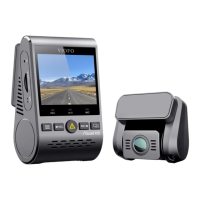
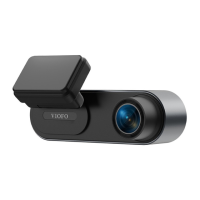
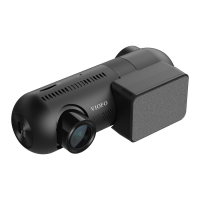
Video File Storage Location
Note: For your PC with a microSD slot, you can directly
insert the memory card into it.
Long press the Wi-Fi button to enable Wi-Fi. Connect
Wi-Fi on your phone first. Open VIOFO app and choose
"Connect your camera" to use your phone to control
the dashcam. You can play and manage files through
the APP. You can check the app introduction refer to
[ Review and Control on Smartphone ].
Playback Video on VIOFO APP
Playback Video on PC
1. Remove memory card from dashcam.
Before removing the memory card, make sure you have
switched off the Dashcam.
2. Insert the memory card into a microSD card adapter or
card reader connected to your PC.
3. Open the DCIM folder, using VLC or another video
player to playback the video.
Recording Mode Behavior
Loop Recording
( Including Motion Detection )
DCIM \ Movie
DCIM \ Movie\ RO
DCIM \ Movie \ Parking
Emergency Recording
( Locked Video )
Parking Recording
( Auto Event Detection /
Time-lapse Recording / Low
Bitrate Recording )
Snapshot
DCIM \ Photo
Files recorded by front camera and rear camera
are saved separately.
File Format Definition
2024_0920_112625_000001PF.MP4
2024_0920_112625_000002PR.MP4
Year Date Time
Sequence Number
F for the front camera
R for the rear camera
P for the video recorded
in the parking mode.
24
25
Via Memory Card
1. Remove the external SSD from dashcam.
2. Connect the SSD to your PC using the Type-C Data
Cable.
3. Open the DCIM folder, using VLC or another video
player to playback the video.
Via External SSD


 To Next Page