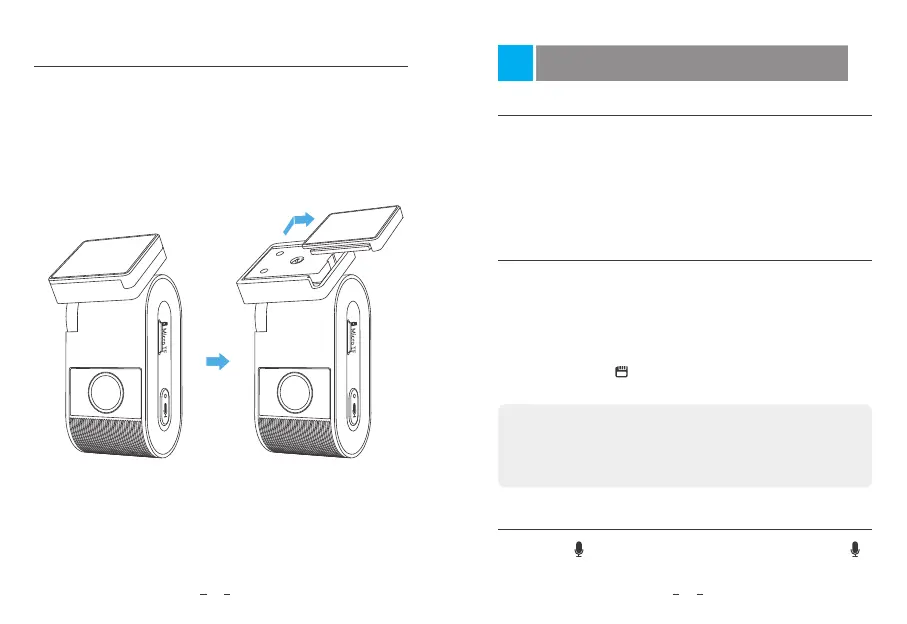
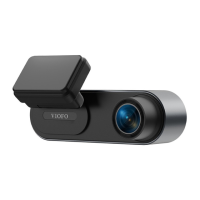
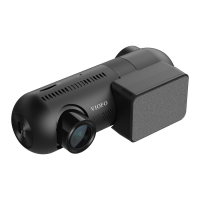
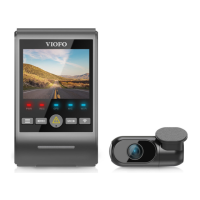
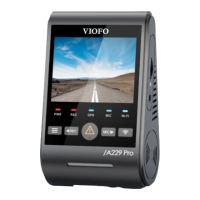
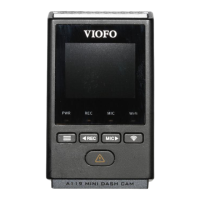
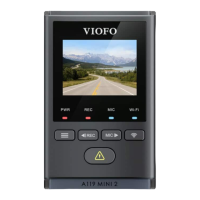
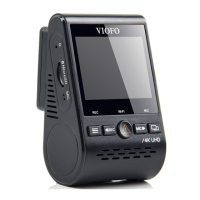
4. Remove the Dashcam
Remove the Dashcam
To remove the camera from its bracket, slide the camera to the right
and pull the camera out of the mounting bracket.
10
Disable / Enable Audio Recording
Pressing the [ ] button once to turn off / on audio recording, [ ]
LED light will be off / solid Red.
1. Insert a microSD card into the camera’s card slot and automatic
loop recording will begin once the camera detects power.
2. Time frame for each video file is 1 / 2 / 3 / 5 / 10 minutes.
3. When there is insufficient space on the microSD card, loop
recording will automatically overwrite the oldest files (one by one).
4. Loop recording files are saved to SD card: \ DCIM \ MOVIE folder.
Emergency Recording
1. Automatic emergency recording
When the G-sensor is activated and a collision occurs, current
footage will be locked automatically to avoid being overwritten by
loop recording.
2. Manual emergency recording
Short pressing the [ ] button during footage recording will lock
current footage to avoid being overwritten by loop recording.
Note:
The collision sensing feature can be adjusted in settings under the
“G-sensor” option via VIOFO App. Locked files are saved to SD
card: DCIM \ Movie \ RO
Dash Cam Recording Operation
Loop Recording
11


 To Next Page