Connect to Smartphone
The VIOFO app allows you to control your camera remotely by using
a smartphone. Features include full camera control, live preview,
playback and video recording.
Android Device
Android users can download the app from Google Play,
or download the APK directly from our official website:
https://viofo.com/en/content/13-app/
Connect VIOFO APP
Long press the [ ] button to turn on the Wi-Fi. Wi-Fi name (SSID)
of Wi-Fi is VIOFO_VS1_XXXX, Wi-Fi default password is 12345678.
When the Wi-Fi is on, Wi-Fi Status LED will be flashing red & blue
alternately.
• Step 1: Use the phone to connect VS1 Wi-Fi. When the phone is
connected with the dashcam, the LED light on the camera shows
solid blue.
• Step 2: Open VIOFO app and choose "Connect your camera"
to use your phone to control the dashcam.
• Step 3: Now you can see the live view of both cameras. You
can change the settings and check the files on the app.
Review and Control on Smartphone
Download on the
App Store
GET IT ON
Google Play
14
IOS Device
IOS users can download the
app from the App store.
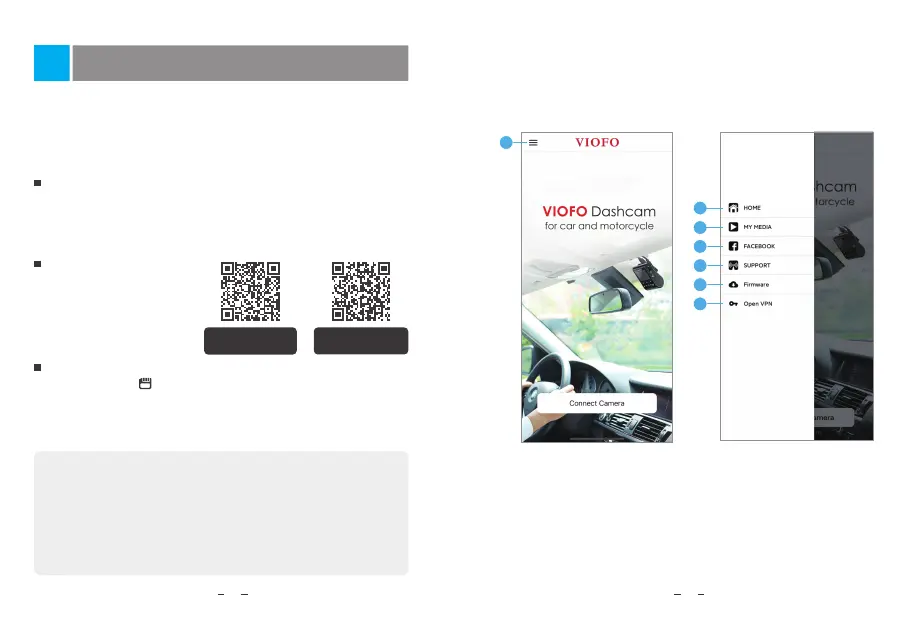
APP Layout Overview
Choosing "Connect your camera" to use your phone to control the
dashcam.
5 - Official Support
6 - Firmware Update
7 - VPN connection
1 - Menu
2 - Home Page
3 - Downloaded Video
4 - VIOFO Official Facebook Page
2
3
4
5
6
7
1
15


 To Next Page