Select Brightness from the Video Settings menu and press or to adjust the brightness so that:
• The darkest black bars disappear into the background.
• The dark grey areas are barely visible.
• The lighter grey areas are clearly visible.
• The white areas are a comfortable level of true white.
• The image contains only black, grey and white (no colour).
Contrast:
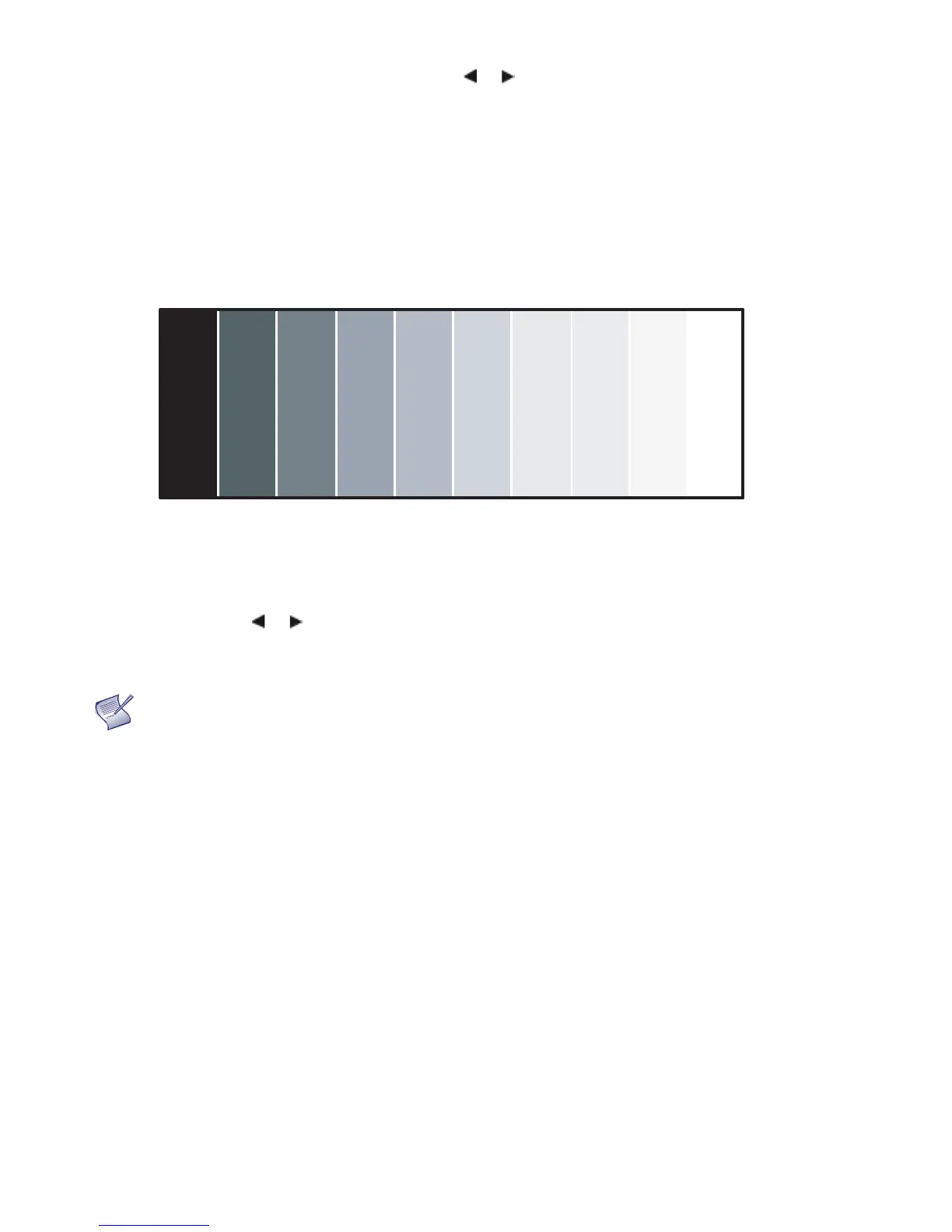
On your external test pattern source, select a stepped, grey-bar pattern like the one shown in Figure 4-3.
Figure 4-3. Typical Grey Bar Pattern for Adjusting Contrast
Select Contrast and press or to adjust the contrast to a point just below which the white rectangle starts to increase
in size.
NOTE
Brightness and contrast controls are interactive. A change to one may
require a subtle change to the other in order to achieve the optimum setting.


 To Next Page