30
Protecting video clips/images
You can protect video clips or images from accidental erasure by selecting the protection function in the Playback
menu. To protect an image or video follow the steps:
Protecting one video clip/image
2. Turn on your camera.
3. Press the playback/ pause button, then press the menu button.
4. Select Protect by using the or buttons, and press the button.
5. Use the or buttons to select ” One image” and then press the button.
To protect all images, select ”All images” in this step.
6. Select ”Lock” by using the or buttons and then press the
OK
button.
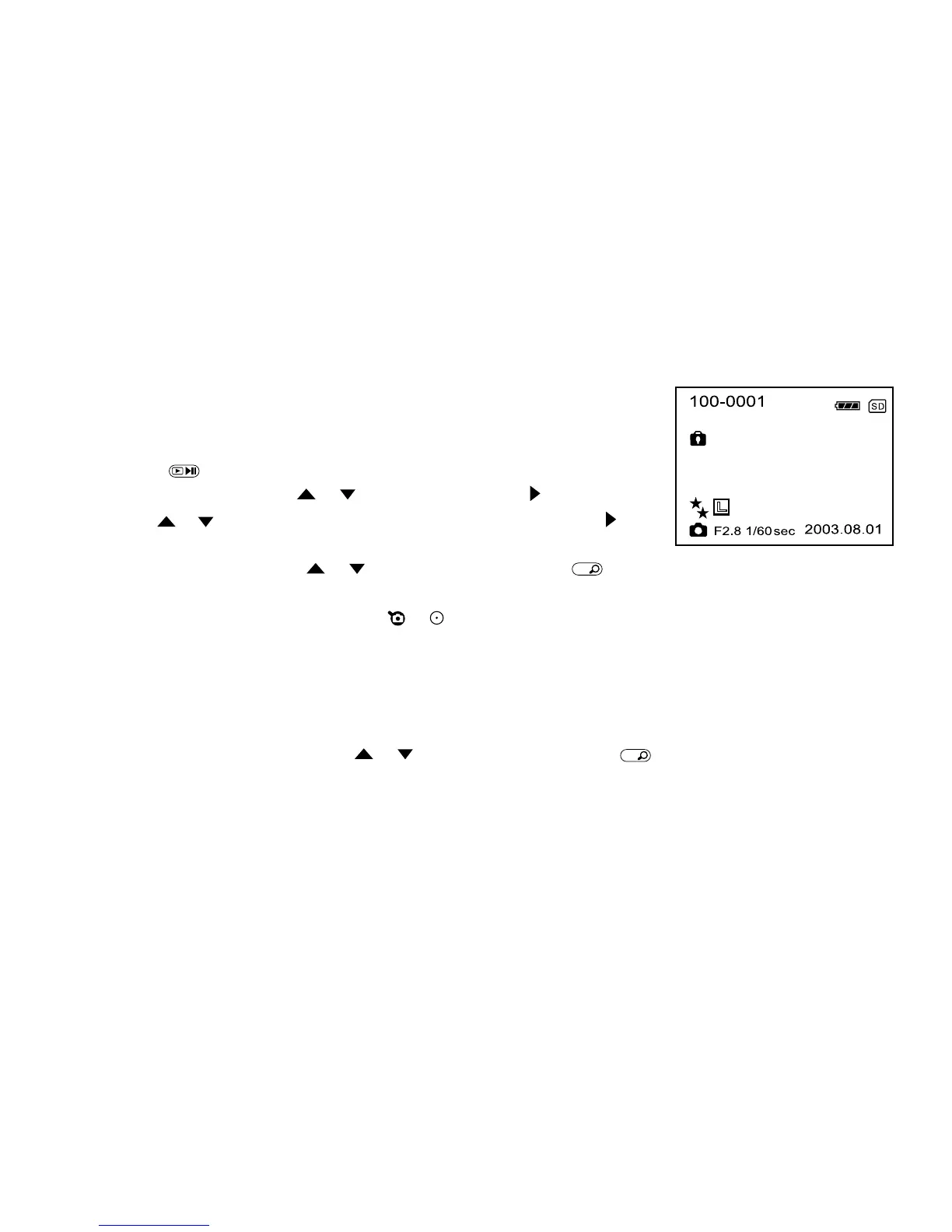
If a video clip/image is protected, the protection icon will appear on the protected clip or image
To exit the playback menu, press the or shutter/record buttons.
Removing protection from a video clip/image
1. Perform the steps above 1 to 4 in “ Protecting one video clip/image ”.
2. Select ” Unlock” by pressing the or buttons and then press the
OK
button to confirm.



 To Next Page