DATA FILER
116
6.3 TRANSPOSING THE KEY
This function allows the user to change the key of the song being played, or in other words to
transpose the notes being played on all the tracks (the MIDI channels) by a number of semitones
which can be set by the user, except for the drum kit track.
This track (normally number 10, called the DRUM TRACK) must not normally be transposed
as this may cause the playing of drum timbres different from those originally envisaged, which
might interfere with the beat of the musical backing.
As for the other REAL TIME ADJUST functions, pressing the [TRANSP.] key quickly activates
(LED on) and/or deactivates (LED off) the current transposition.
Naturally, with the LED of the [TRANSP.] button off, the song will be played in the original key
envisaged in the file.
6.3.1 TRANSPOSE SETUP
We have seen that the transposition can be activated by pressing the [TRANSP.] button quickly.
The TRANSPOSE SETUP function allows the user to set the number of semitones by
which the song will be transposed when this function is active.
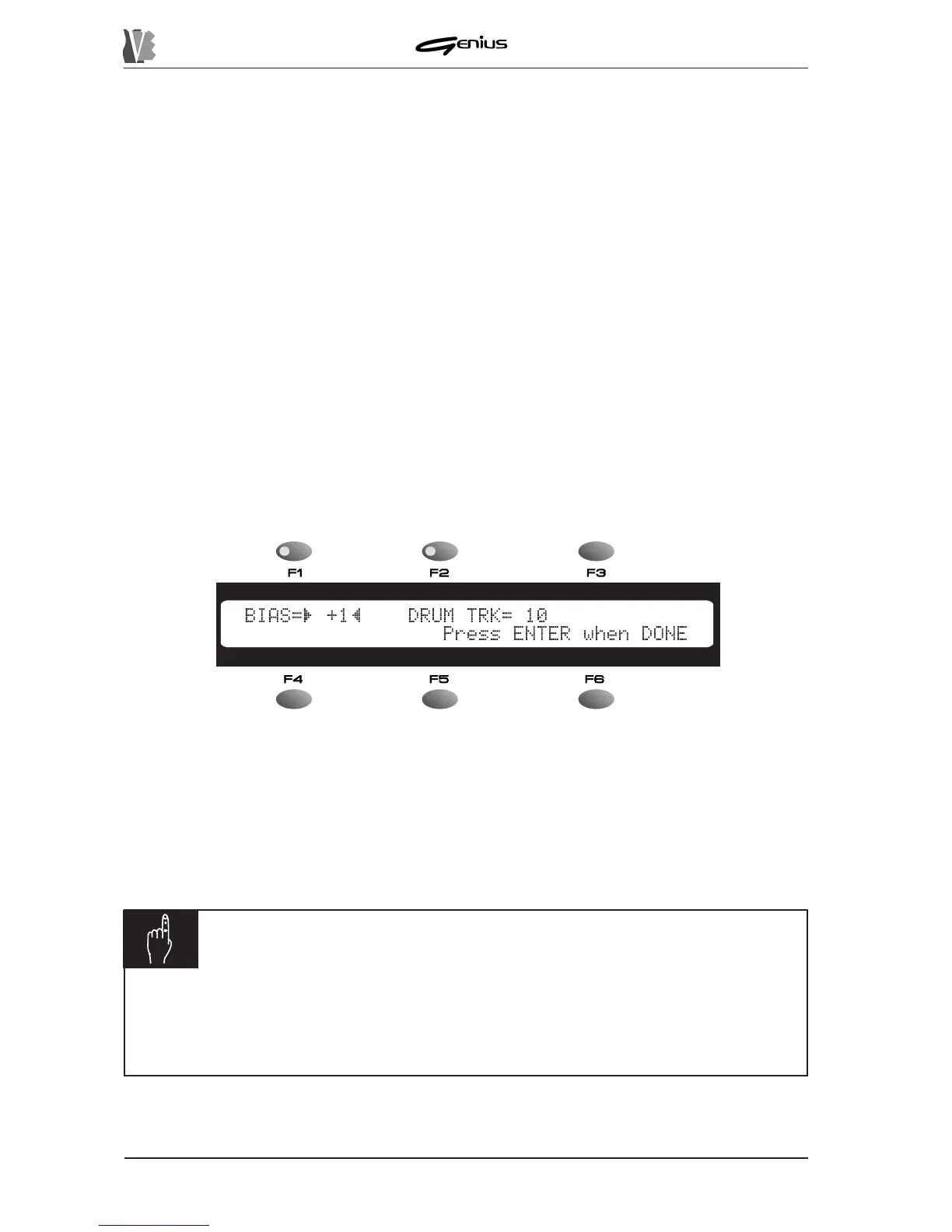
When the [TRANSP.] key of the REAL TIME ADJ. section is kept pressed for about two
seconds, the display will show:
The
BIAS
field next to the [F1] key sets the value of the transposition, when active, within a
range of ±12 semitones.
The
DRUM TR.
field sets which is to be the drum track, which will not be transposed. Users
are urged to take special care when assigning the DRUM TRACK.
Once the desired settings have been made, if [ENTER] is pressed they are accepted and
saved, and the display will again show the MAIN PAGE.
NOTE
ü
The chords eventually displayed with not be transposed.
ü
A parameter value BIAS=0 means there will be no transposition, even with the
function active.


 To Next Page