20
devices to a network and control each of them separately from one PC, connected to
the network by Ethernet or wirelessly.
NOTE: To configure a manual IP address when connected via Ethernet, on the main
window of Live Link, go to the top menu bar Hardware -> Configure -> Network
7.4 Starting Live Link
To open the Live Link software in Windows, find the icon either on the desktop and
double click. The program can also be found in the start menu -> Void -> Void DSP
Control, and through Windows Explorer.
To open the Live Link software in Mac OSX, find Void_DSPControl.app in the
applications folder in Finder, or in the applications folder in the dock.
7.5 Using Live Link
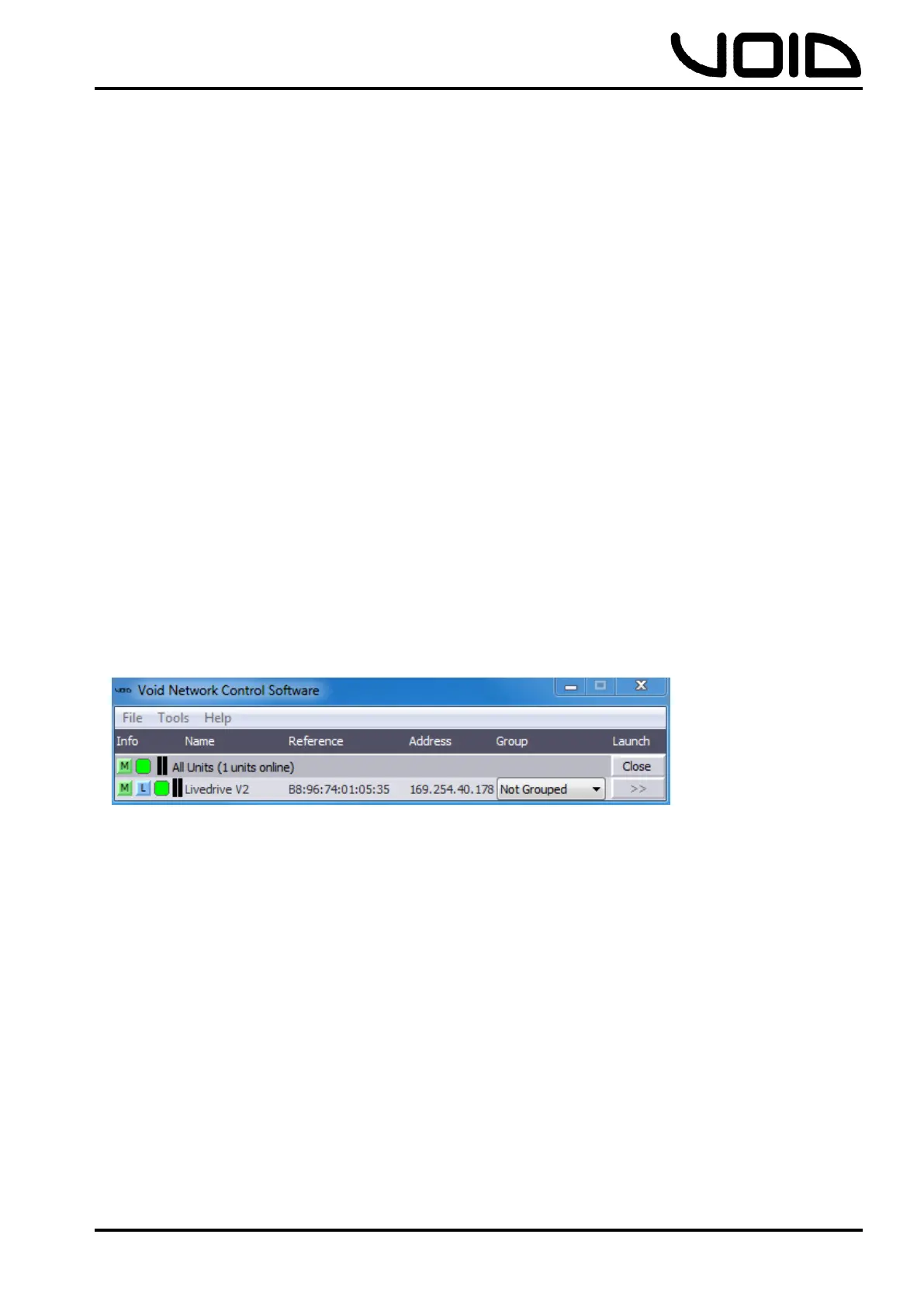
Once the software has opened, the Void Network Control Software window is shown.
If the Livedrive V2 is connected, ‘All Units (1 unit online)’ is shown, and beneath it
the Livedrive V2 and information, e.g. the reference/address. To access the
Livedrive V2’s main control window, press the ‘>>’ button.
7.6 Livedrive V2 Control Window
Within the main control window, there are 14 tabs to control the 4 inputs, 8 outputs,
crossovers and the main window.
Note: Any changes made to any parameters on Live Link whilst the Livedrive V2 is
connected will change the same parameter on the device. If the device is
disconnected and the changes weren’t stored, the data will be lost from the device.
7.6.1 Main
- A mixing window for all inputs/outputs, allowing the user to adjust the
level of inputs/outputs relative to one another from -48.00dB (mute) to
+12dB through the use of the faders. There are Mute buttons below
each fader which cut the corresponding channel (red when active), as


 To Next Page