CLIMATE
* Option/accessory.
230
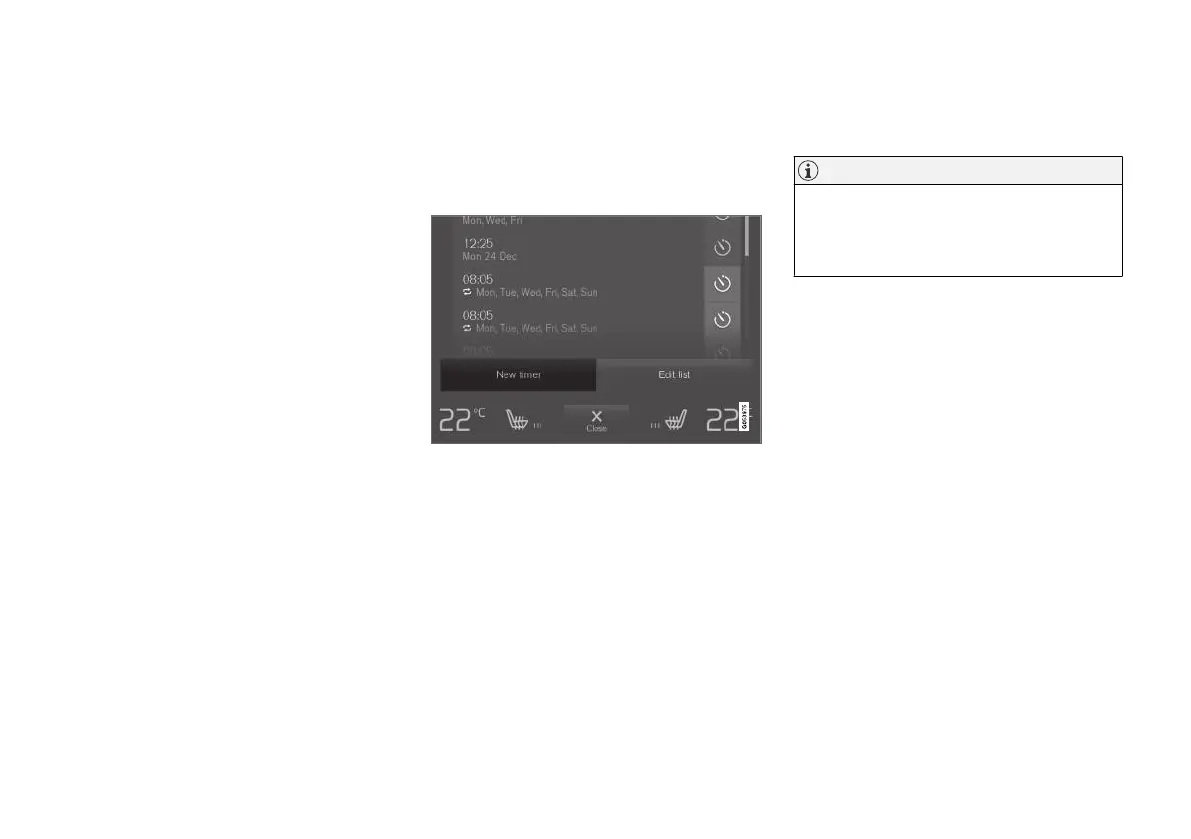
Preconditioning time setting*
The timer can be set so that the preconditioning
is finished at a predetermined time.
The timer can handle up to 8 different settings
for:
•
A time on a single date
•
A time on one or more days of the week, with
or without repetition.
Related information
•
Preconditioning* (p. 228)
•
Adding and editing time setting for precondi-
tioning* (p. 230)
•
Activating and deactivating time setting for
preconditioning* (p. 231)
•
Removing time setting for preconditioning*
(p. 232)
Adding and editing time setting for
preconditioning*
The timer for preconditioning can manage up to
8 time settings.
Adding a time setting
The button to add a time setting in the Parking climate
tab in the climate view.
1. Open the climate view in the centre display.
2.
Select the
Parking climate tab.
3.
Press
Add timer.
> A pop-up window is shown.
NOTE
It is not possible to add a time setting if there
already are 8 settings entered for the timer.
Delete a time setting in order to be able to
add a new one.
4.
Tap on
Date to set the time for a single date.
Tap on Days to set the time for one or more
days of the week.
With
Days: Activate/deactivate repetition by
ticking/unticking the box for Repeat
weekly.
5.
With
Date: Select the date for precondition-
ing by scrolling the date list with the arrows.
With
Days: Select the days of the week for
preconditioning by tapping on the buttons for
the days of the week.
6. Set the time when the preconditioning
should be finished by scrolling with the
arrows.
7.
Tap on
Confirm in order to add the time set-
ting.
> The time setting is added to the list and is
activated.



 To Next Page