Contents
Index
Contents Index
22
22
TES TING MUL TI -T OU CH
If you encounter problems with multi-touch:
1. Make sure the Cintiq is powered on.
2. Check the assigned touch functions or reset them to their default conditions.
3. Attempt to move the screen cursor by touching your finger in different places on the display screen
surface. Touch to select an item.
4. Open the Control Panel and click on the A
BOUT button. In the dialog box that appears, click DIAGNOSE...
The D
IAGNOSTICS dialog box shows dynamic information about the pen display and tools, and
appropriate information for touch-sensitive product models.
When you are done, click the C
LOSE button to exit the dialog box.
WORKING WITH MULTIPLE MONITORS
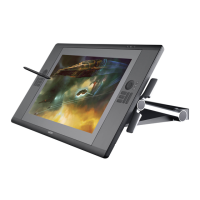
When working with Cintiq and additional monitors, the screen cursor movement on the monitors will
depend on your system configuration. Use the Windows 8 Control Panel to set your display preferences.
If a second monitor is connected in mirror mode, both the Cintiq and the other monitor will show identical
images and screen cursor movement.
There are two options for navigating on other monitors:
• Set a pen side switch or an ExpressKey to M
ODE TOGGLE. You can then quickly switch between pen
mode for working on the Cintiq and mouse mode for working on another monitor.
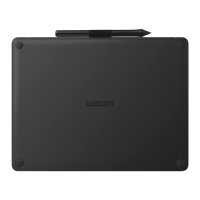
• You can also connect an Intuos Pro tablet and use it to work on the other monitors in pen mode. The
pen will work on both the Cintiq and the tablet.









 To Next Page