Contents
Index
Contents Index
24
24
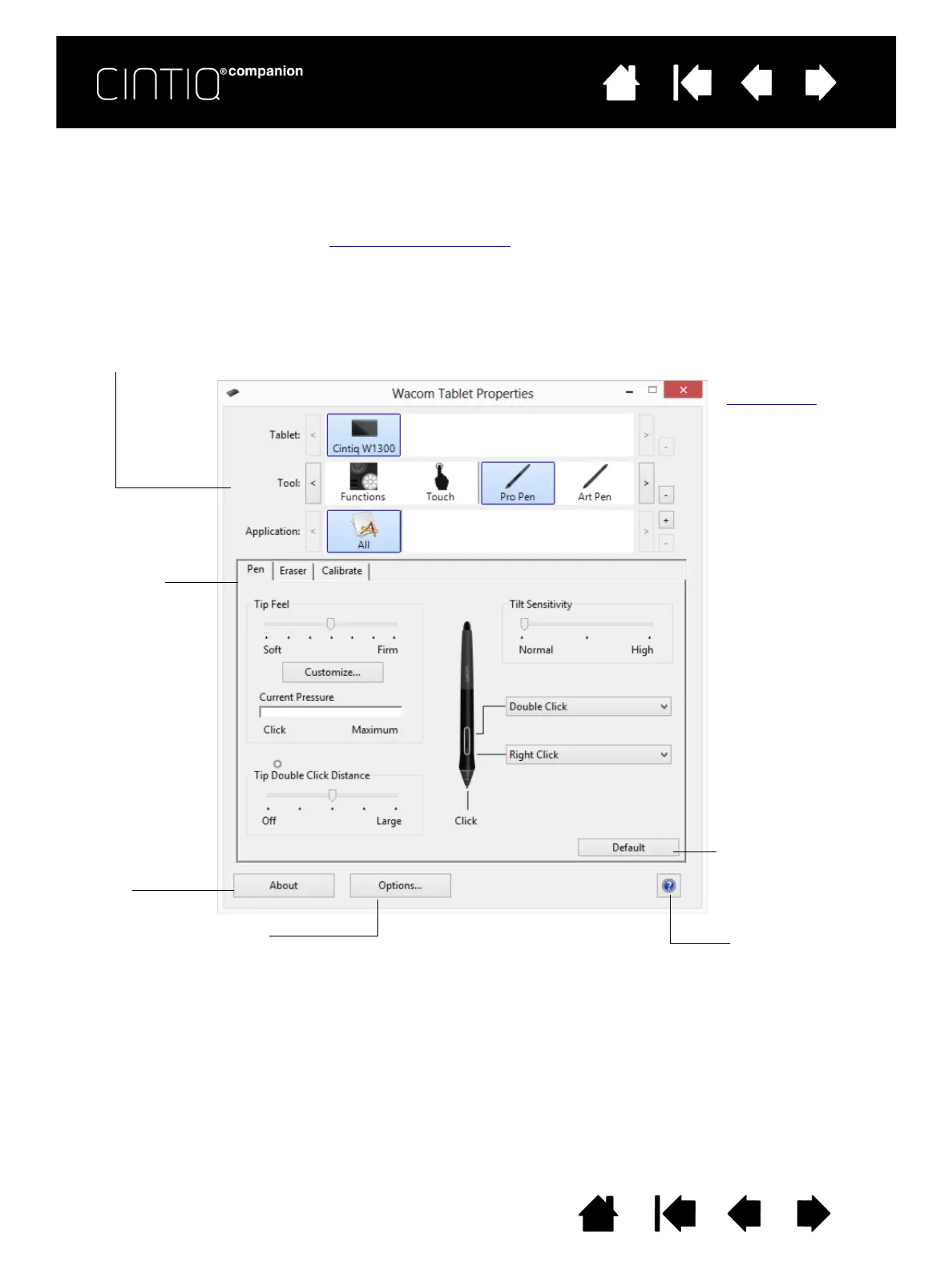
CONTROL PANEL OVERVIEW
You can use the Control Panel to customize your Cintiq and your pen. When you open the Control Panel,
an icon for the pen or other input tool is displayed in the T
OOL list. The appropriate tabs are displayed.
Open the Control Panel by clicking either the icon on the bottom of the Desktop screen, or the Control
Panel tile on the Start screen. See Control Panel overview
.
User-specific preferences are supported. After logging on, each user can customize their personal settings
in the Control Panel. Switching to another user will load the settings for that user.
Tabs display
customizable
settings for the
selected T
OOL
Displays
information dialog,
and option to
D
IAGNOSE... your
product.
Resets the selected
tab to its default
settings.
Icons represent your pen display (T
ABLET),
T
OOL, and APPLICATION settings.
Choose F
UNCTIONS to
customize the
ExpressKey and
Radial Menu
settings.
Choose P
RO PEN to
customize the pen
settings. The icon is
available after you
have used a pen on
the pen display.
Displays Advanced options Downloads or
displays this manual.









 To Next Page