functions, and more.
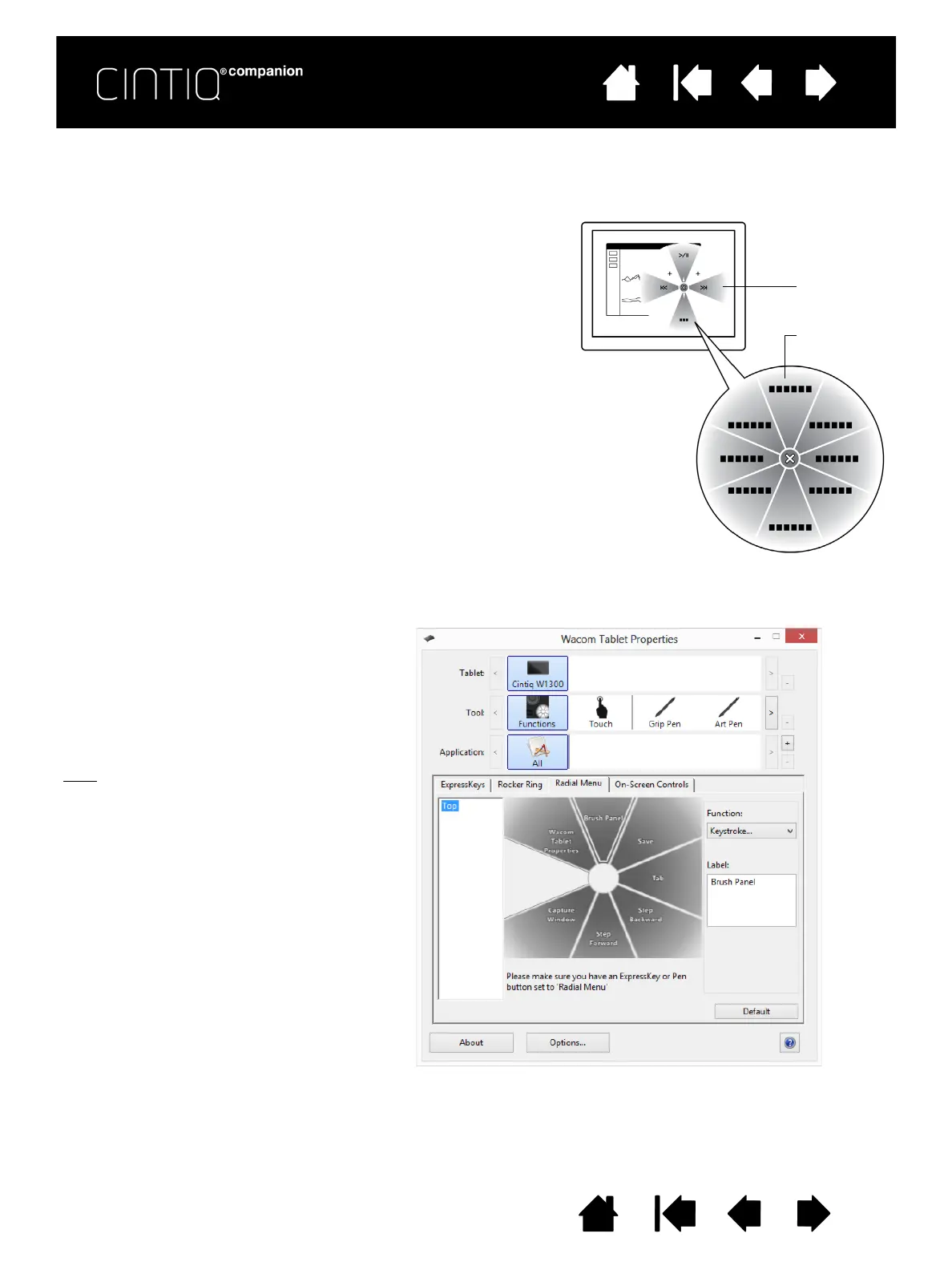
• Set a tool button or ExpressKey to the RADIAL MENU
function. Press the button to display the Radial Menu
centered at the screen cursor position.
• The hierarchical Radial Menu appears in circular format.
Each level of the menu consists of eight control slices
which may contain various features and options to choose
from.
• Click to select an option. Some selections may display a
submenu for additional options.
• The menu closes after you make a selection.
To close without making a selection, click on the ‘X’
located at the center of the Radial Menu or on a control
slice that has no function assigned to it. You can also
again press the button used to display the menu.
• To make a selection without closing the Radial Menu, hold
down the button that opens the Radial Menu.
In the Control Panel, use the R
ADIAL MENU tab to customize the available Radial Menu functions.
1. Select a control slice.
2. Assign a control F
UNCTION to the slice.
If desired, change the L
ABEL name.
3. Select a menu or submenu to further
customize.
Tips
:
•In the F
UNCTION menu, choose
S
UBMENU to create custom
submenus for a control slice.
• Press the E
NTER (RETURN) key to
add multiple lines of L
ABEL text.
Top me nu
Submenu










 To Next Page