Contents
Index
Contents Index
23
23
CUSTOMIZING YOUR CINTIQ
You can customize your Cintiq and adjust input tool settings through the Control Panel. You can access the
Control Panel from the task bar on the standard desktop, or from a tile on the Windows 8 Start screen.
Advanced users can learn how to further optimize the Cintiq by creating Application-specific settings
.
Customizing your Cintiq
Control Panel overview
Calibrating the Cintiq
Customizing the pen
Customizing the ExpressKeys and Rocker Ring
Button functions
Using and customizing the Radial Menu
Application-specific settings
Working with multiple tools
Renaming the tablet in the tablet list
SETTINGS AND EXPRESS VIEW
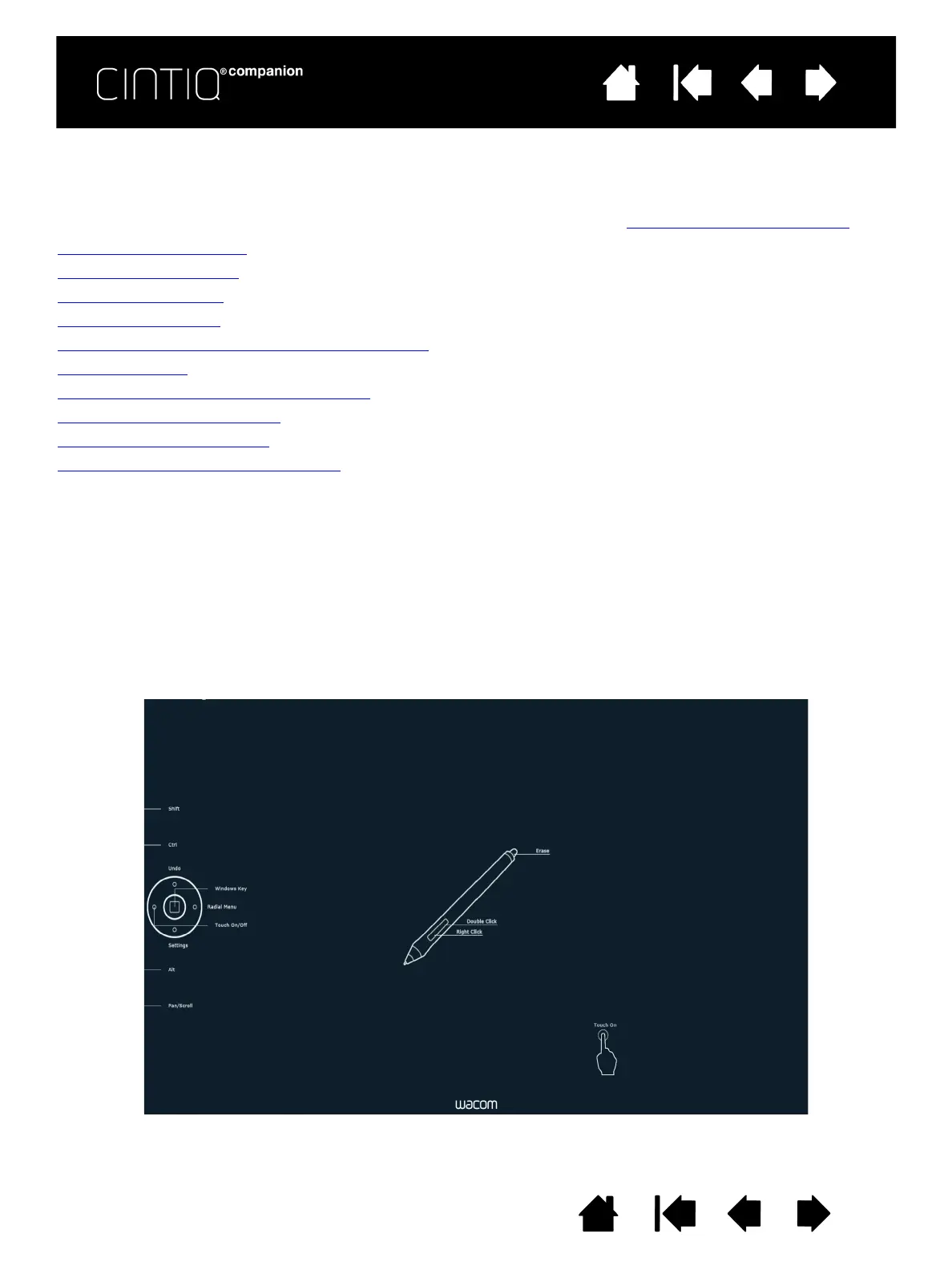
Select the Show Express View checkbox on the ExpressKeys tab of the Control Panel to display Express
View, which allows you to see the setting for any ExpressKey or Rocker Ring position, and will display an
icon that indicates whether Touch is On or Off.
You can assign the Settings function to an ExpressKey or Rocker Ring position. When you click that key or
position, Express View will appear. You can then click any item on the diagram to open the Control Panel
and change the setting. The Express View display closes approximately 1 second after you release the
ExpressKey.
Enable Express View by clicking the S
HOW EXPRESS VIEW checkbox on the ExpressKeys or Rocker Ring tab
of the Control Panel. Turn off this feature by deselecting the checkbox
.









 To Next Page