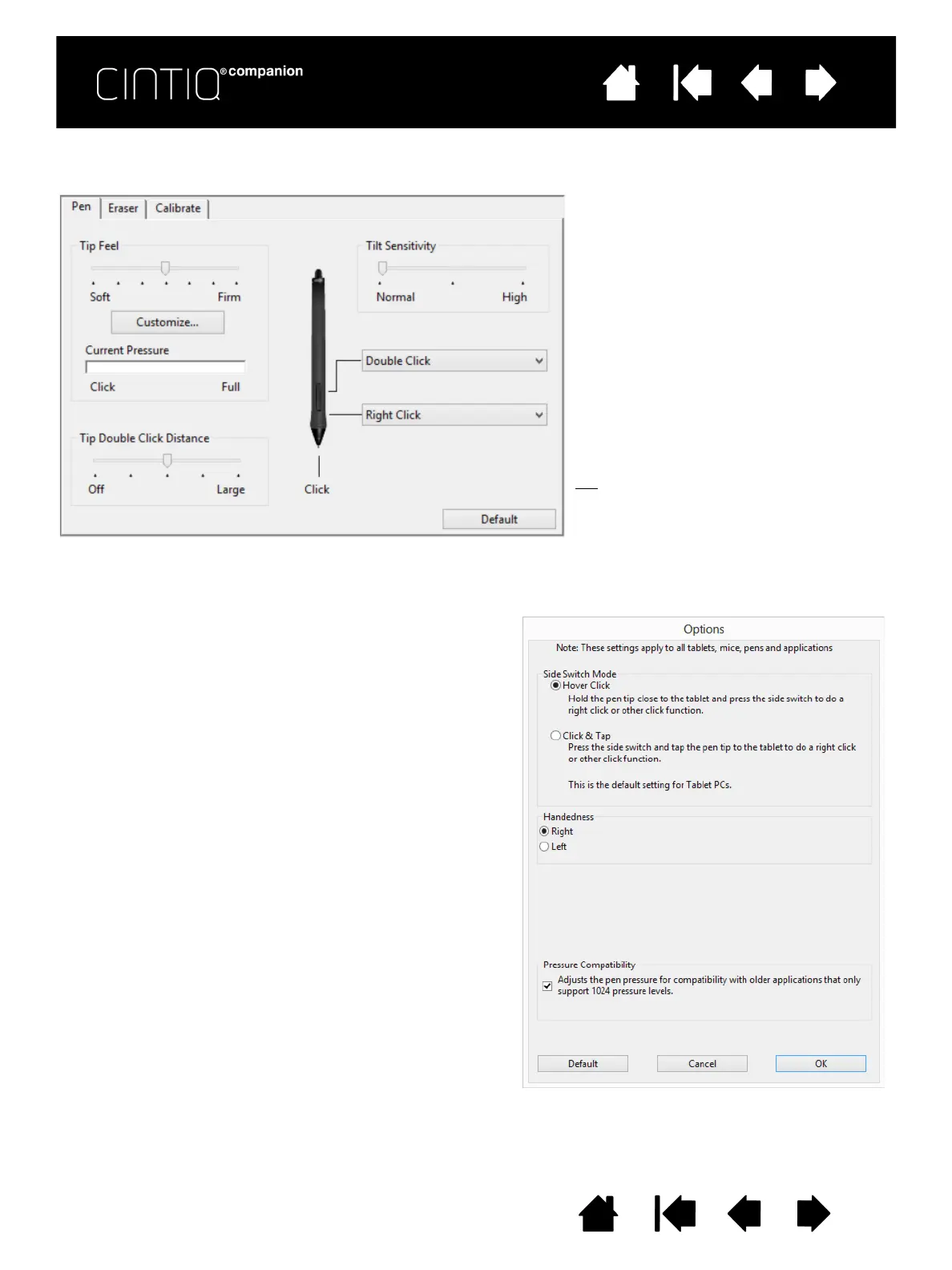
Double-click here to change the function assigned to the
pen tip. The tip must be set to C
LICK in order to draw in
most graphics applications.
You can change the S
IDE SWITCH MODE to fit the way you
like the pen to work when using click functions.
To access the S
IDE SWITCH MODE settings, click on the
O
PTIONS... button at the bottom of the Control Panel. In
the O
PTIONS dialog box:
•Select H
OVER CLICK to perform click functions
without touching the pen tip to the Cintiq’s screen
surface.
•Select C
LICK & TAP and press the side switch while
touching the pen tip to the pen screen surface in
order to perform a click function. C
LICK & TAP
enables the precise placement of your click
functions, and is the default setting for Tablet PCs.
•Choose
RIGHT or LEFT for either right-handed or
left-handed use. You can also change this setting
from the Wacom Desktop Center.
• Check the Pressure Compatibility box as needed for
use with older applications that support only 1024
pressure levels.
When you bring the pen tip within 5
mm (0.20 inch) of the screen surface
without touching the screen and press
the upper or lower side switch, the
selected function occurs.
Tip
: To make double-clicking easier,
set the side switch to
double-click automatically by
selecting D
OUBLE CLICK.
Drag to increase or decrease T
ILT
S
ENSITIVITY. Test the new setting in an
application that supports tilt.
The tilt setting applies to both the tip and
eraser. Tilt is direction-sensitive, and can
be used in some applications to control
brush orientation or other characteristics.









 To Next Page