Customize user options
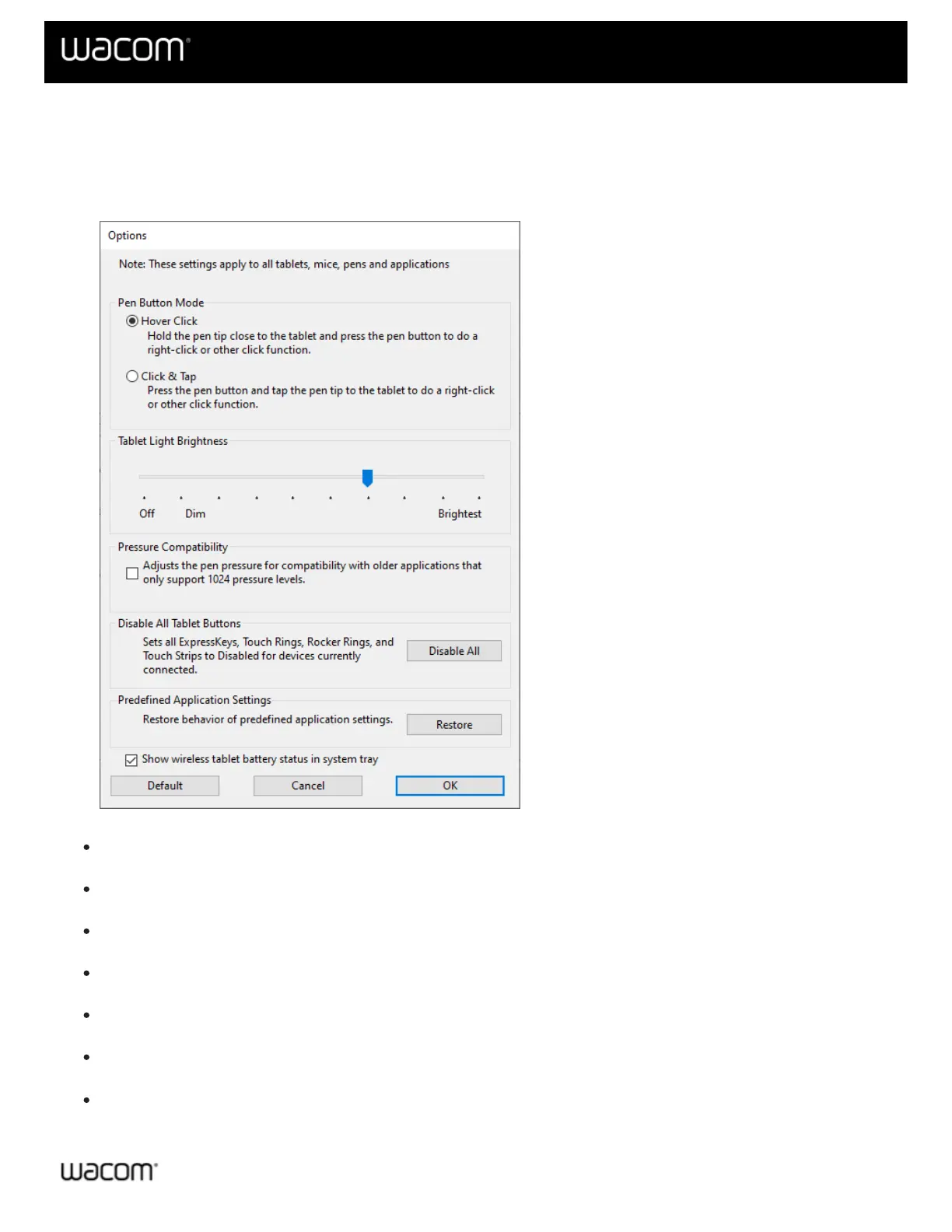
Click on Options in Wacom Tablet Properties to customize pen button mode and other preferences for your device.
Note: The available options listed below will vary, depending on your device.
The above screenshot is for descriptive purposes; it may not match your screen.
Hover Click: The default which allows you to click by pressing the pen button while holding the pen tip slightly
above the device surface.
Click & Tap: Select this option if you want to click by pressing the pen button and then tapping the pen tip to
the device surface. This option allows for a more precise placement of pen clicks.
Tablet Light Brightness: If this applies to your device, move the slider to adjust the brightness level or to turn
off status LEDs and active area markers.
Pressure Compatibility: Select this option if the applications you are working with only support 1024 pen
pressure levels.
Disable All Tablet Buttons: Click this button to disable all ExpressKeys™, Touch Rings, Rocker Rings, and
Touch Strips.
Predefined Application Settings: Enabled only if you deleted automatically-assigned settings for an
application. Click the Restore button to restore the settings assigned by the application.
Show wireless tablet battery: Select if you want to display the battery status icon in your system tray during
wireless operation. Only applies to devices that support wireless.









 To Next Page