Customize your pen functions
Customize your pen functions by assigning settings to pen buttons, adjusting the pen tip feel and pressure, and
selecting how you perform a right-click.
Note: Some pens do not have buttons or an eraser.
Assign settings to the pen button and pen tip
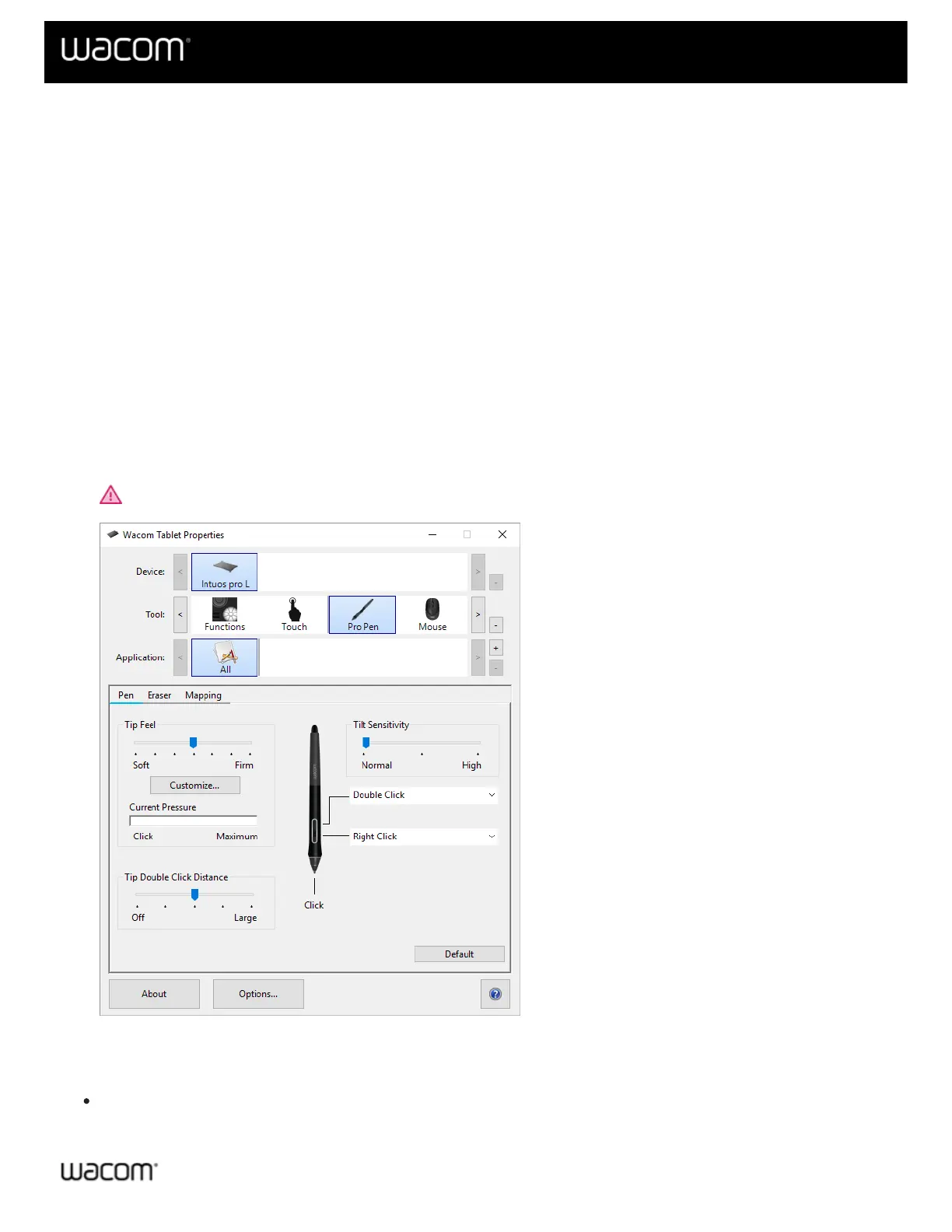
1. Open Wacom Tablet Properties.
Note: The options available in Wacom Tablet Properties will vary depending on your device.
2. If there is a Tool row, select your pen.
3. Select the Pen tab.
4. For each of the pen buttons, select the setting you want from the drop-down menu next to the pen.
5. For the pen tip, double-click the pen tip in the image to display a drop-down menu. Then, select a setting for
the pen to perform when you tap the tablet surface with it.
Warning: The tip must be set to Click in order to draw for most graphics applications.
The above screenshot is for descriptive purposes; it may not match your screen.
Customize other pen properties
Tip Double Click Distance: To change the distance between your pen and the tablet surface during a
double-click, move the slider.









 To Next Page