Test the pen
If your pen does not work properly, try these fixes first.
Note: The available features on your pen may vary depending on your device.
1. In the Wacom Desktop Center main menu, click Support and then Driver check to evaluate driver function
and run simple troubleshooting, if necessary.
2. Go to the Pen tab in Wacom Tablet Properties and check that the settings assigned to the pen tip and pen
buttons are what you expect.
3. If the assigned settings are as expected, restart your computer.
4. If restarting does not fix the issue, update your driver software.
5. If a driver update does not fix the issue, use the diagnose feature in Wacom Tablet Properties, as described
below.
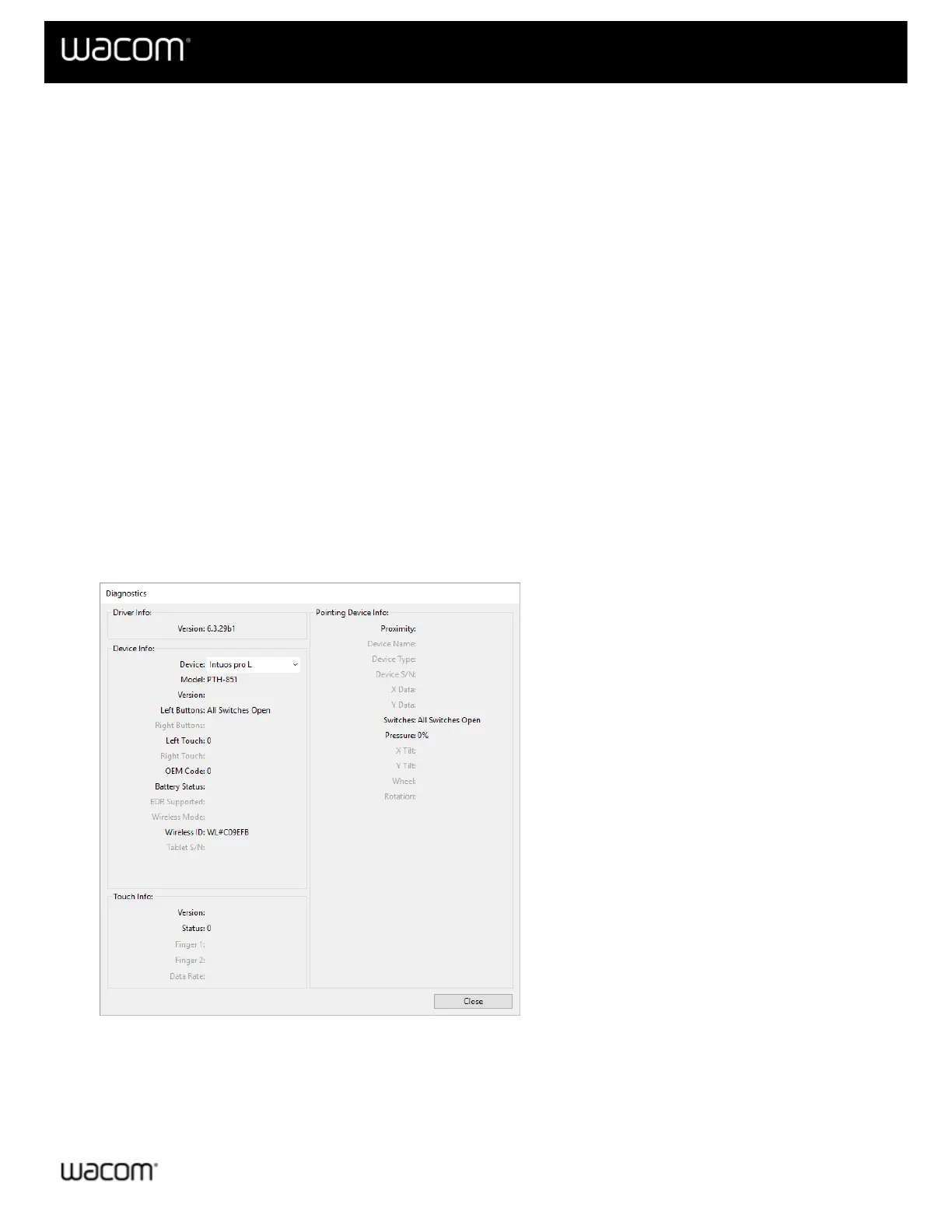
Diagnose issues using Wacom Tablet Properties
1. Open Wacom Tablet Properties.
2. If you have more than one device connected to your system, select the device you are using the pen with from
the Device list.
3. Click About.
4. Click Diagnose.
The above screenshot is for descriptive purposes; it may not match your screen.
5. Hold your pen within 10 mm (0.4 inch) of the surface of the device while watching the Pointing Device Info.
You should see a value appear after Proximity, Device Name, Device Type, and Device S/N (serial
number).
6. Move the pen along the surface of the device. As you move the pen, the X Data and Y Data values should









 To Next Page