Owner’s Manual 29
Wanco® Metro™ Message Sign
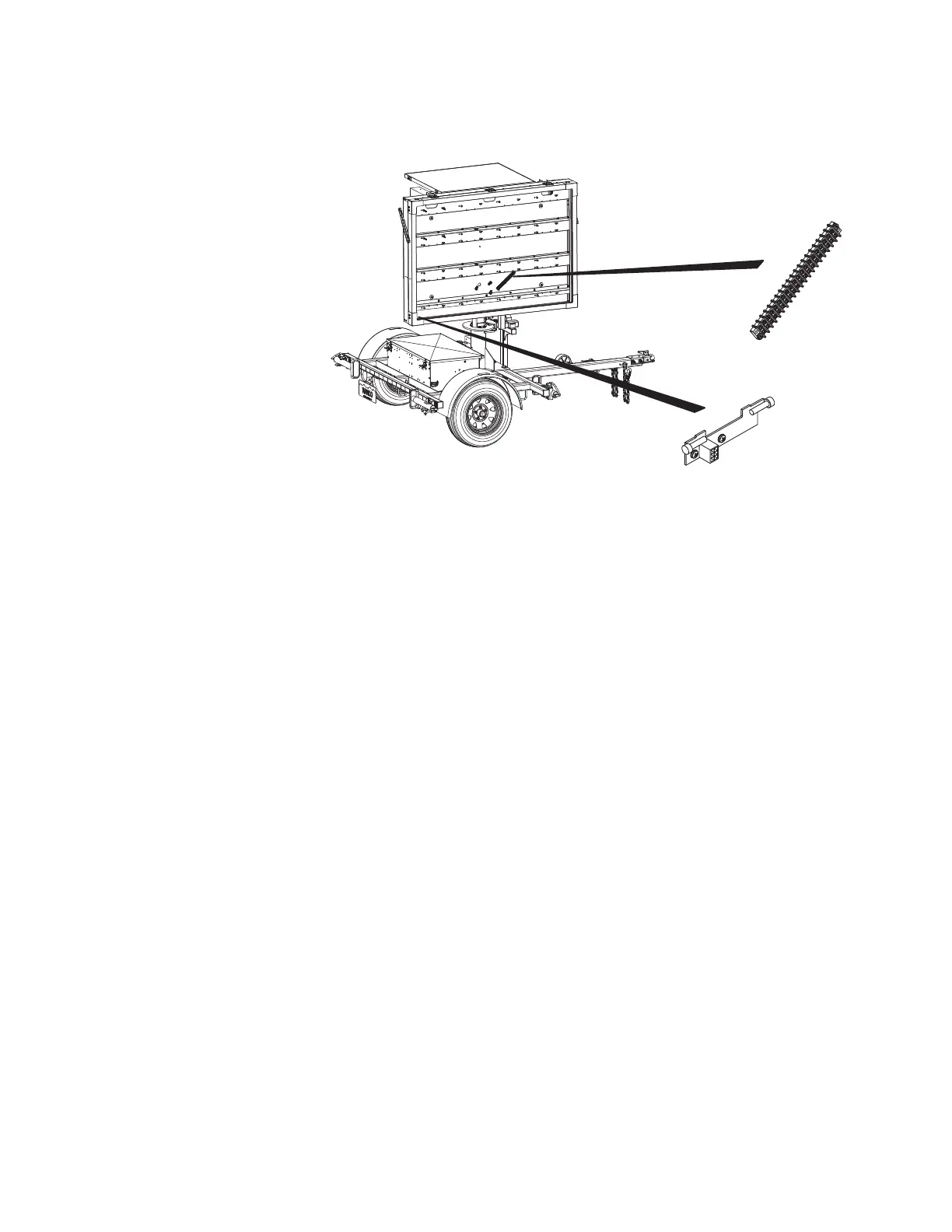
Figure 5-2. Photocells and main terminal strip
4. If either the front or rear photocell appears to be dirty or otherwise obstructed, clear it
or use a soft, damp cloth to clean the photocell or photocell cover. For the front
photocell, clean the display cabinet window if necessary (see Section 6.2.1, page 38).
5. Use the controller to view values for P1 and P2 (illumination detected by the
photocells).
6. Choose one of the photocells and test it as follows:
a. While watching the controller screen, block all light from the photocell by holding
a thick rag, work gloves, or any opaque object over it. Do not use your hands or a
piece of paper to block the light.
b. With light blocked from reaching the photocell, the value shown for that photocell
on the controller screen should be at or near zero (indicating no light and full
dimming of the display).
c. While watching the controller screen, shine a flashlight at the photocell.
d. With light shining directly into the photocell, the value shown for that photocell on
the controller screen should be at or near 100 (indicating bright light and full
brightness of the display).
7. Repeat Step 6 for the other photocell.
8. If, when performing the previous steps, the values shown on the controller screen do
not indicate full dimming and full brightness, then the photocell may be damaged or
defective. To replace the photocells:
a. Use the controller to “blank” the message sign.
b. With the display cabinet door open, access the circuit board on which the
photocells are mounted.
Photocells on
sensor board
Main terminal
strip



 To Next Page