76 CHAPTER 7 LANES & STOP BARS
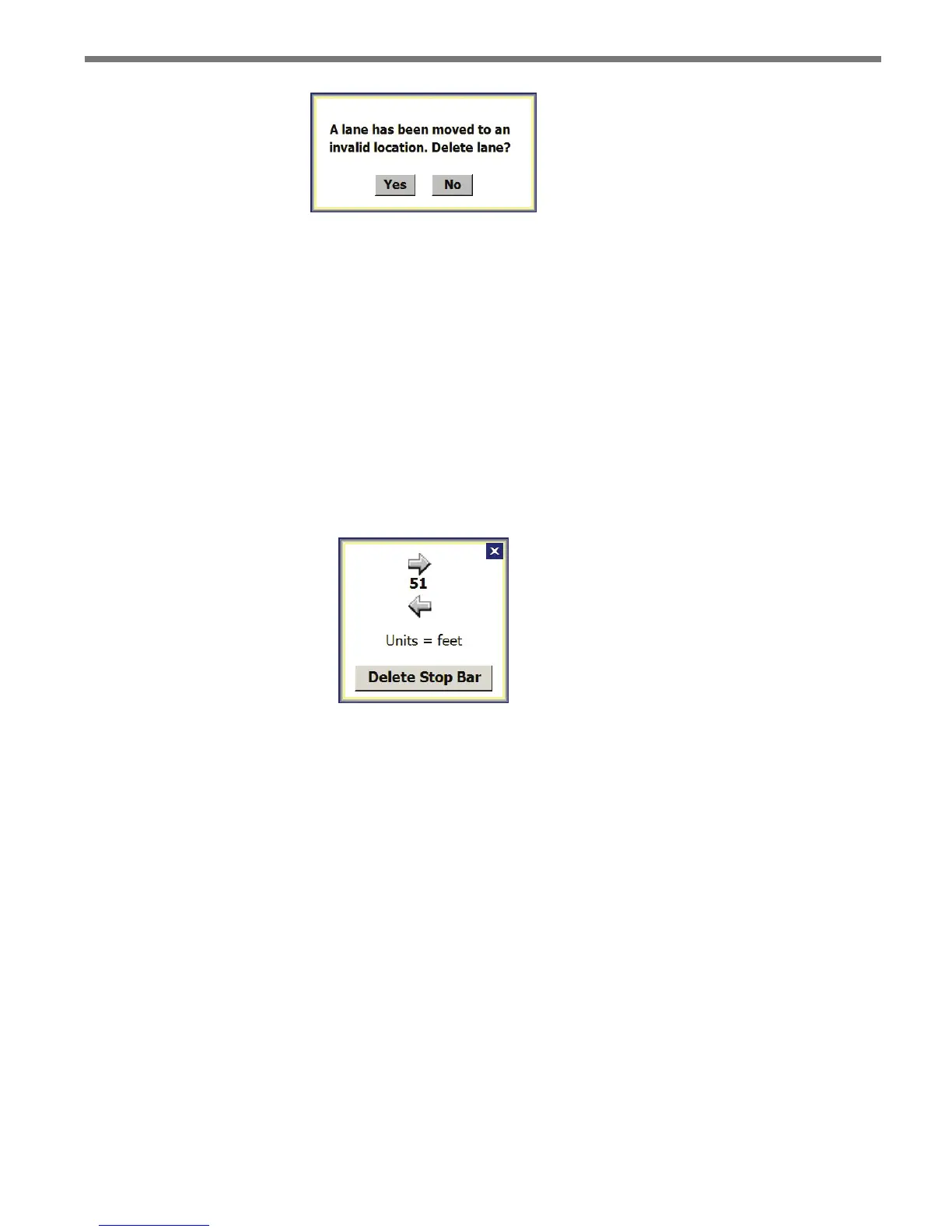
Figure 7.15 – Moving Lane Outside Edit Area
Inserting/Deleting/Moving a Stop Bar
To insert a lane stop bar:
1 Select a lane in the edit area.
2 Click on the selected lane again to bring up the Edit Lane window (see Figure 7.14).
3 Click on the Insert Stop Bar option of the Edit Lane window.
To delete a lane stop bar:
1 Select a lane in the edit area.
2 Click on the Delete Stop Bar option of the Delete Stop Bar window (see Figure 7.16).
Figure 7.16 – Deleting a Stop Bar
Additionally, you can click and drag or click on the arrows to move the stop bar in the
desired direction. e number between the arrows indicates the distance in feet from the
lane’s end node.
Inserting/Deleting a Lane Node
A lane node is a point, placed within a lane, that can be used to adjust a lane by moving its
trajectory, adding turns or corners, or widening part or all of a lane. Each lane starts out
with two nodes, one on each end. More can be added as needed.
To insert a lane node:
1 Select a lane in the edit area.
2 Click on the selected lane in the vicinity of the desired node to bring up the Edit Lane
window (see Figure 7.14).
3 Click on the Insert Node option. A lane can have a maximum of six nodes.



 To Next Page