______________
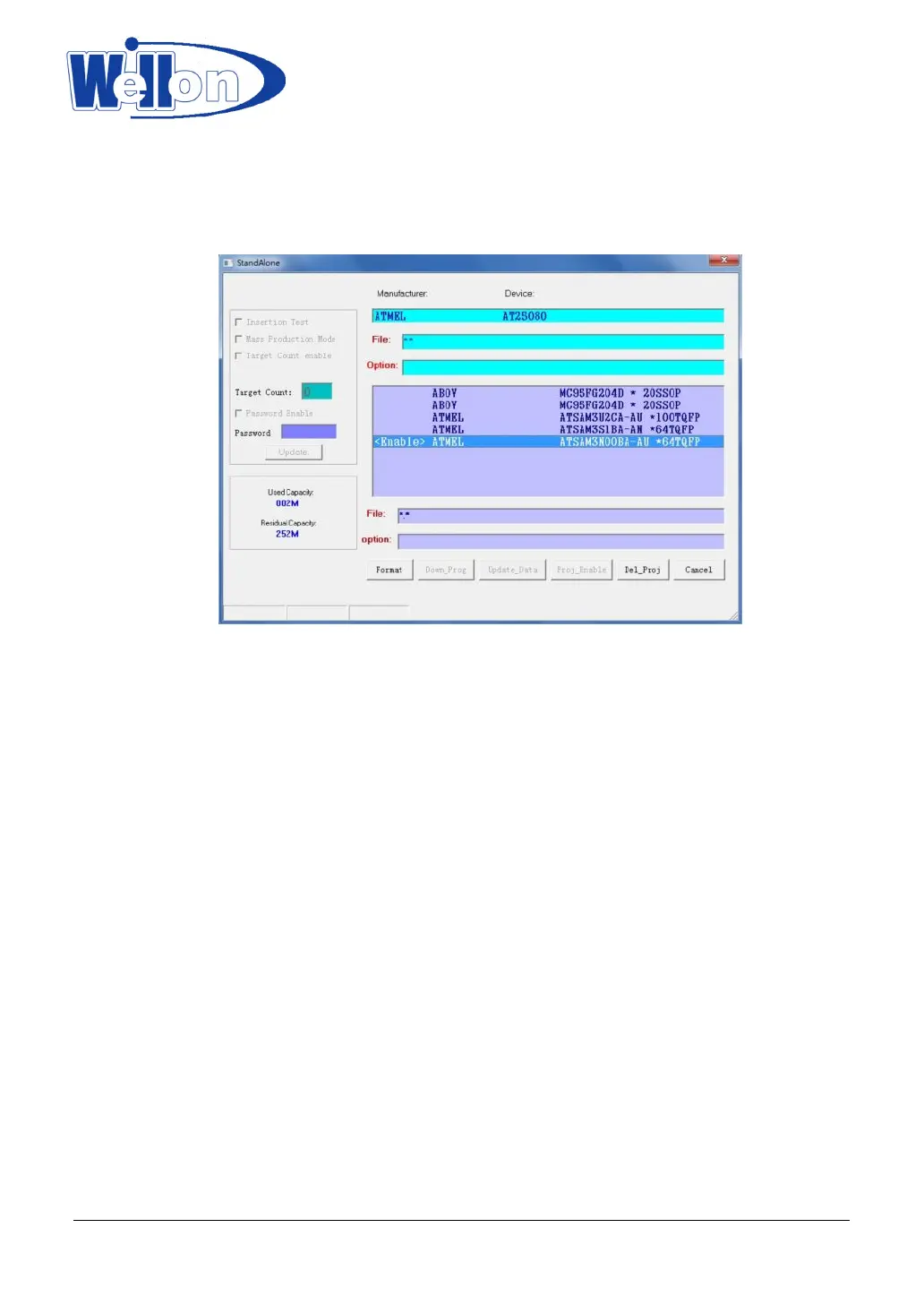
User can manage the projects that are stored in the programmer at “StandAlone” dialog. All projects will
be displayed in that dialog. One programmer can store 64 projects at most. When use the mouse to select
one project at the dialog, the properties and the name of this project will be displayed and the user can
operate this project now.
(1) Project Enable
One programmer can store many projects, but only one project’s data can be used to program chips.
So the user must to enable one project, in order to let the programmer use this project’s data. To enable
one project, first, select this project. Next, click the “Proj_enable” button. This project will be enabled. If
one project is protected by password, “Proj_enable” button will be gray. At this time, this button cannot
be clicked. Users must to enable this kind of projects in Stand_alone mode of the programmer. To get
more information about the Stand_alone mode, please see related section below.
(2) Update Project’s data
When the device type selected in “Select” dialog is the same as the device type of the project which
is selected by user in “StandAlone” dialog, the “Update_Data” button can be clicked in “StandAlone”
dialog. After clicking this button, the data in WELLON software’s buffer will be updated the previous data
of this project.
(3) Update Project’s Properties
If the target count of the selected project is not zero and the project is not protected by password,
users can change the target count or input a password in “StandAlone” dialog. Then, click the “Update”
button under the password edit box, the new properties of this project will be updated.
(4) Delete project
To delete a project from the programmer, select this project in “StandAlone” dialog first. Then, click
the “Del_Proj” button. Whole data of this project will be deleted from the programmer.
9.1.5 Programmer Format
Tianjin Weilei Techonlogy Ltd.
www.weilei.com TEL:022-83945122
FAX:022-83945121 2018-03-08



 To Next Page