WiDRIVE DX-325 User’s Guide
Copyright © 2010 EDSLAB Tech. Inc.
11
4 WiDRIVE Web Control
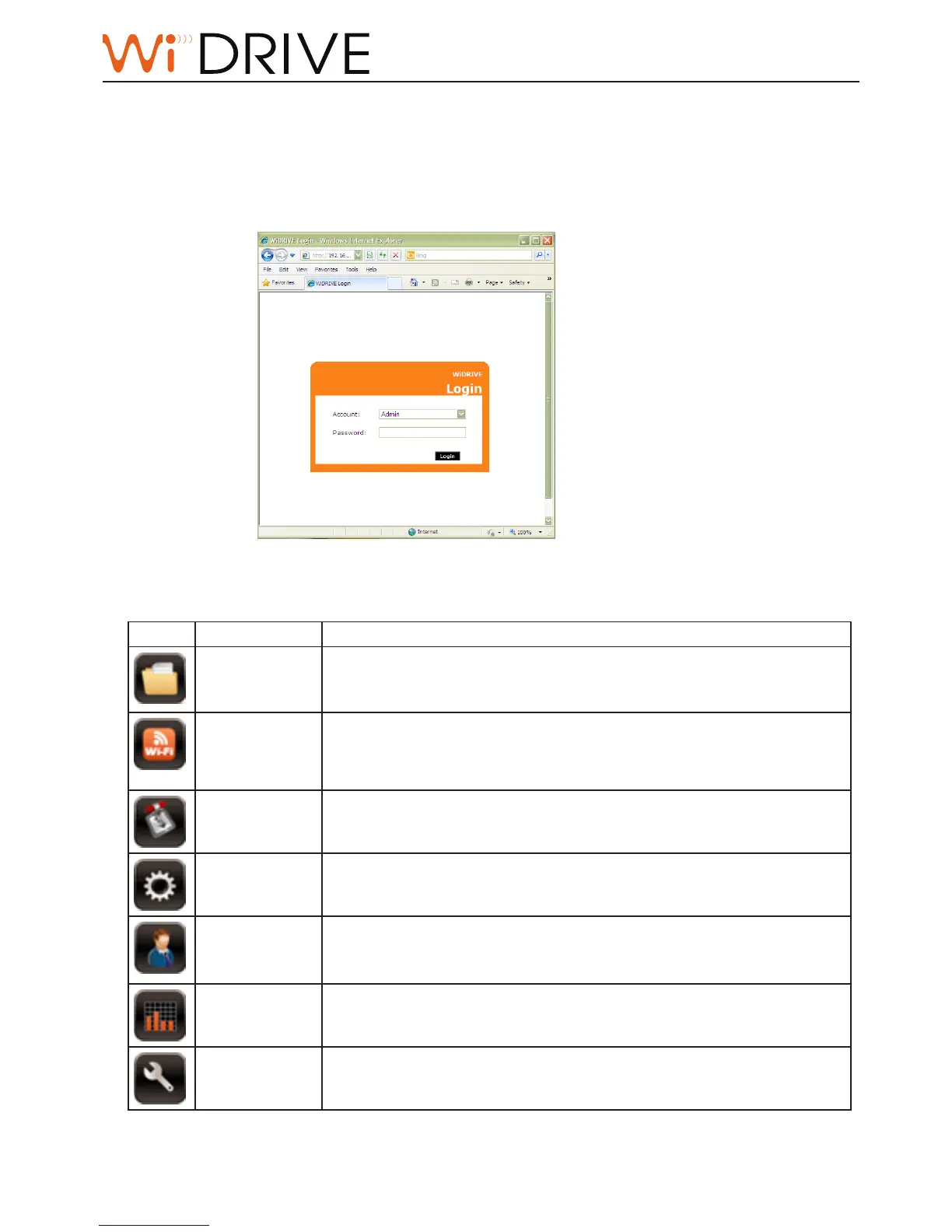
Login
Open web browser with WiDRIVE IP address (default: hp://192.168.2.1) to enter WiDRIVE login page.
Enter your account and password to login WiDRIVE Web Control.
Overview of WiDRIVE Web Control
When you log in as “Admin“, you will see a series of navigaon links:
Icon Go to page Descripon
“My Folder”
My Folder is an ideal data center of your network.
You can easily share les by upload them to WiDRIVE, and manage them
(move, delete, rename, etc.) in My Folder.
“Quick
Connecon”
You can quickly connect your WiDRIVE with a wireless signal in Quick
Connecon page.
Note!
Quick Connecon only available in Client Scan mode.
“BitTorrent”
You can upload the torrent seed, and performs PC-less BitTorrent
download in BitTorrent page.
“System Seng”
You can set network conguraons in both AP mode and Client Scan
mode in System Seng page.
“Account Seng”
• Modify admin account and password.
• Add, delete, modify user account and password.
• DDNS seng.
“System Status”
System Status displays runme status of your WiDRIVE.
“Maintenance”
Upgrade rmware, reboot, shut down, factory reset, and format HDD on
your WiDRIVE.
Note!
Default account and password
Account: Admin
Password: admin



 To Next Page