www.williamspianos.com
Digital Piano Users Manual
’
9
1. When the piano is turned on, the harmony
function is in the off status, press the HARMONY
button once, then the word OFF will appear in the
display.
Harmony
2. When OFF is showing in the display, press
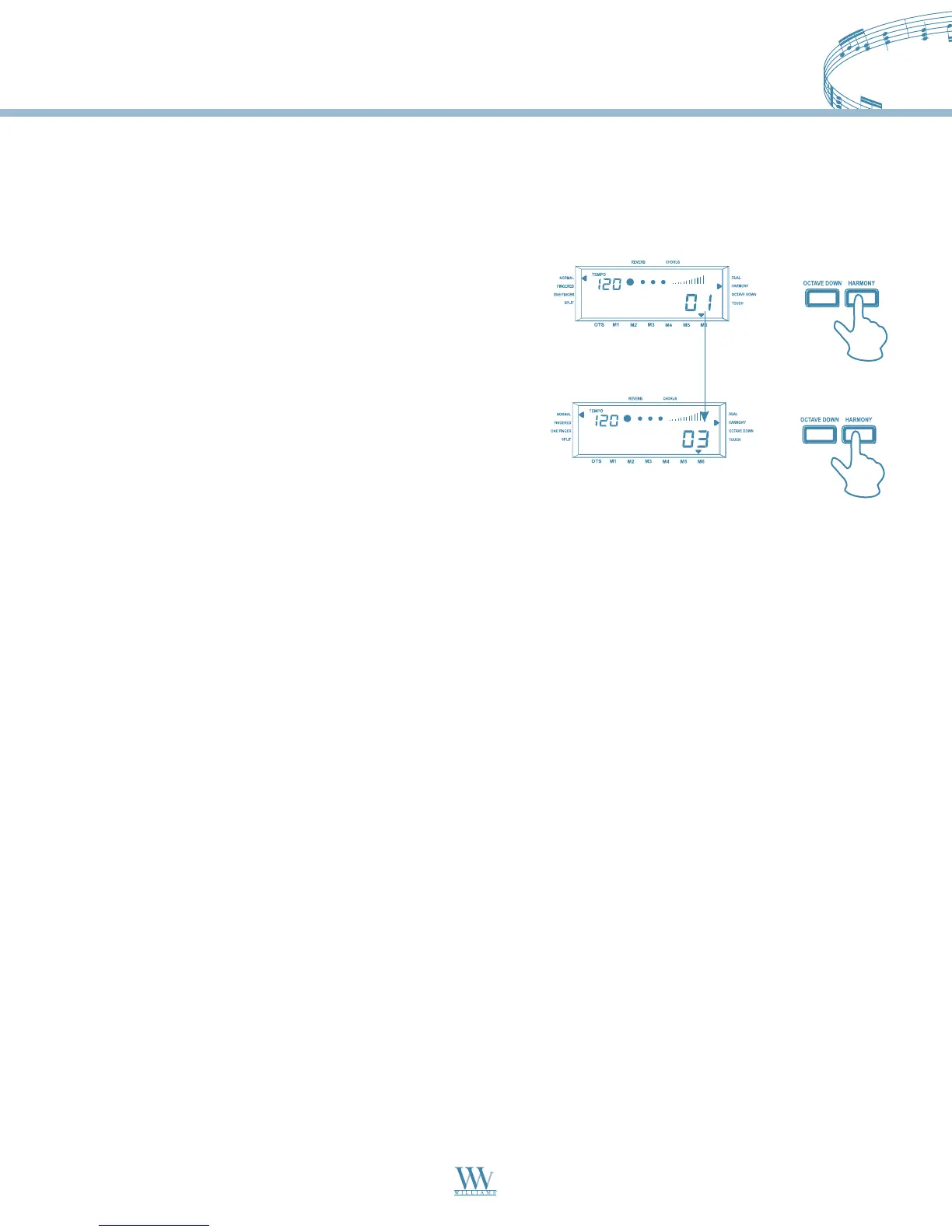
HARMONY button once, at this time the select indicator
points to HARMONY in the display and the harmony
value switch goes from OFF to 01. Now play a key on the
left side of the keyboard to turn on the auto accompaniment,
then play a key on the right to hear the harmony effect.
The digital piano has three different harmony settings. It transforms simple one-note melodies into fully
orchestrated pieces.
3. When you are in harmony 01 status, press the HARMONY button once and 02 will appear in the display.
If you would like to switch to harmony 03, press the HARMONY button again. Now play a single note on the
right side of the keyboard. If you selected harmony type 01, you will hear two notes play.
Select harmony type 02 and play the same chord and single note again, this time you will hear a three note chord
on the right hand for every single note played.
Select harmony type 03 and play the same chord and single note again, this time you will hear an octave intervals
for every single note played.
4. To turn off the harmony function, press the HARMONY button until OFF appears in the display.
Note: If the keys on the left side are in Normal or Split mode, the harmony effect will not take effect. If the
Harmony function is turned on, the right side of the keyboard will take effect. During recording, the harmony
effect will not work. If you start recording when the harmony function is turned on, the function will turn off automatically.
Drum Kit
The digital piano features 7 drum sounds. Voices 141-147 are where the drum sets are located. To select a drum
set, please refer to the section “Select a Voice” on page 8.
Williams_Concerto-2_Q5.qxd 8/3/04 11:03 AM Page 9


 To Next Page