WLKATA Mirobot Manipulator User Manual
Document version 1.0 User Manual Copyright© Beijing Tsinew Technologies Co., Ltd.
Letting the manipulator draw
After setting the pen height, the right panel will be automatically switched from “Pen Set”
to the “Pattern Selection" panel sector.
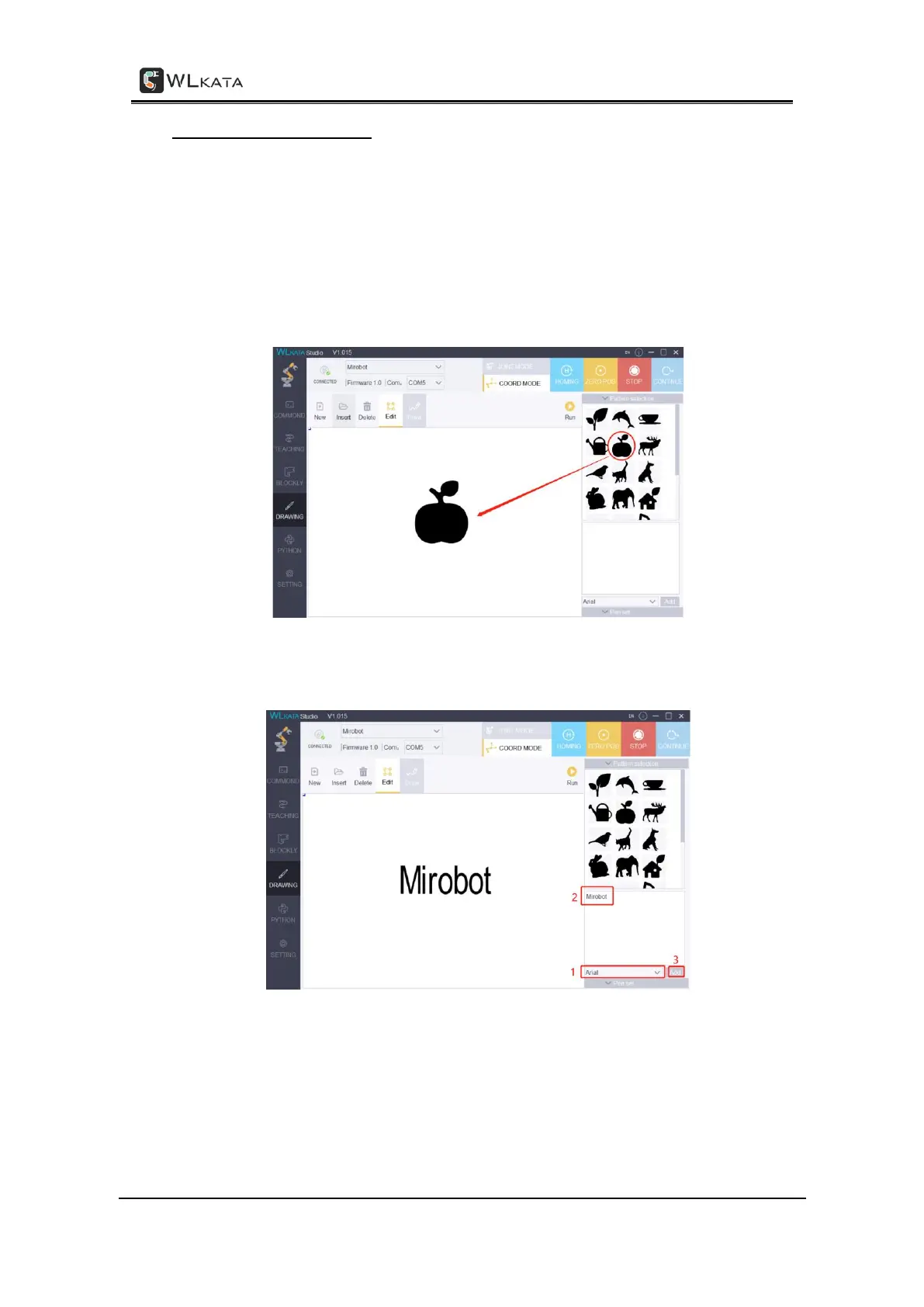
• To add a graph from existing files, you can either choose an example from the
Examples in the upper right “Pattern Selection" panel sector, or insert a graph by
click Insert button. The graph you have chosen should be shown in the center
canvas.
• To add a text graph, typing in the lower right panel and click Add button, and the
text you have typed should be placed in the center canvas.
• To add a mouse drawing graph, click the Edit | Draw button to switch from the Edit
mode to the Draw mode. And then you can use your mouse as a pen to draw on
the center canvas.


 To Next Page