Xerox
®
DocuMate
®
3220
User’s Guide
82
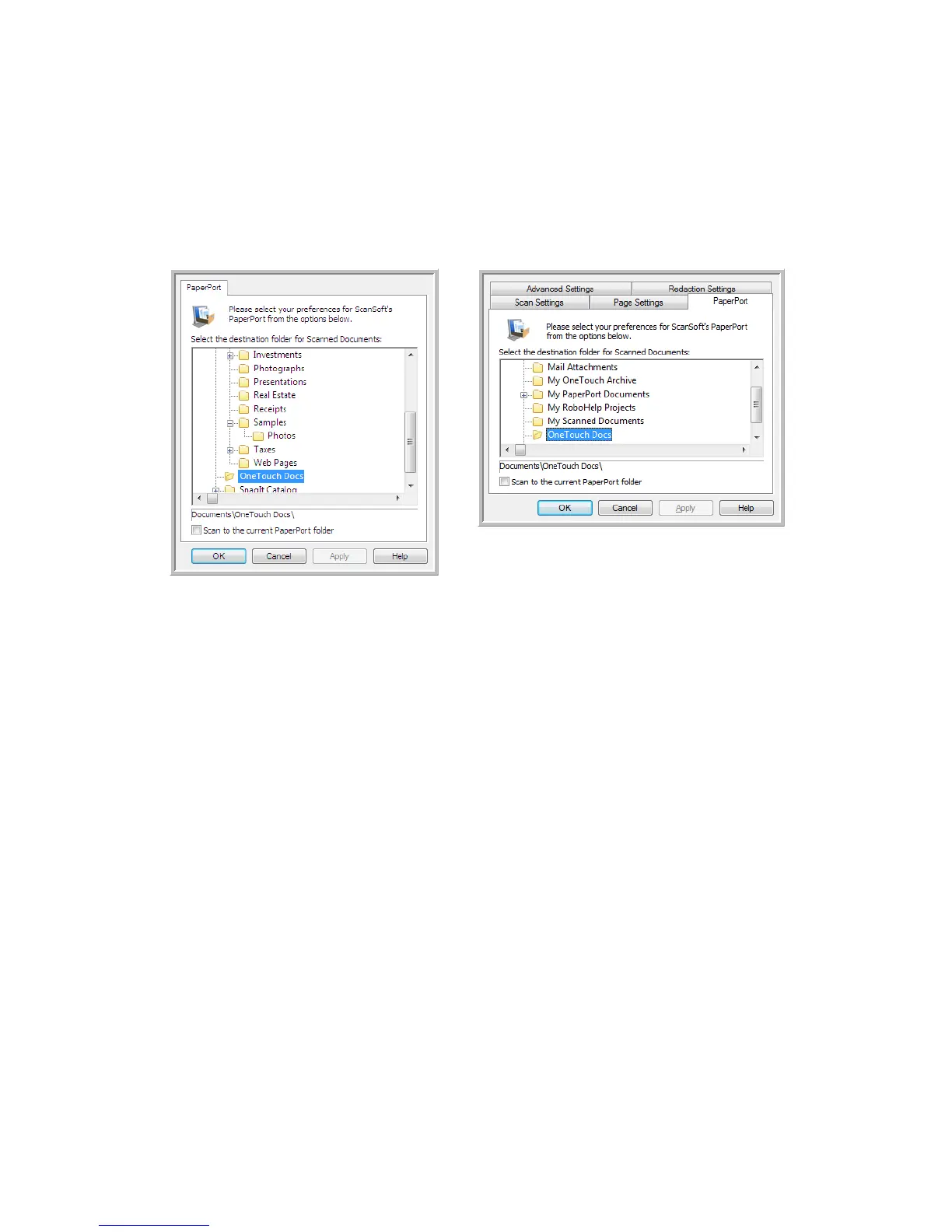
•Click the New, Copy, or Edit button to open the Scan Configuration Properties window. Click on the
PaperPort tab and use this window to set a configuration to scan to a different folder than the one
selected in the Link Properties window.
Changing the options in this window only affects the configuration you are creating or modifying.
All other configurations will retain their settings for this destination.
Select the destination folder for Scanned Documents
• Select a folder to send the scanned document(s) to when scanning to the PaperPort destination.
The list of folders in this window are from the PaperPort Folder Manager. Use the PaperPort Folder
Manager to add or delete folders, add other drives and network locations to this list. You cannot
add new folders from the OneTouch PaperPort configuration windows.
PaperPort OneTouch Link Properties
window
Scan Configuration Properties window -
PaperPort tab



 To Next Page
 Loading...