EasyManua.ls Logo

Xerox DocuMate 3460 - User Manual

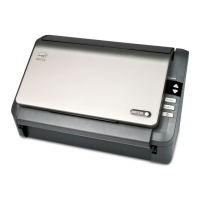
Xerox DocuMate 3460
185 pages
Print Icon
To Next Page IconTo Next Page
Loading...
DocuMate 3460
One Touch 4.6
August 2010
05-0807-000
User’s Guide

Table of Contents

Questions and Answers

  • M
    Martin ChandlerAug 14, 2025
    What to do if Xerox DocuMate 3460 installation won't complete?
    • A
      Amber VillaAug 14, 2025
      If the installation of your Xerox Scanner does not complete successfully, or the One Touch 4 options do not work, it may be due to existing driver programs for another scanner on your computer. Remove those other drivers and reinstall your Xerox DocuMate 3460 scanner.
  • A
    Andre HoffmanAug 17, 2025
    How to troubleshoot Xerox Scanner that won't scan?
    • B
      Brianna HarrisonAug 17, 2025
      If your Xerox Scanner isn't scanning, there are several things you can check: * Ensure the cable connections are secure. * Verify the scanner's power is on and try another electrical outlet if the status light is off. * Try restarting your computer. * If using a USB hub, plug the scanner directly into a USB port on the computer. * In the PaperPort software, click the Scan icon and confirm that your Xerox DocuMate 3460 is selected as the scanner.
  • J
    Jeanne OliverAug 20, 2025
    What to do if Xerox DocuMate 3460 paper jams in ADF?
    • G
      Gabriel CampbellAug 21, 2025
      If your Xerox Scanner is experiencing paper jams in the ADF, the issue might be due to the paper being fed at an angle or excessive dust on the roller. To resolve this: 1. Smooth and straighten the paper before scanning and adjust the guides to the paper size. 2. Clean the roller with a soft cloth dampened with Isopropyl rubbing alcohol.
  • M
    marieadamsAug 25, 2025
    Why Xerox DocuMate 3460 ADF won't feed pages properly?
    • B
      Brian ChenAug 25, 2025
      If the ADF on your Xerox Scanner isn't feeding pages correctly, it could be due to a dirty or worn ADF pad assembly or dirt on the roller, causing skewed feeding or multiple pages feeding at once. Try cleaning the roller first. If that doesn't work, the pad assembly may need to be replaced.
  • S
    Sarah RichardsAug 27, 2025
    Why are Xerox Scanner scans from the input tray crooked?
    • R
      Rebecca MorganAug 27, 2025
      If the scans from the input tray of your Xerox scanner are always crooked, ensure that you align the paper guides to the edges of the paper. Alternatively, scan these items from the front feed tray instead.
  • M
    Matthew ThomasAug 31, 2025
    What to do if Xerox DocuMate 3460 Scanner AutoCrop produces blank pages?
    • B
      Brian WebsterAug 31, 2025
      If you're getting blank pages or pages with lines when using AutoCrop to Original on your Xerox Scanner, it's likely that the pages were scanned in crooked or skewed. Adjust the paper guides on the scanner, so pages feed in straight.
  • C
    Christine ClarkSep 3, 2025
    How to reconnect Xerox DocuMate 3460 Scanner after USB disconnect?
    • S
      stephanie01Sep 3, 2025
      If your Xerox scanner doesn't reconnect after the USB cable is disconnected during a scan, try these steps: 1. Unplug the power cable from the scanner, and then plug it back in. 2. Restart your computer. 3. After the restart is complete, plug the power cable back in.
  • B
    Brent RamirezSep 6, 2025
    Why does my Xerox DocuMate 3460 Scanner cause hard drive space errors?
    • A
      Adam CarterSep 6, 2025
      If your computer is displaying out of hard drive space error messages when using your Xerox Scanner, free up some space on your hard drive. This allows the software to save the scanned images.
  • S
    sandrawilkinsSep 9, 2025
    What causes Xerox Scanner paper jams from the input tray?
    • G
      George DonovanSep 10, 2025
      If paper jams occur when you begin scanning from the input tray on your Xerox scanner, make sure the front feed tray is closed and that an item isn’t already fed into the scanner from the front.

Xerox DocuMate 3460 Specifications

General IconGeneral
Scanner TypeDocument Scanner
Optical Resolution600 x 600 dpi
ConnectivityUSB 2.0
Automatic Document FeederYes
ADF Capacity50 sheets
Duplex ScanningYes
Color Depth24-bit
Operating Systems SupportedWindows, Mac
Maximum Document Size8.5" x 14"
Supported Media TypesPlain paper, cards
Dimensions (W x D x H)11.8 x 6.7 x 6.3 inches
Scanning TechnologyContact Image Sensor (CIS)

Related product manuals