Printing on Specialty Media
Phaser® 7760 Color Laser Printer
3-42
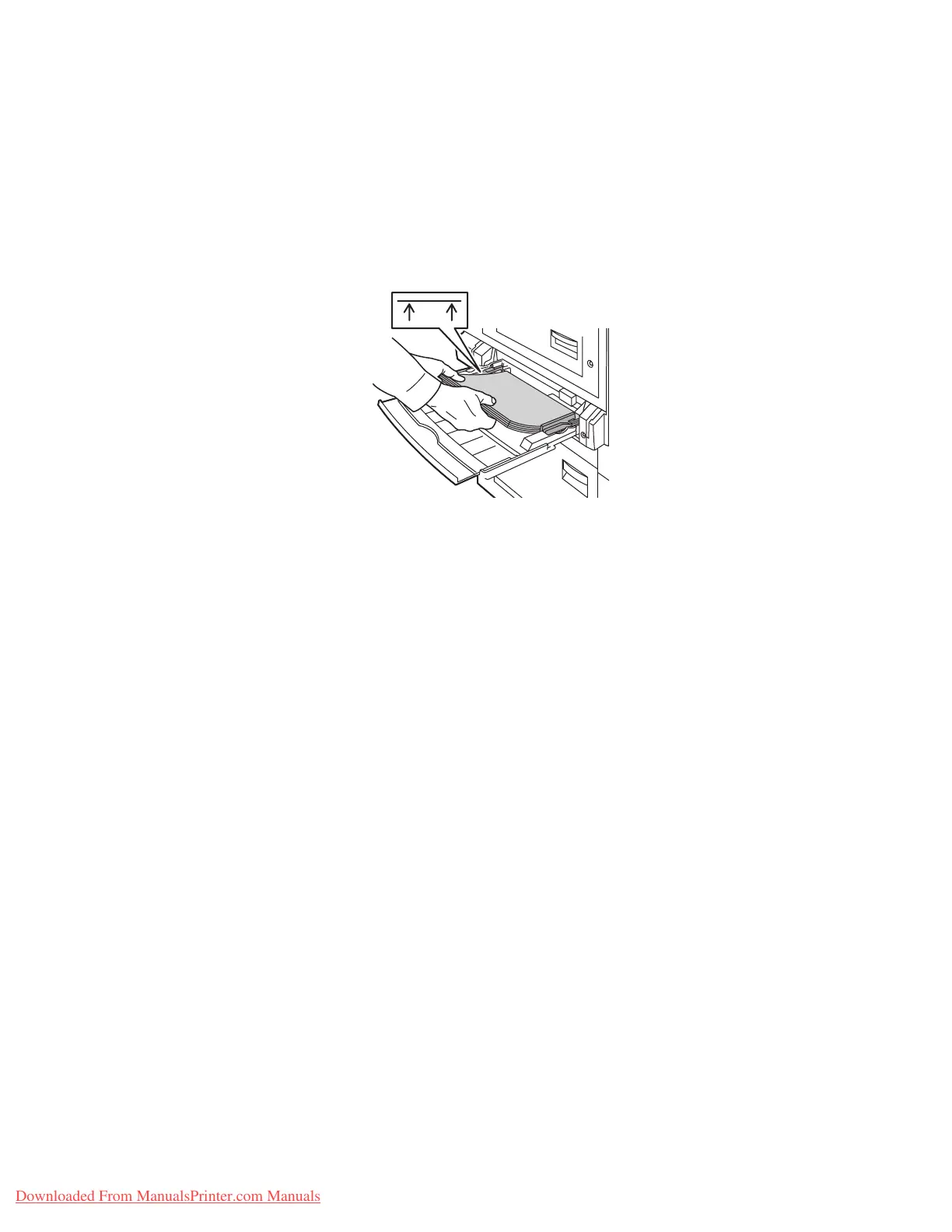
3. Insert the glossy paper into Tray 1.
■ Use long-edge feed (with the long edge entering the printer first) for Letter- and
A4- size paper.
■ Use short-edge feed (with the short edge entering the printer first) for Tabloid,
Tabloid Extra, A3, and SRA3 paper.
■ For single-sided printing, place the side to be printed facedown.
■ For automatic 2-sided printing, place side one faceup.
Note: Do not load glossy paper above the transparency fill line inside the tray.
Overloading the tray may cause jams.
4. Adjust the paper guides to match the size of the paper.
5. When the control panel prompts you to confirm the type and size of paper in the tray:
a. Select
Change setup, and then press the OK button.
b. Select
Thin Glossy Paper or Thick Glossy Paper (for paper over 170 g/m
2
) as the
paper type, and then press the OK button.
c. Select the appropriate paper size, and then press the OK button.
Note: For some sizes that can be loaded in either direction, you need to select the size
with the letters
LEF (Long-Edge Feed) if you loaded the long edge of the paper to enter the
printer first or
SEF (Short-Edge Feed) if you loaded the short edge to enter the printer first.
6. In the printer driver, select the Thin Glossy Paper or Thick Glossy Paper as the paper
type or Tray 1 (MPT) as the paper source.
MAX
7760-125
Downloaded From ManualsPrinter.com Manuals


 To Next Page
 Loading...