EasyManua.ls Logo

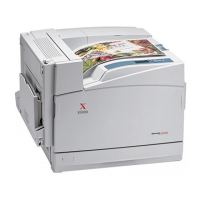
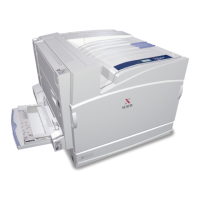
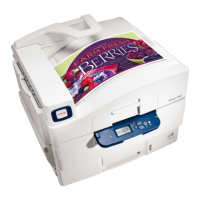
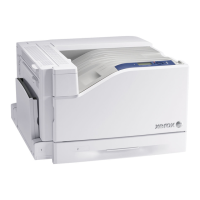
Xerox Phaser 7760 - Service Manual

Xerox Phaser 7760
564 pages
Print Icon
To Next Page IconTo Next Page
Loading...
Phaser
®
7760
Color Laser Printer
Phaser
®
7760
Service Manual

Table of Contents

Other manuals for Xerox Phaser 7760

Questions and Answers

  • S
    Stacy AustinAug 19, 2025
    How to fix a paper jam at the left door on a Xerox Phaser 7760 Printer?
    • V
      Victoria FranklinAug 19, 2025
      If your Xerox Printer is experiencing a paper jam at the left door (A, B, or C), open the left door specified on the control panel. Remove the jammed paper, ensuring all paper fragments are removed. Then, close the left door.
  • M
    Mark ChungAug 21, 2025
    What to do if Xerox Printer paper jam under the top output tray?
    • W
      walterpalmerAug 21, 2025
      To clear a paper jam under the top output tray of your Xerox Printer, follow these steps: First, open the top output tray. Then, remove any jammed paper, making sure to remove all paper fragments. Finally, close the top output tray.
  • D
    Douglas BatesAug 23, 2025
    How to fix a Xerox Printer jam at Left Door (A, B, or C)?
    • J
      James FloresAug 23, 2025
      To clear a paper jam at the left door of your Xerox Printer, follow these steps: First, open the left door (A, B, or C) specified on the control panel. Then, remove the jammed paper, ensuring all paper fragments are removed. Finally, close the left door.
  • J
    Joseph YoungAug 26, 2025
    What to do if my Xerox Phaser 7760 has a jam at the Fuser?
    • K
      Kenneth WoodAug 26, 2025
      To clear a jam at the fuser of your Xerox Printer, follow these steps: 1. Push up on the latch on the left side of the printer to open Left Door A. Use caution, as components behind the left door may be hot. 2. Lift the release latch located on the right side of the fuser. 3. Remove the jammed paper, making sure to remove all paper fragments. 4. Push down the release latch. 5. Close Left Door A.
  • D
    Daniel BushAug 27, 2025
    How to clear a Xerox Phaser 7760 jam at Tray 1 (MPT)?
    • C
      Charles PerezAug 28, 2025
      To clear a paper jam at Tray 1 (MPT) on your Xerox Printer: * Remove paper from Tray 1 (MPT), ensuring all paper fragments are removed. * If you did not find paper, push up the latch on the left side of the printer to open Left Door A. * Remove the jammed paper, ensuring all paper fragments are removed. * Replace the paper in the tray. Do not load paper above the fill line.
  • E
    elizabeth13Aug 30, 2025
    How to resolve Xerox Phaser 7760 jam at the Duplex Unit?
    • C
      Christopher LutzAug 30, 2025
      To clear a paper jam at the Duplex Unit of your Xerox Printer, do the following: 1. Open Tray 1 (MPT). 2. Open Left Door D. 3. Remove the jammed paper. 4. Close Left Door D.
  • M
    Megan NguyenSep 1, 2025
    How to troubleshoot Xerox Phaser 7760 Finisher Stacker Output Tray Jammed?
    • S
      Steven CookSep 1, 2025
      To clear a jam in the finisher stacker output tray of your Xerox Printer: 1. Pull the jammed paper out of the stacker output tray. 2. Open the finisher door. 3. Close the finisher door.
  • A
    Antonio WadeSep 3, 2025
    What to do if Xerox Phaser 7760 has a Jam at Finisher Cover?
    • B
      Bryan WilsonSep 3, 2025
      To clear a paper jam at the finisher cover of your Xerox Printer, follow these steps: 1. Lift the finisher cover (Door 5). 2. Remove the jammed paper. 3. Close the finisher cover (Door 5).
  • M
    Marie BarrettSep 5, 2025
    How to clear a fuser jam on a Xerox Phaser 7760?
    • T
      teresa99Sep 5, 2025
      To clear a jam at the fuser of your Xerox Printer, push up on the latch on the left side of the printer to open Left Door A. Lift the release latch located on the right side of the fuser. Remove the jammed paper, making sure to remove all paper fragments. Push down the release latch and close Left Door A.
  • C
    Carly SteeleSep 7, 2025
    What to do if my Xerox Printer has a paper jam at Tray 1 (MPT)?
    • K
      Kimberly ChenSep 7, 2025
      If your Xerox Printer has a paper jam at Tray 1 (MPT), remove the paper from the tray, making sure that all paper fragments are removed. If you still find no paper, push up the latch on the left side of the printer to open Left Door A. Remove the jammed paper, ensuring all fragments are removed, and then close Left Door A. Replace the paper in the tray, being careful not to load paper above the fill line.

Xerox Phaser 7760 Specifications

General IconGeneral
Print TechnologyLaser
Print Speed (Color)35 ppm
Print Speed (Black)35 ppm
Monthly Duty Cycle150, 000 pages
Processor400 MHz
Memory (Standard)256 MB
First Page Out Time (Color)9 seconds
Printer TypeColor Laser Printer
ConnectivityUSB, Ethernet
Operating Systems SupportedWindows, Mac, Linux
Warm-up Time60 seconds
Print Speed35 ppm
Memory256 MB
Memory (Maximum)1 GB

Related product manuals