27
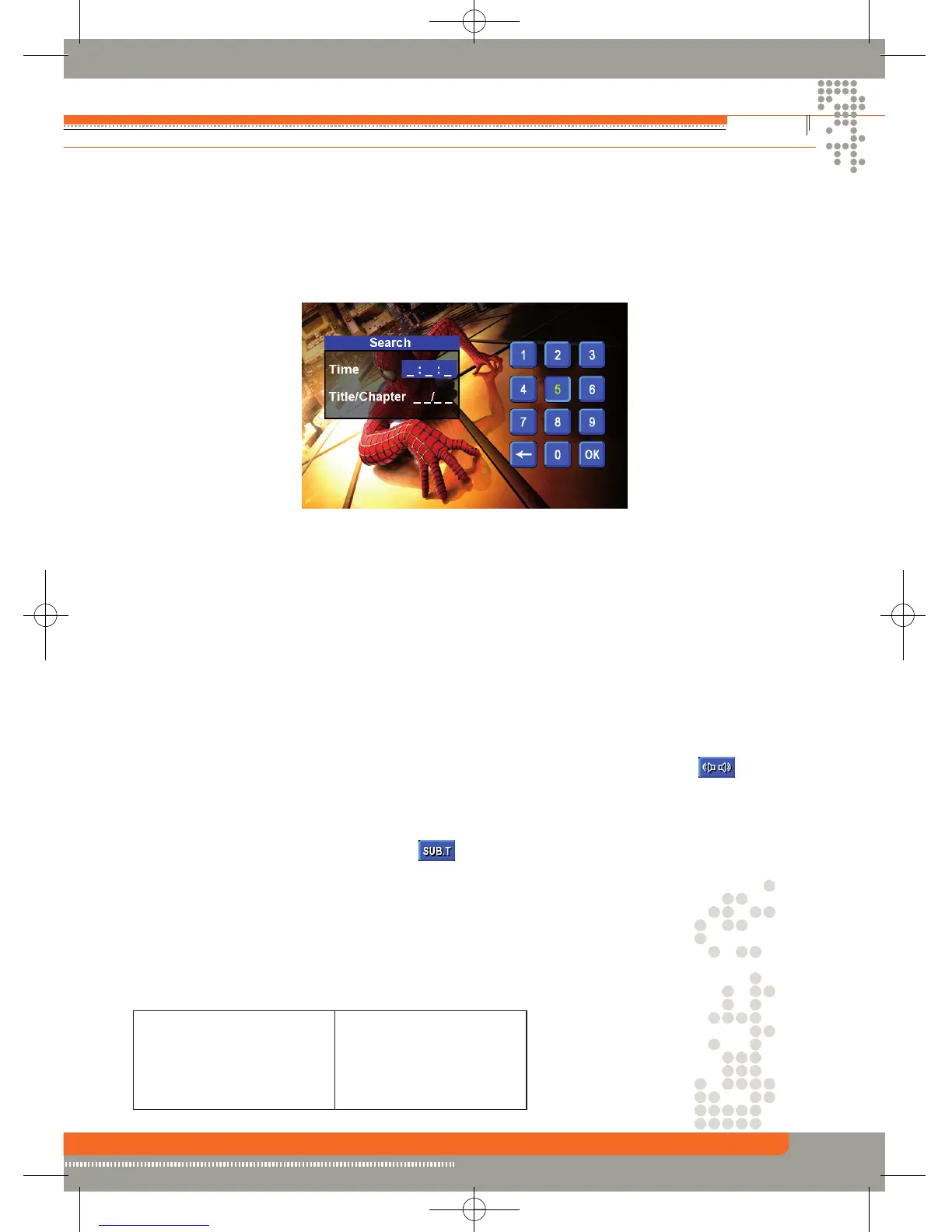
3. Touch the ( -- : -- : -- )/ (---) area on the screen to display a numeric keypad on the touch screen.
4. Enter a time/track number into the field using the numeric keypad on the remote control or on
the screen.
5. Press the OK button on the remote control or on the touch screen to go to the specified
location on the disc.
6. Press the (-/--) button on the remote control or touch the F Area on the screen again to exit.
Direct Chapter / Track Selection
During DVD and CD playback, you can use the numeric keypad on the remote control to access a
track directly.
Viewing an Alternate Picture Angle (DVD Only)
Some DVDs contain scenes that have been shot simultaneously from different angles. For discs re-
corded with multiple angles, press the (ANGLE) button on the remote control to toggle available
angles of the on-screen image.
Multi-Language Discs (DVD Only)
Changing audio language
If you are watching a disc recorded in multiple languages, press the (AUDIO) button on the re-
mote control to choose a language. You also can touch area E and then touch the icon.
Changing subtitle language
If you are watching a disc recorded in multiple languages with subtitles, press the (SUBT) button
on the remote control to choose the language in which you would like the subtitles to appear. You
also can touch area E and then touch the icon.
Playback Information
During the DVD playback, press the (INFO) button on the remote control or touch area B to display
the playback information on the screen, including the media playing and current playback time.
DVD playback information
The following information is displayed at the top of the screen during DVD playback:
DVD Video Elapse time 05:24
Title 1/1 Remain time 02:05:39
Audio 1/16 Chapter 2/32
Subtitle Off
Angle 1/1


 To Next Page