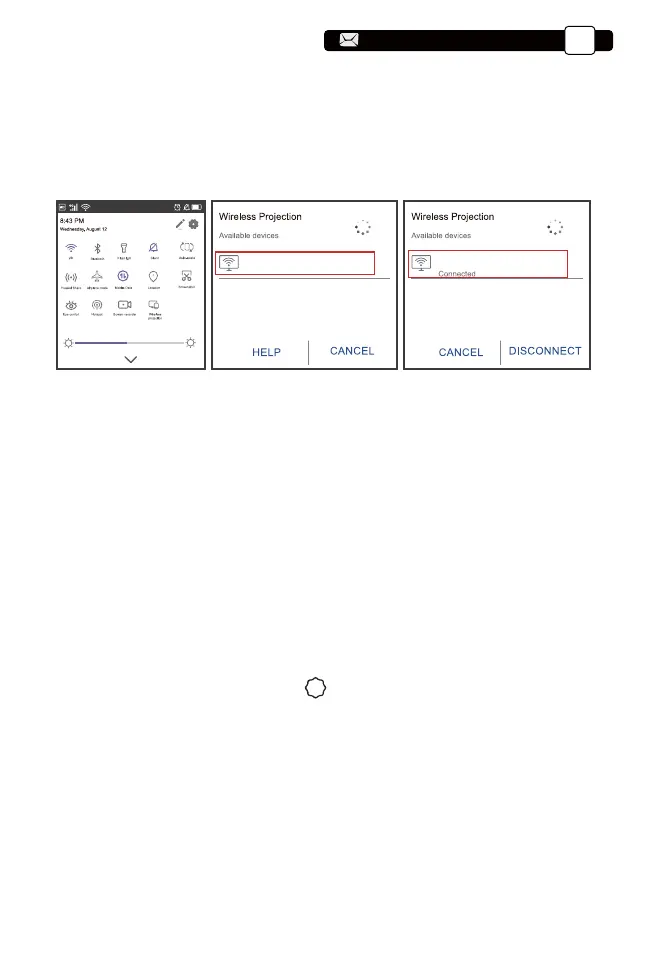
3.On your Android device, tap [ Settings ] -[ WLAN Display ] -Turn [ Wi-Fi ]
ON, Connect your home WiFi.
Note:
1.Different brands of Android phones have different operations for select
Screen Mirroring Display, please refer to your phone’ s manual. [ Mul-
tiscreen/Wireless display/WLAN display/Screen mirroring/Wireless projec-
tion/Smart view etc. ]
2.Not all Android phones support this function. Please make sure it is sup-
ported before use.
2.Select the [ Settings ] menu on your Android device -- Select the [ Screen
mirroring ] function -- Select your Miracast receiver named [ Pro U9-An-
Cast-XXXX ] -- your Android device screen will be displayed on the projec-
tion screen after 3 seconds.
Pro U9-An-Cast-XXXX Pro U9-An-Cast-XXXX
(1) Go to home page -- Select the [ ] -- Select the [ Blueteeth Setting ].
(2) Open the Blueteeth function and your Blueteeth device.
(3) Select [Availiable Device], click to begin/stop search the Blueteeth devices
nearby.
(4) Choose the Blueteeth device desired and press OK, wait a few seconds for
a successful Blueteeth connection.
4. Blueteeth Setting
Support@yabertech.com
EN
15
aftersales@yabertech.com


 To Next Page