Editing Component Parameters 69
DME32—Owner’s Manual
Editing Component Parameters
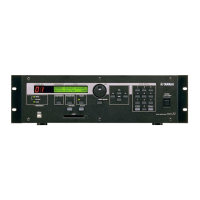
In Run mode, component parameters can be edited from the DME32 front panel (see
page 201) or from DME Manager. Either way, edits are reflected on both the DME32
and DME Manager. This section explains how to edit component parameters from
DME Manager.
1 Select Run mode.
See “Selecting Run Mode” on page 66 for more information.
The Run Mode Controller appears.
2 Double-click the component whose parameters you want to edit.
The component’s control window opens.
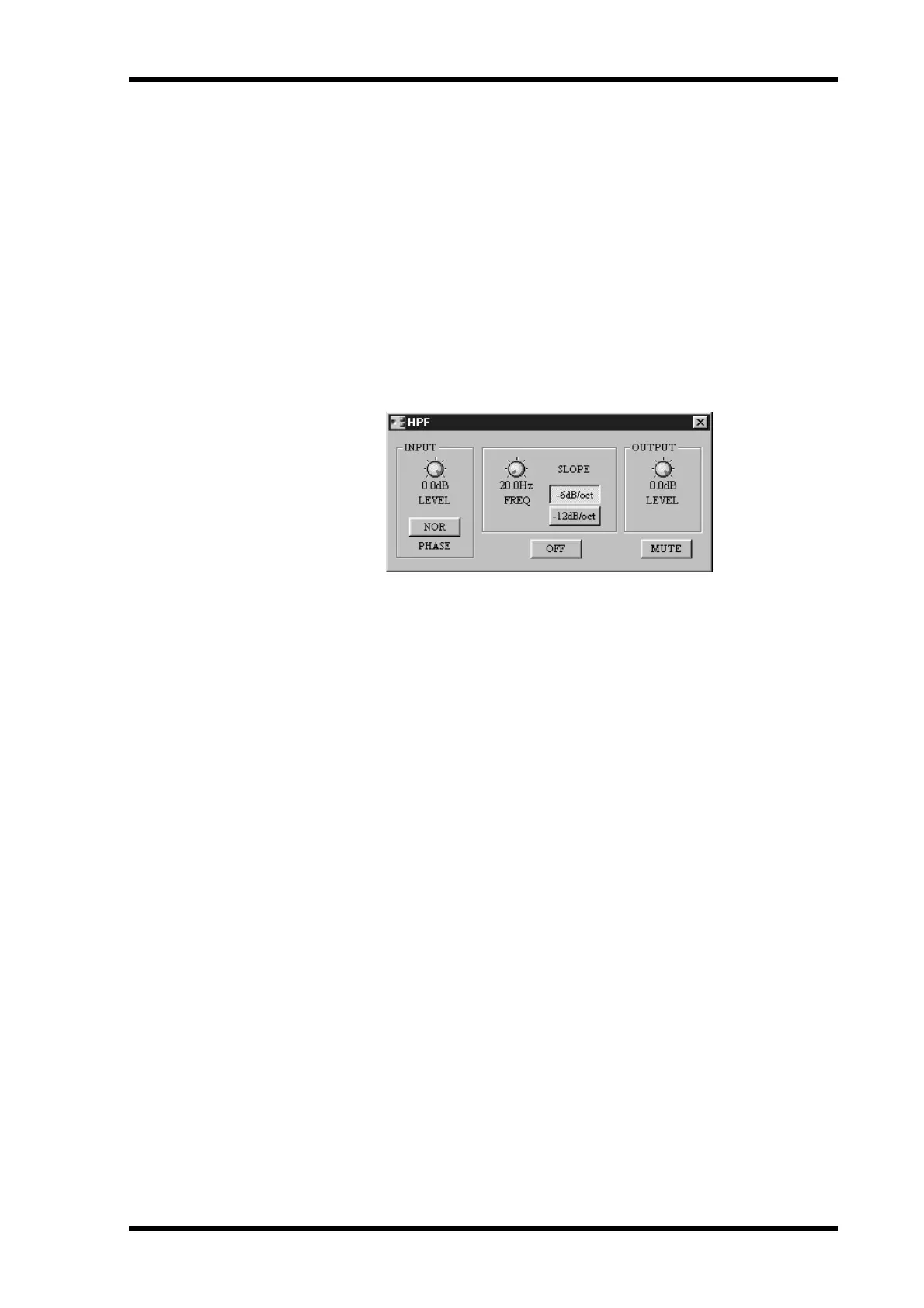
An example of a control window is shown below.
3 Edit the parameters as required.
For detailed information on using control window controls, including rotary controls,
sliders, and buttons, see “Component Control Windows” on page 31.
Parameter edits made on control windows are reflected on the DME32.
The DME32 display shows one parameter at a time. If the currently selected parameter
on the DME32 is the same as the one you are editing on DME Manager, you’ll see its
value change on the display. Likewise, if you edit a parameter value from the DME32
front panel, you’ll see its value change on the corresponding control window.
For information on selecting and editing parameters from the DME32 front panel, see
“Editing Parameters & the User Define Button” on page 201.
When a parameter is edited, the word “EDIT” appears in the edit indicator on the Run
Mode Controller and the scene edit dots appear on the DME32 display. See “Scene Con-
trol” on page 68 for more information.
4 When you’ve finished editing, close the control window.
To store your edits to a scene memory, see “Storing Scenes” on page 70.


 To Next Page