80 Chapter 7—Other DME Designer Functions
DME32—Owner’s Manual
Customizing Component Properties
You can customize the appearance of components by using the Properties window.
1 Select the component whose properties you want to customize.
2 Choose Properties from the Edit menu.
Properties can also be chosen from the Shortcut menu.
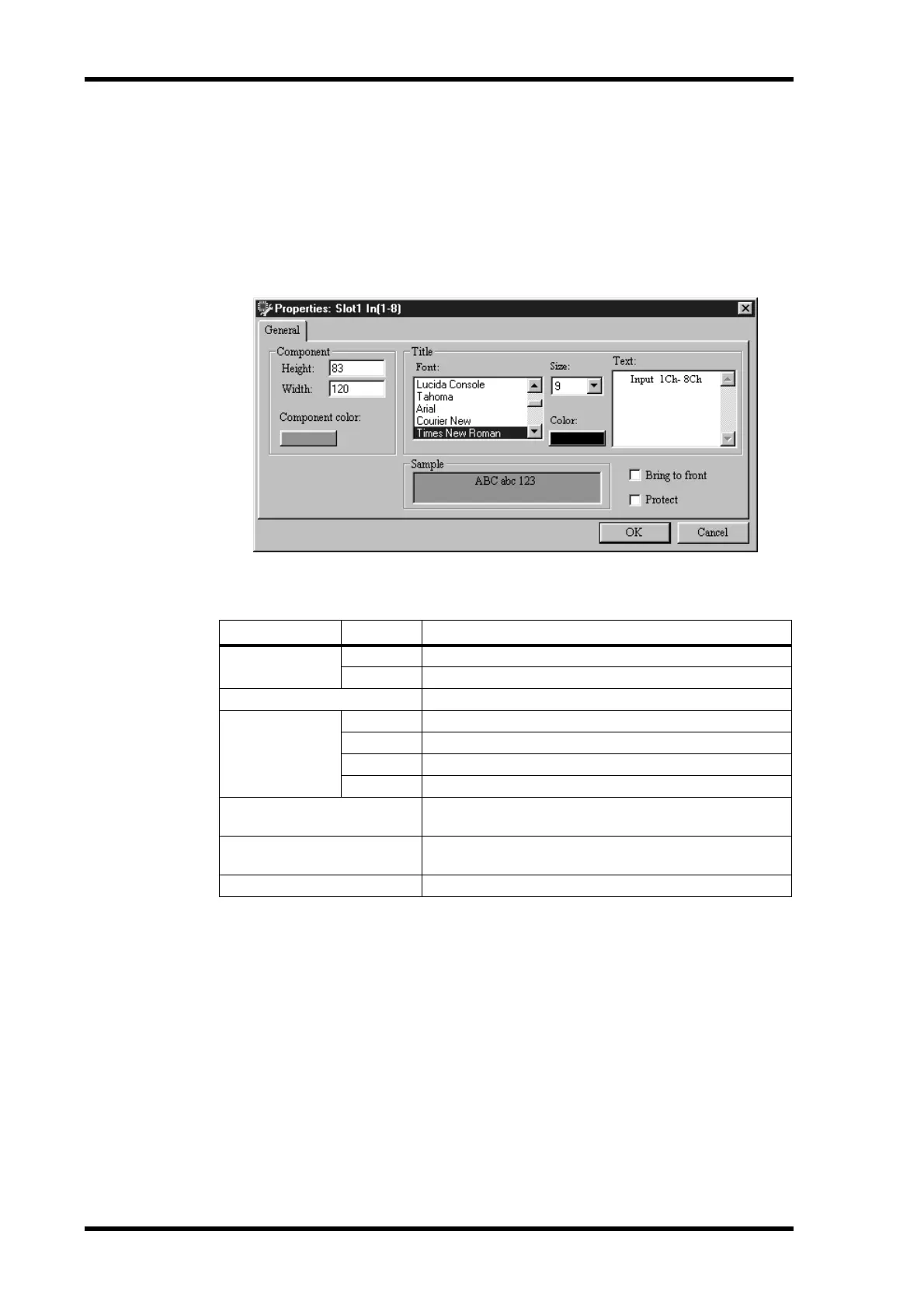
The Properties window appears, as shown below.
The title of the component selected appears in the Properties window’s title bar.
The Properties parameters are explained in the following table.
3 Make the required settings and then click OK to save your settings, or click
Cancel to leave them unchanged.
The Properties window closes and the component appears in accordance with the
Properties settings.
Section Parameter Description
Component
Height Sets the height of the component
Width Sets the width of the component
Component color Sets the color of the component
Title
Font Selects the font for the component’s title
Size Sets the font size of the component’s title
Color Sets the color of the component’s title
Text Sets the component’s title
Sample
Shows how the component and title will appear with the
selected font, size, color, and component color
Protect
Prevents parameter editing when Component protection
is on (see page 83)
Bring to front Brings the component to the forefront


 To Next Page