Selecting a registered scene
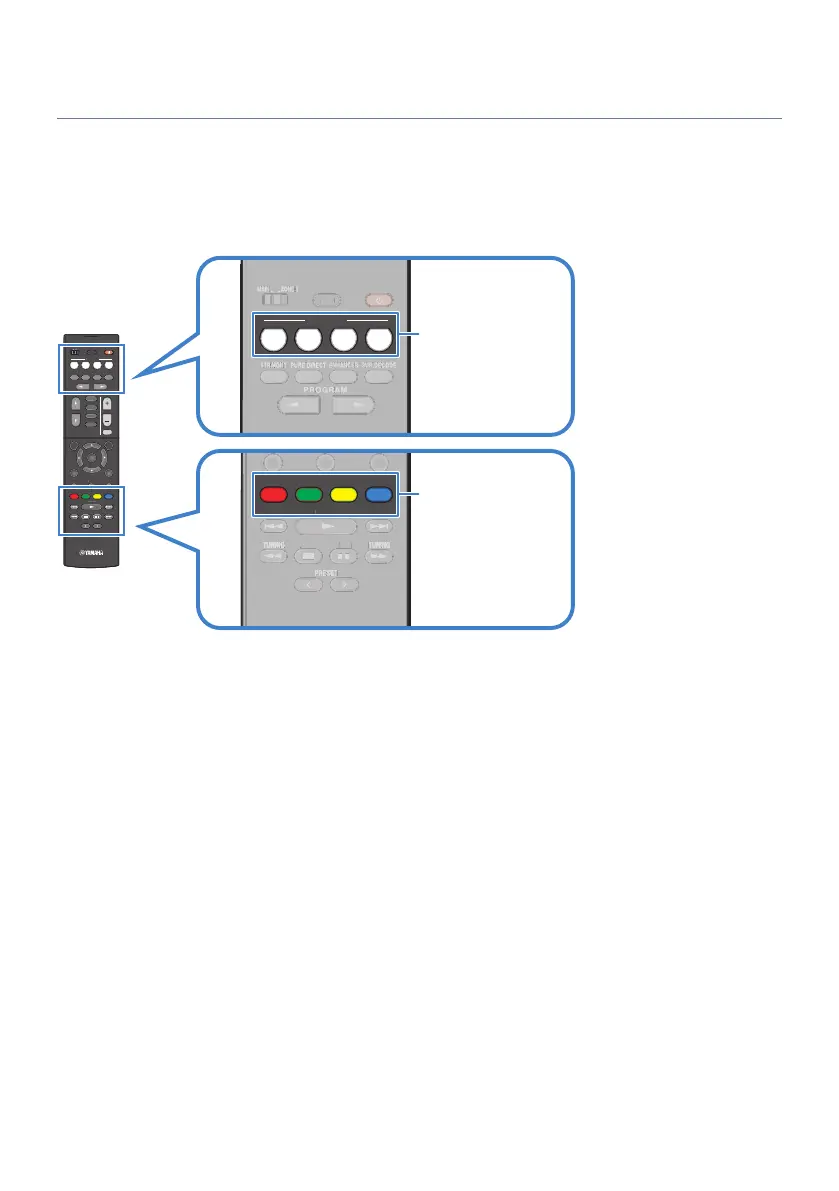
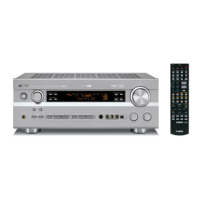
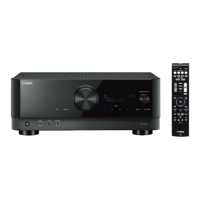
Press the following key on the remote control, and the input source and settings registered to the
corresponding scene are directly selected. The unit turns on automatically when it is in standby mode.
(
SCENE (1) - (4): the numbered key (1-4)
(
SCENE (5) - (8): the color key (RED, GREEN, YELLOW, BLUE)
[Search tag]#Q04 SCENE
PRESET
TUNINGTUNING
MEMORY
BLUE
YELLOWGREEN
RED
POP-UP/MENU
HOME
TOP MENU
DISPLAYRETURN
OPTION
ENTER
SETUP
MUTE
VOLUME
PARTY
BLUETOOTH
NET
USB
INPU T
PROGR AM
SUR.DECODEENHANCER
PURE DIRECT
STRAIGHT
1 2
SC ENE
4
3
SLEEP
MAIN ZONE 2
PRESET
TUNINGTUNING TUNINGTUNING MODE BAND
MEMORYMEMORY
BLUE
YELLOWGREEN
RED
POP-UP/MENU
HOME
TOP MENU
DISPLAYRETURN
OPTION
ENTER
SETUP
MUTE
PARTY
BLUETOOTH
NET
USB
INPU T
VOLUME
PARTY
BLUETOOTH
NET
USB
INPU T
PROGR AM
SUR.DECODEENHANCER
PURE DIRECT
STRAIGHT
1 2
SC ENE
4
3
SLEEP
MAIN ZONE 2
PROGRAM
SUR.DECODE
ENHANCER
PURE DIRECT
STRAIGHT
1 2
S C E N E
43
SLEEP
MAIN ZONE 2
PR
NE 2
PROGRAM
SUR.DECODE
ENHANCER
PURE DIRECT
STRAIGHT
1 2
S C E N E
43
SLEEP
MAIN ZONE 2
PRESET
TUNINGTUNING
MEMORY
BLUE
YELLOWGREEN
RED
PRESET
TUNINGTUNING TUNINGTUNING MODE BAND
MEMORYMEMORY
BLUE
YELLOWGREEN
RED
NOTE
(
If you want to use the color keys on the remote control as SCENE (5) - (8) of the SCENE function, set “Remote Color Key” in the
“Setup” menu to “SCENE”.
(
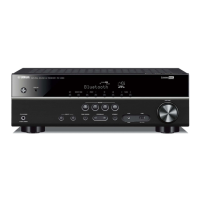
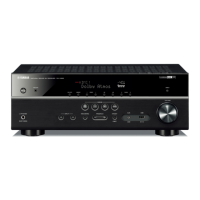
You can also select a registered scene 1 to 4 by touching SCENE (4 numbers) on the front panel.
(
The SCENE function can be selected for each zone. Set the zone switch to the zone for which you want to select a registered scene
and press a numbered key.
By default, the following input source is registered for each scene.
Main zone
SCENE (1): HDMI1
SCENE (2): TUNER
SCENE (3): AUDIO2
SCENE (4): NET RADIO
SCENE (5): HDMI2
SCENE (6): HDMI3
SCENE (7): TV
SCENE (8): SERVER
142
USEFUL FUNCTIONS > SCENE function


 To Next Page