EasyManua.ls Logo

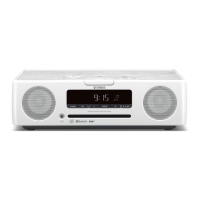
Yamaha TSX-B72 - User Manual

Yamaha TSX-B72
20 pages
Print Icon
To Next Page IconTo Next Page
Loading...
AB
OWNER'S MANUAL

Questions and Answers

  • L
    Linda MurrayAug 15, 2025
    Why do my Yamaha Stereo System speakers make no sound?
    • R
      Rebecca EatonAug 16, 2025
      There are a couple of reasons why your Yamaha Stereo System speakers might not be producing sound. First, check that the volume isn't set to the minimum level and adjust it accordingly. Also, make sure you've selected the correct source input on your system.
  • S
    Stephen ParkerAug 18, 2025
    What to do if Yamaha TSX-B72 turns on but immediately shuts off?
    • M
      Mrs. Michelle Harrison MDAug 19, 2025
      If your Yamaha stereo system turns on and then immediately shuts off, ensure the power cable is firmly plugged into the wall outlet. Also, the unit may have received a strong electrical shock; in this case, set the system to off, disconnect the power cable, wait about 30 seconds, reconnect the power cable, and turn on the system.
  • C
    Christopher JonesAug 21, 2025
    What to do if Yamaha TSX-B72 sound is cracked, distorted or there is abnormal noise?
    • Z
      Zachary HurstAug 22, 2025
      If you are experiencing cracked or distorted sound, or notice abnormal noise from your Yamaha Stereo System, the input source volume or the unit's volume may be too high. Try adjusting the volume using the VOLUME control, or fine-tune the sound with the tone control of the DTA CONTROLLER.
  • N
    nicole66Aug 25, 2025
    Why does Yamaha TSX-B72 Stereo System sound suddenly turn off?
    • B
      Brittany BrowningAug 25, 2025
      If the sound suddenly turns off on your Yamaha Stereo System, the sleep function may be activated. Turn on the system and play the source again.
  • G
    Gary BookerAug 27, 2025
    Why Yamaha Stereo System cannot make this unit paired with the other component?
    • A
      ashleyfrancisAug 27, 2025
      Your Yamaha Stereo System might fail to pair with another component for several reasons: * The other component does not support A2DP. Perform pairing operations with a component which supports A2DP. * A Bluetooth adaptor, etc. that you want to pair with this unit has a password other than “0000”. Use a Bluetooth adaptor, etc. whose password is “0000.” * This unit and the other component are too far apart. Move the other component closer to this unit. * There is a device (microwave oven, wireless LAN, etc.) that outputs signals in the 2.4 GHz frequency band nearby. Move this unit away from the device that is emitting radio-frequency signals.
  • E
    Emily PadillaAug 30, 2025
    What causes a digital or high-frequency equipment produces noises on Yamaha Stereo System?
    • S
      scottwilsonAug 30, 2025
      If your Yamaha Stereo System is picking up noise from digital or high-frequency equipment, it's likely that the unit is placed too close to the equipment. Try placing the unit farther away from the equipment.
  • P
    Patrick JamesSep 3, 2025
    Why did Yamaha TSX-B72 clock setting has been cleared?
    • S
      saunderskimberlySep 3, 2025
      The clock setting on your Yamaha Stereo System might be cleared if the unit is left unplugged from the wall outlet for more than one week. Plug the power cable into the wall outlet firmly, and set the clock again.
  • R
    Richard HillSep 5, 2025
    Why RADIO does not play at the alarm time on Yamaha Stereo System?
    • K
      kyle26Sep 6, 2025
      If the radio does not play at the alarm time on your Yamaha Stereo System, check that the ALARM TYPE is not set to BEEP. Set ALARM TYPE to SOURCE+BEEP or SOURCE.
  • G
    Gregory MooreSep 9, 2025
    What to do if Yamaha TSX-B72 clock flashes and the unit cannot be operated?
    • Y
      ywaltersSep 9, 2025
      If the clock is flashing and the unit cannot be operated on your Yamaha Stereo System, the CLOCK on the rear panel might be set to SET, indicating that the unit is in clock setting mode. Set CLOCK to LOCK.
  • N
    Nicole MorrisonSep 12, 2025
    Why Yamaha TSX-B72 cannot charge the connected portable USB device?
    • M
      Michael LeonSep 12, 2025
      If your Yamaha Stereo System cannot charge the connected portable USB device, it could be due to an incompatible USB device or improper connection. Turn off the system and reconnect the USB device to the unit. If the issue persists, the USB device is not chargeable with the unit.

Summary

Safety and Precautions

Installation and Environmental Safety

Guidelines for proper unit placement, ventilation, and avoiding environmental hazards to ensure safe operation.

Operational and Electrical Safety

Instructions for correct power connection, usage, cleaning, and maintenance to prevent electrical shock and damage.

Critical Usage Warnings

Warnings against exposure to rain/moisture, use near CRT TVs, pacemakers, and medical devices.

Environmental Information

Disposal of Old Equipment

Guidance on how to properly collect and dispose of used electrical and electronic products.

Product Overview

Key Features

Highlights of the unit's capabilities including Bluetooth, NFC, and audio performance.

Included Accessories

Lists the items provided with the unit, such as the AC adapter and power cable.

Unit Components and Controls

Front Panel Layout

Identification and description of controls and indicators on the front of the unit.

Top Panel Layout

Identification and description of controls and indicators on the top of the unit.

Unit Components and Controls (Continued)

Rear Panel Connections

Details on the rear panel inputs, outputs, and switches for power and external devices.

Antenna System

Instructions for extending and positioning the FM rod antenna for optimal reception.

Basic Operations

Setting the Clock

Step-by-step guide for setting the current time on the unit.

Configuring the Alarm

How to set the alarm time, select sound sources, and adjust volume.

Basic Operations (Continued)

Alarm Management

Methods for switching the alarm on/off, using snooze, and stopping the alarm.

Sleep Timer Function

Instructions for setting the unit to automatically turn off after a specified period.

Advanced Functions

DTA Controller App

Using the dedicated smartphone application for enhanced control and features.

Advanced Functions (Continued)

Weekly Alarm Setup

Setting up recurring weekly alarms using the DTA Controller app.

Listening to Radio

Tuning and Presetting Stations

How to find and save favorite FM radio stations.

Selecting Preset Stations

Accessing and listening to previously stored radio stations.

Connectivity and Charging

USB Device Charging

Functionality for charging portable devices via the unit's USB port.

Auxiliary Audio Input

Connecting and playing audio from external sources using the AUX jack.

Bluetooth Audio Playback

Bluetooth Installation and Pairing

Guidelines for optimal placement and the initial pairing process with Bluetooth devices.

Bluetooth Audio Playback (Continued)

Pairing with Various Devices

Instructions for pairing with non-Apple devices and using NFC for easy pairing.

Bluetooth Audio Playback (Continued)

Connecting and Disconnecting Bluetooth

How to establish and end Bluetooth connections, including auto-reconnect features.

Troubleshooting Common Issues

General Operation Problems

Solutions for common issues like no sound, unit not responding, or clock reset problems.

Radio Reception Troubleshooting

Tips for improving FM radio signal quality and reducing noise.

Troubleshooting Common Issues (Continued)

Bluetooth Connectivity Solutions

Addressing problems with pairing, connection, and audio interruption during Bluetooth playback.

USB Charging and Unit Reset

Troubleshooting USB charging failures and instructions for resetting the unit.

Technical Specifications

Player and Amplifier Specs

Details on input connectors, output power, and driver units.

Bluetooth and NFC Specifications

Technical details for Bluetooth version, protocols, range, and NFC support.

General and Tuner Specs

Power supply, consumption, dimensions, weight, and FM tuning range.

UK Customer Information

Specific instructions for UK plug fitting and wiring compliance.

Yamaha TSX-B72 Specifications

General IconGeneral
BrandYamaha
ModelTSX-B72
CategoryStereo System
LanguageEnglish

Related product manuals