Deva 5.8 and Deva 16 Owner’s Manual
Chapter 2
17
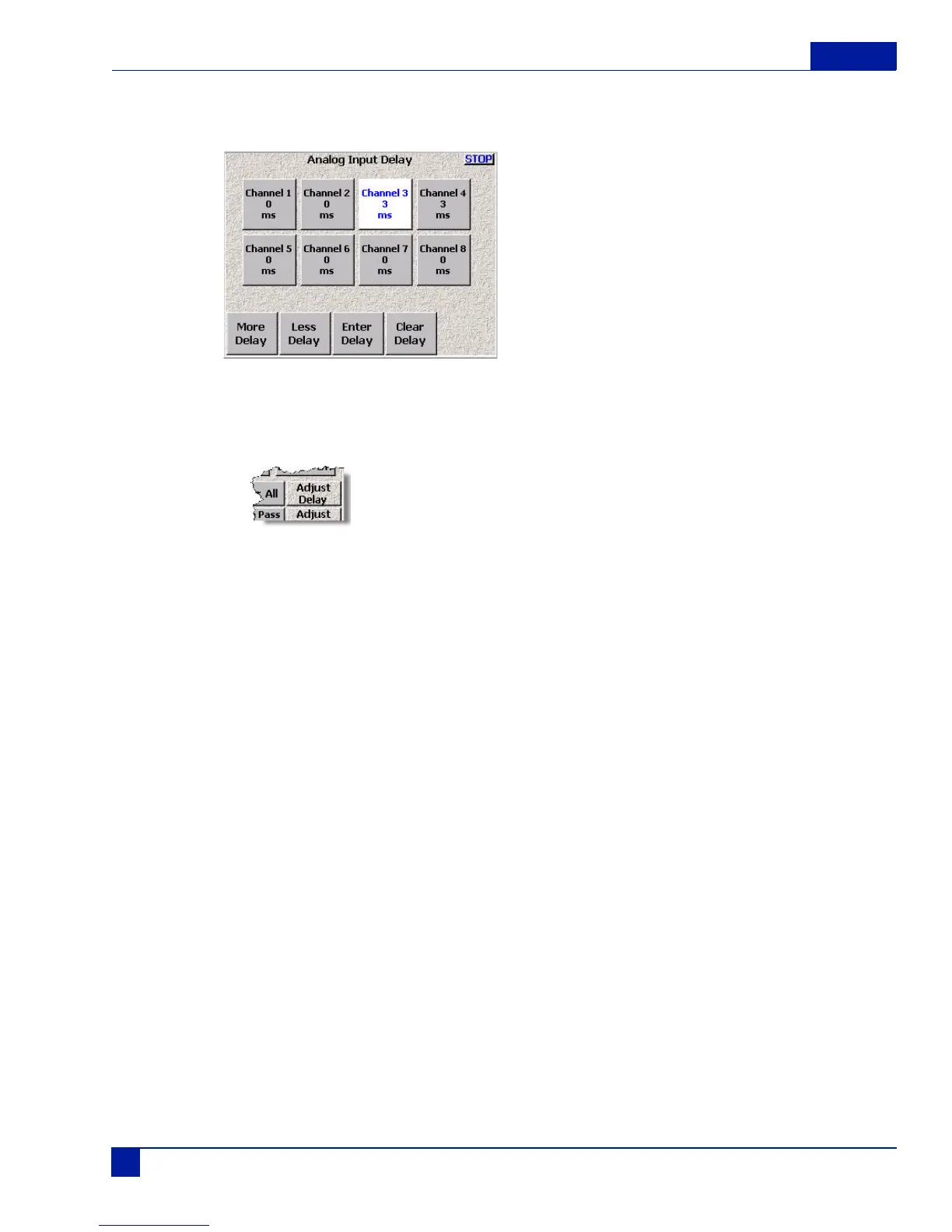
Adjusting the Delay Using the Input Delay Menu
Main Menu > Input Control > Analog Input Delay
Figure 14 Analog Input Delay
To adjust the delay of multiple channels using the Analog Input Delay menu, perform the following:
1. Press the Adjust Delay button on the Input Control menu.
The Adjust Delay Screen Appears. You can adjust delays on both Analog and Digital inputs.
2. Press the channel you want to add delay into.
The button changes to white.
3. Press More delay to add delay.
If Delay has been added to a channel, the Less Delay button is active and can be used to reduce the
amount of delay.
A maximum of 40 ms of delay can be added to each channel.
Repeat Steps 1 through 3 for each channel as required.
As an alternative to pressing the More Delay or Less Delay buttons, you can press the Enter Delay and
manually enter the delay using the keypad.
Pressing either the STOP button in the upper right corner of the screen or using the Menu key on the
keypad exits the Adjust Delay menu and brings you back to the Analog Input Control menu.



 To Next Page