NOTE:
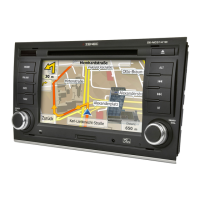
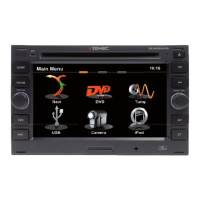
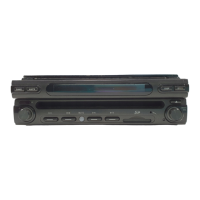
■ Touch screen operations and buttons on the front panel are all useable to select the
menu and to adjust “SETTING”. The following instructions will show the different ways
to access menus and adjustments.
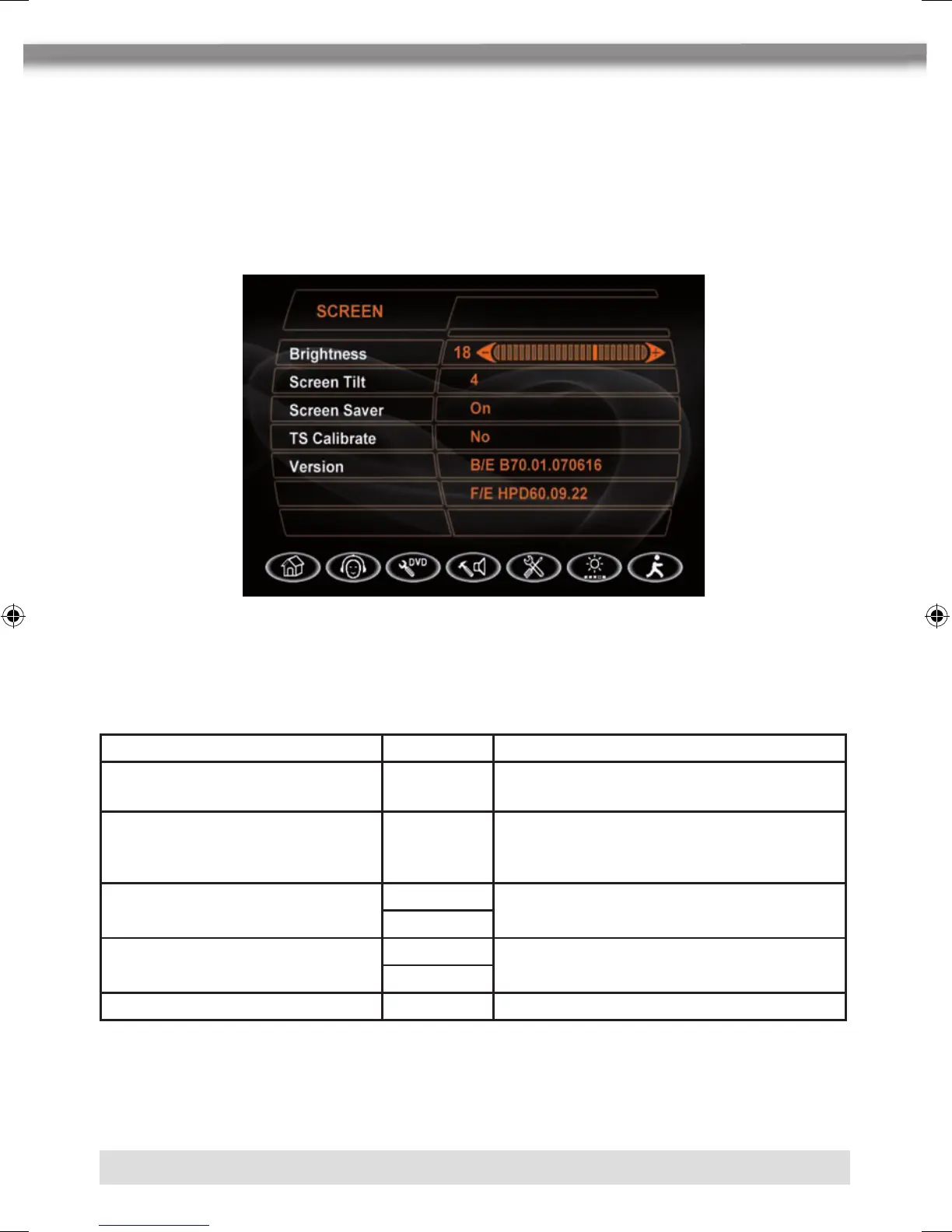
SCREEN SETTING
Accessing the screen setup menu
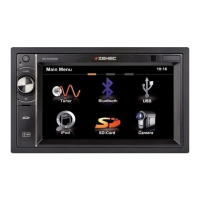
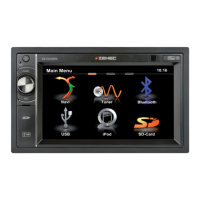
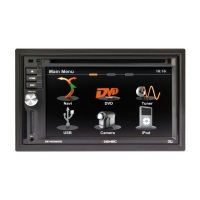
■ Press the [SMART DIAL] button on the front panel or press the [MENU] button on the
remote control to access the MAIN menu.
■ Select the
O button on the bottom of the screen to access the screen setup.
Adjusting a Feature
Setting Options Function
Brightness 0 to 20
Press the
[]/[] buttons to adjust the
brightness.
Screen tilt 1 to 6
Touch the (1 to 6) number on the screen
directly to adjust the tilt of the screen to
the desired degree.
Screen saver
ON
No function.
OFF
TS calibrate
No Touch “Yes” to enter the touch screen
calibrate mode.
Yes
Version Current software version.


 To Next Page