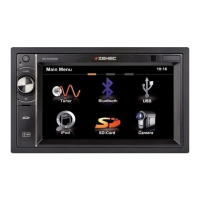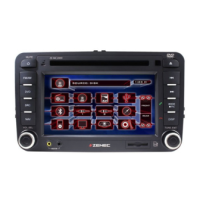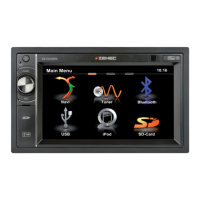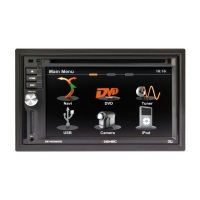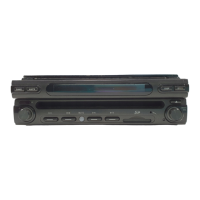
Why doesn't the monitor on my ZENEC ZE-MC192 open automatically?
- EEdgar BarrettSep 9, 2025
If the monitor on your ZENEC Car Receiver does not open automatically, the TFT Auto Open feature might be turned off. Turn TFT Auto Open on.
Why doesn't the monitor on my ZENEC ZE-MC192 open automatically?
If the monitor on your ZENEC Car Receiver does not open automatically, the TFT Auto Open feature might be turned off. Turn TFT Auto Open on.
What to do if my ZENEC ZE-MC192 Car Receiver has no or low audio output?
If you're experiencing no or low audio output from your ZENEC Car Receiver, consider the following: 1. Check the wiring for improper audio output connections and correct them. 2. Increase the volume level if it's set too low. 3. Review the wiring diagram and check the “MUTE” connection for any issues. 4. Replace the speakers if they are damaged. 5. Adjust the channel balance to the center position if it's heavily biased. 6. Insulate all speaker wiring connections to prevent contact with metal parts of the car.
Why is my ZENEC ZE-MC192 Car Receiver remote control not working?
If the remote control for your ZENEC Car Receiver isn't working, the battery may be depleted. Try replacing it with a new one. Also, ensure the battery is installed correctly by removing it and reinstalling it.
How to resolve poor sound quality or distortion on ZENEC ZE-MC192 Car Receiver?
If you're experiencing poor sound quality or distortion with your ZENEC Car Receiver, make sure you are not using a pirated disc; use an original copy. Also, ensure that the speaker power rating is compatible with the unit by connecting proper speakers. Finally, check the speaker contact to ensure the speaker is not shorted.
What to do if my ZENEC ZE-MC192 shows no image?
If there is no image on your ZENEC Car Receiver, check the wiring to the parking brake wire and correct it if needed. Also, if PRK SW is activated, stop the vehicle in a safe place and apply the parking brake.
Why is the station searching weak on my ZENEC ZE-MC192 Car Receiver?
If your ZENEC Car Receiver is having trouble searching for stations, ensure the auto antenna is fully extended by properly connecting the auto antenna control cable. Also, make sure the LOCAL function is turned off.
What does 'Bad Disc' mean on my ZENEC ZE-MC192 Car Receiver and how to fix it?
If your ZENEC Car Receiver displays 'Bad Disc', the disc might be dirty; clean it with a soft cloth. Alternatively, the disc might be upside down; insert it with the label side up.
What does 'Error' mean on my ZENEC Car Receiver and how can I fix it?
If your ZENEC Car Receiver displays an 'Error' message, it could be due to an illegal mechanism operation. Press the “EJECT” button for 5 seconds to reset the loading mechanism.
Why can't I insert a disc into my ZENEC ZE-MC192?
If you cannot insert a disc into your ZENEC Car Receiver, it is possible that there is already a disc inside the unit. Eject the current disc and then insert the new one.
How to fix Tel-Mute malfunction on ZENEC Car Receiver?
If you're experiencing a Tel-Mute malfunction with your ZENEC Car Receiver, the “MUTE” wire might be grounded. Check that the “MUTE” connection is not grounded and that it’s properly insulated.
Lists the key capabilities and components of the ZE-MC192.
Lists the necessary tools and supplies required for unit installation.
Essential warnings regarding installation and usage to prevent hazards.
Step-by-step guide to safely disconnect the vehicle battery before installation.
Identifies and explains controls located on the unit's front panel.
Maps out the interactive areas on the touchscreen display.
Detailed explanation of buttons and operations for the front-zone remote.
Operation guide for the multi-zone remote control.
Usage and features of the smart dial remote control.
How to open, close, and set the automatic opening of the TFT monitor.
Adjusting the monitor's viewing angle for optimal display.
Automatic display switching when the vehicle is in reverse.
Configuration of video output format and picture parameters.
Restrictions on video display when the parking brake is not applied.
How the monitor's movement system handles obstructions.
Basic controls for powering the unit, adjusting volume, and selecting sources.
Adjusting equalizer, bass, treble, and other audio parameters.
Detailed settings for individual speaker channel outputs.
How to reset the unit and mute audio output.
Procedure for enabling and managing the anti-theft code.
Accessing and navigating through the main system menu options.
Adjusting display brightness, tilt, and screen saver settings.
Setting up general system preferences like clock, radio region, and Bluetooth.
Fine-tuning audio parameters for optimal sound reproduction.
Enables playing different audio/video sources in separate zones.
Overview of the tuner interface and basic controls.
How to switch bands and tune radio stations manually or automatically.
Storing and recalling favorite radio stations.
Using Radio Data System features like PTY, AF, and TA.
Procedures for handling DVD discs.
Using the touchscreen for playback actions such as play, pause, and seek.
Details on repeat, PBC, menu navigation, and chapter selection.
Information on disc symbols, formats, and playback times.
Operating the unit with various digital audio and image file formats.
Accessing and playing files from an SD card.
Integrating and controlling an iPod for music and video playback.
Activating and pairing a mobile phone with the unit.
Accessing contacts and making/receiving calls via Bluetooth.
Configuring pairing, auto-connect, and call handling.
How to launch and use the navigation system.
Managing audio playback while using navigation prompts.
How to switch to and operate the DVB-T tuner.
Solutions for common issues with power, audio, and general functions.
Resolving problems related to the display screen and touch input.
Troubleshooting radio reception and disc playback errors.
Explanations of error codes and guidance for unit maintenance.
Detailed technical data for the main amplifier and DVD/CD player.
Technical details for video output, FM/AM tuners, and the display monitor.
Information on input impedance, power supply, fuse, and dimensions.
Explains the duration, coverage, and exclusions of the product warranty.
Lists the key capabilities and components of the ZE-MC192.
Lists the necessary tools and supplies required for unit installation.
Essential warnings regarding installation and usage to prevent hazards.
Step-by-step guide to safely disconnect the vehicle battery before installation.
Identifies and explains controls located on the unit's front panel.
Maps out the interactive areas on the touchscreen display.
Detailed explanation of buttons and operations for the front-zone remote.
Operation guide for the multi-zone remote control.
Usage and features of the smart dial remote control.
How to open, close, and set the automatic opening of the TFT monitor.
Adjusting the monitor's viewing angle for optimal display.
Automatic display switching when the vehicle is in reverse.
Configuration of video output format and picture parameters.
Restrictions on video display when the parking brake is not applied.
How the monitor's movement system handles obstructions.
Basic controls for powering the unit, adjusting volume, and selecting sources.
Adjusting equalizer, bass, treble, and other audio parameters.
Detailed settings for individual speaker channel outputs.
How to reset the unit and mute audio output.
Procedure for enabling and managing the anti-theft code.
Accessing and navigating through the main system menu options.
Adjusting display brightness, tilt, and screen saver settings.
Setting up general system preferences like clock, radio region, and Bluetooth.
Fine-tuning audio parameters for optimal sound reproduction.
Enables playing different audio/video sources in separate zones.
Overview of the tuner interface and basic controls.
How to switch bands and tune radio stations manually or automatically.
Storing and recalling favorite radio stations.
Using Radio Data System features like PTY, AF, and TA.
Procedures for handling DVD discs.
Using the touchscreen for playback actions such as play, pause, and seek.
Details on repeat, PBC, menu navigation, and chapter selection.
Information on disc symbols, formats, and playback times.
Operating the unit with various digital audio and image file formats.
Accessing and playing files from an SD card.
Integrating and controlling an iPod for music and video playback.
Activating and pairing a mobile phone with the unit.
Accessing contacts and making/receiving calls via Bluetooth.
Configuring pairing, auto-connect, and call handling.
How to launch and use the navigation system.
Managing audio playback while using navigation prompts.
How to switch to and operate the DVB-T tuner.
Solutions for common issues with power, audio, and general functions.
Resolving problems related to the display screen and touch input.
Troubleshooting radio reception and disc playback errors.
Explanations of error codes and guidance for unit maintenance.
Detailed technical data for the main amplifier and DVD/CD player.
Technical details for video output, FM/AM tuners, and the display monitor.
Information on input impedance, power supply, fuse, and dimensions.
Explains the duration, coverage, and exclusions of the product warranty.
| Touchscreen | Yes |
|---|---|
| Apple CarPlay | Yes |
| Android Auto | Yes |
| Bluetooth | Yes |
| DAB+ | Yes |
| GPS | Yes |
| Steering Wheel Control | Yes |
| Rear View Camera Input | Yes |
| Radio | FM/AM |
| AUX Input | Yes |
| Audio Formats Supported | MP3, WMA, AAC, FLAC |
| Video Formats Supported | AVI, MKV, MOV, MPEG |
| Power Output | 4 x 50W |