16
12.0 DOWNLOADING THE ZX- FLY APP TO YOUR SMARTPHONE
12.1 WHERE TO DOWNLOAD
For iPhones: Go to the Apple App Store and search for the ZX-FLY App.
For Android phones: Go to the Google Play Store and search for the
ZX-FLY App.
12.2 ZX-FLY APP
The Drone has a built-in Wi-Fi connection which is used
to wirelessly connect your smartphone to your Drone
allowing you to view the Drone camera's live view, trigger
recording, and control and fly your Drone.
To connect your smartphone to the Drone please follow
the instructions below.
1. Go to the Google Play store if you are using an Android smartphone,
or the Apple Store if you are using an iPhone and
search for the App named “ZX-FLY”. Once it is
located, please download and install the App.
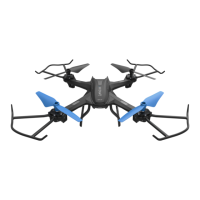
2. Alternatively, please scan the QR code to download
and install the App.
12.3 CONNECTING TO THE DRONE WI-FI
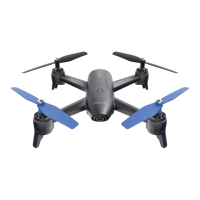
1. Go to your mobile phone's settings menu and enter the Wi-Fi settings.
2. Turn on your Drone.
3. If your Wi-Fi is turned off, turn it on and
search for ZX-GLYDEN_XXXX in the
available networks. Select ZX-GLYDEN_
XXXX. Once the connection is successful
an icon will appear next to it.
4. Once connected, open the ZX-FLY App on your smartphone.
Minimum smartphone Requirements (for use with the ZX-FLY app). iPhone: iPhone 6 or later using iOS 8.0 and above.
Samsung Galaxy: S5 and later using Mobile Android 5.0 and above. Minimum 3G Wi-Fi network connection for
GPS functionality. Apple, the Apple logo, and iPhone are trademarks of Apple Inc., registered in the U.S. and other
countries. Google Play and the Google Play logo are trademarks of Google Inc. Industries.
ZERO-X-ZX-AIR
ZX-GLYDEN_XXXX



 To Next Page