Page 56 TETHERED CONTROLLER MX32, RADIO CONTROLLER MX32FU
OP PROG – Creation and use of CV - Sets
….via the clipboard:
Soft-Key II = Continue reloads the CV list from the last editing session
Soft-Key II = Copy copies the current CV lines to the clipboard.
Soft-Key III = Paste pastes the CV lines from the clipboard to the currently displayed list.
Details and screen shots of CV sets: see chapter SERV PROG!
….from and within the CV set memory:
-Key (Shift) switches the Soft-Keys II and III from the above clipboard application to the CV-set
application (II = copy, III = paste); visible by changing to a blue font:
II = copy CV-Set III = paste CV-Set
Soft-Key II = Copy CV-Set Saving the CV rows of the current screen to the CV-Set memory:
A window opens to add data to the CV-Set.
Theme: Select one of the suggested themes (with toggle switch).
Name: Enter a name of your choice.
Info: Free choice of text.
-Key + A-Key SAVE
(Attention: the CV-Set is not saved without this key sequence)
Soft-Key III = Paste… search for the desired CV-Set in the CV-Set database and paste the
CV-set rows to the current display screen.
The "Paste" command only lists the CV-lines in the display but are NOT yet sent to the decod-
er. This must be carried out thereafter for each individual line; that is, in practice press the
A-Key (after scrolling to the first row) continue with each subsequent line for each CV
number and value (other than pressing the A-Key, no further actions are necessary, ex-
cept when a row is to be skipped), then the confirmation ACK appears in each row if the
programming step was successful.
Details and screen shots of CV sets: see chapter SERV PROG!
OP PROG – Special configuration procedures only for ZIMO decoder
Accessible via OP PROG:
M-Key the first MENU lines
Scrolling wheel scroll down to the special
procedures for ZIMO decoders (last menu section)
A- Key starts the selected procedure.
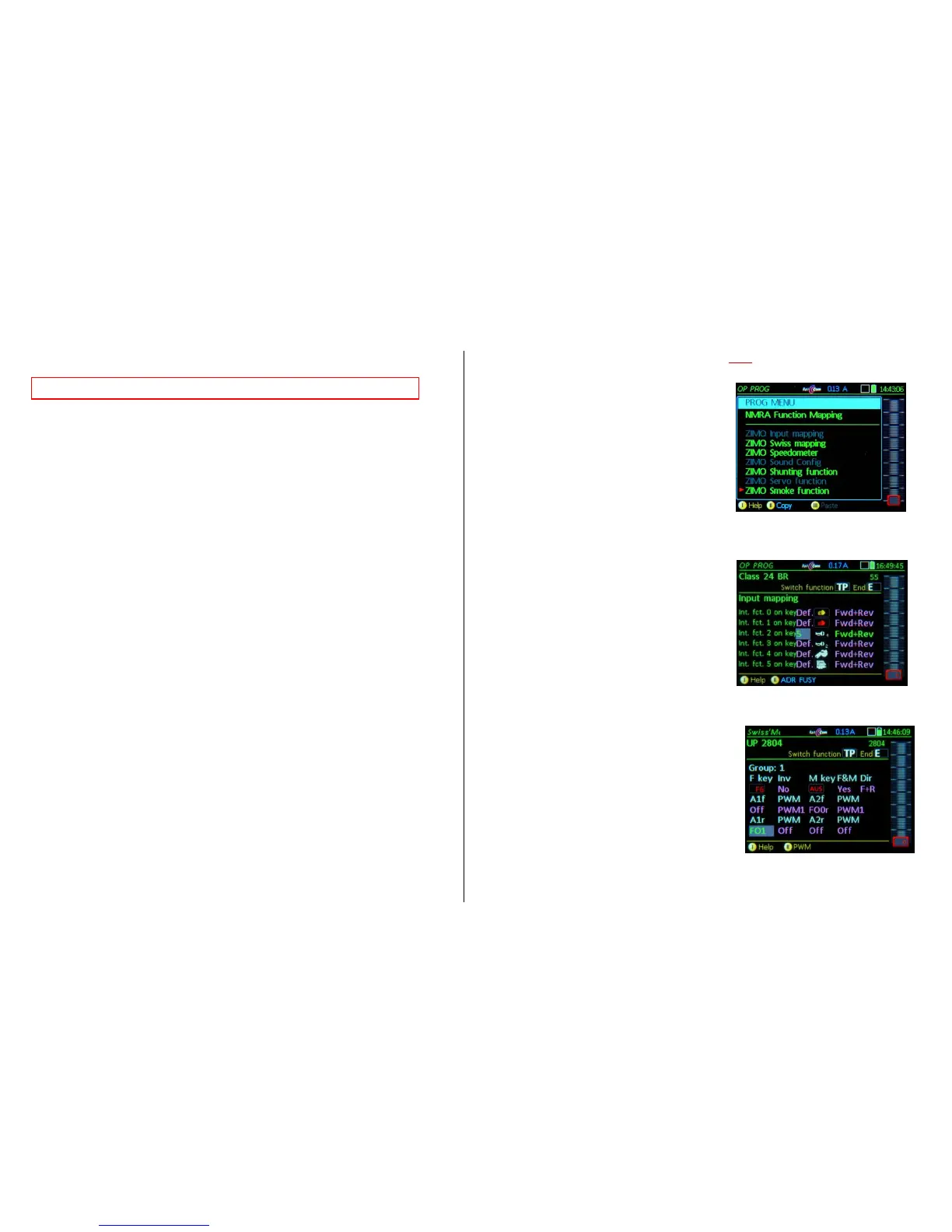
The available and planned procedures:
ZIMO LOCO Settings (not yet available)
ZIMO HLU Settings (not yet available)
ZIMO Input Mapping
ZIMO Swiss Mapping
ZIMO Speaker volume for function sounds
ZIMO Smoke functions (not yet available)
The ZIMO Input Mapping allows you to change the func-
tion key assignments ("external" functions to "internal"
functions, as per sound project or default setting) .
The “internal function" for example, is assigned to the
respective F-Key in the sound project: this function
is to be assigned to another function key. If this
new function key is already activated used for an-
other function, it must first be moved first.
Directional dependencies of functions can also be defined
in this assignment window.
E-Key returns to the menu screen.
ZIMO Swiss Mapping
The ZIMO Swiss Mapping makes it easy to set up very complex
lighting or function (dependent) switchings. For example, a free
function key is assigned for (light) functions, without having to
know the required CVs. The display columns are:
(F-Tst): the selected function key should switch the function
(Inv): yes/no, if yes: the function switching is inverted when
the function key is activated.
(M-Tst): Defines a key as the “Master Key” (i.e. F0 Light).
(F&M): outputs only on if both F and M-Key
are on
(A1v, A1r; A2v, A2r): outputs to be activated,
direction dependent.
(PWM): pulse-width modulation groups can be defined.



 To Next Page
 Loading...