EasyManua.ls Logo

ZyXEL Communications P-336M - User Manual

ZyXEL Communications P-336M
103 pages
Print Icon
To Next Page IconTo Next Page
Loading...
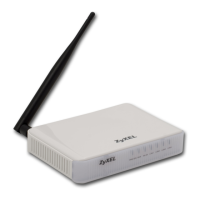
ZyXEL P-336M
802.11g Wireless MIMO Router
Users Guide
Version 1.00
Edition 1.00
1/2006

Table of Contents

Other manuals for ZyXEL Communications P-336M

Questions and Answers

  • J
    Johnathan LozanoJul 30, 2025
    Why can't I access the Internet with my ZyXEL Communications P-336M Wireless Router?
    • T
      taylorhendersonJul 31, 2025
      First, check the connection between your ZyXEL Communications Wireless Router (P-336M) and the broadband modem. Try turning both the broadband modem and the router off and on to restart them. Also, verify your Internet connection settings in the WAN screen.
  • D
    Dr. Gregory HuffAug 5, 2025
    What to do if I cannot get a WAN IP address from my ISP using ZyXEL Communications P-336M?
    • P
      Patricia MclaughlinAug 6, 2025
      If you're using a cable modem, turn it off and wait two to three minutes before connecting it to the ZyXEL Communications Wireless Router (P-336M). If your ISP checks the WAN MAC address, clone the MAC address from a LAN computer by going to BASIC > WAN, clicking Advanced, selecting MAC Cloning Enabled, and then clicking Clone Your PC’s MAC Address or manually entering the MAC address. If the ISP checks the host name, enter your computer’s name in the Host Name field in the WAN screen (BASIC > WAN). If the ISP checks the user ID, go to BASIC > WAN and verify your service type, user name, and password.
  • K
    Kimberly BlanchardAug 11, 2025
    What to do if I cannot access my ZyXEL Communications Wireless Router from the LAN?
    • J
      johnsonamandaAug 11, 2025
      Check the cable connection between the ZyXEL Communications Wireless Router (P-336M) and your computer or hub. Ping the router from a LAN computer to test the connection. Ensure your computer's Ethernet card is properly installed and functioning.
  • F
    Fernando WigginsAug 17, 2025
    What to do if I cannot ping any computer on the LAN using my ZyXEL Communications P-336M?
    • B
      Benjamin RodriguezAug 18, 2025
      If the 10/100M LAN LEDs are off, check the cable connections between the ZyXEL Communications Wireless Router (P-336M) and your LAN computers. Make sure that the IP address and subnet mask of the router and the LAN computers are in the same IP address range.
  • S
    sallymanningAug 25, 2025
    How to fix ZyXEL Communications Wireless Router when none of the LEDs turn on?
    • C
      Christine HortonAug 25, 2025
      Ensure the included power adapter is connected to the ZyXEL Communications Wireless Router (P-336M) and plugged into a working power source. Check all cable connections. If the LEDs still don't turn on, it may be a hardware problem, and you should contact your local vendor.

Summary

ZyXEL P-336 M Users Guide

ZyXEL Limited Warranty

Outlines the terms and conditions of the product's limited warranty.

Customer Support Information

Provides contact information and resources for customer assistance.

Getting Started

Hardware Connection and Front Panel LEDs

Guides on physical setup and explains the status indicators on the device.

The Web Configurator

Changing Your Password

Instructions for updating the administrator and user passwords for security.

Basic Configuration

WAN Setup: Overview, IP, DNS, and Modes

Covers WAN connection types like Static IP, Dynamic IP, PPPoE, IP assignment, and DNS.

Wireless LAN Security Configuration

Configuring WEP, WPA-Personal, WPA-Enterprise, and IEEE 802.1x security.

Advanced Configuration

Access Control, Web Filter, and MAC Filter

Implementing policies to control network access and filter traffic.

Firewall, DMZ, and Inbound Filter

Securing the network with firewall, DMZ, and inbound packet filtering.

Tools and Utilities

Administrator Settings: Accounts, UPnP, Remote Access

Managing user accounts, UPnP, and remote management configurations.

Email Notifications and Firmware Updates

Setting up email alerts and updating the router's firmware.

ZyXEL Communications P-336M Specifications

General IconGeneral
BrandZyXEL Communications
ModelP-336M
CategoryWireless Router
LanguageEnglish

Related product manuals