Pannoramic DESK 1.18.1 User’s Guide 4 Software Description
Run defines the window mode that the external application will start in. The following window
modes can be set:
• Normal window
• Minimized
• Maximized
You can test whether the Scanning Error Occurred settings work by clicking . By moving
the mouse cursor over the buttons, the software displays information about the setting you are
interested in.
In the Message Call section of the window complex messaging functions can be defined. Here you
can setup parameters of the mail server, add or remove users, and also set the message body in the
Message subject field by entering a text for example, to inform recipients on the location of the
scanner, or the slide set you are working with. Click Test to test settings (by sending an e-mail to the
address defined in the E-mail To field) after you have finished to check their relevancy before
applying them.
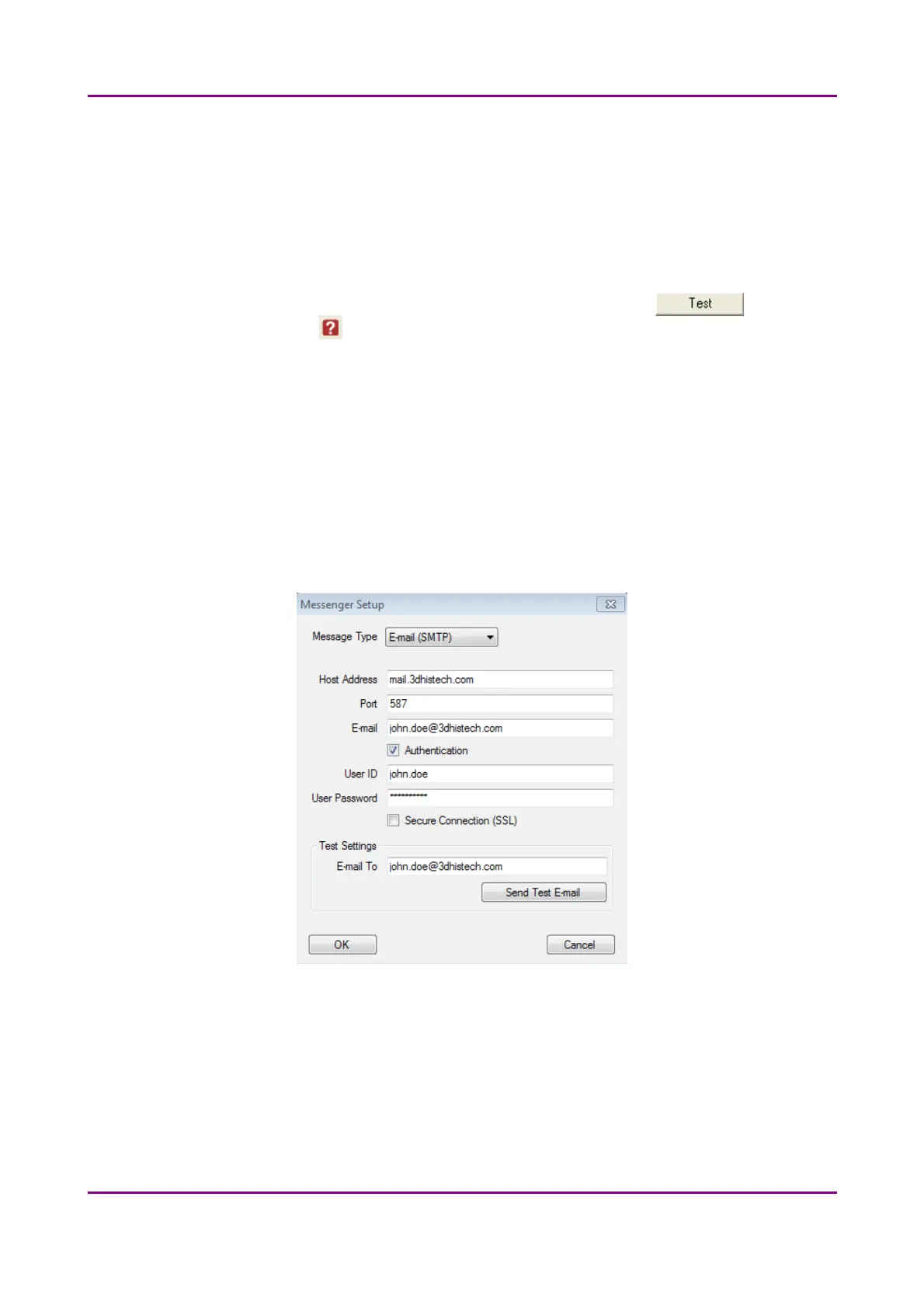
First click Setup to display the Messenger Setup window, in which you can dedicate an e-mail server
through which the software sends e-mails to the selected recipients.
Figure 17 – Messenger Setup window
In the Messenger Setup window the following parameters can be set:
• Message Type – E-mail (SMTP)
• Host Address
• Authentication – User ID and User Password are required.
May 29, 2014 - Rev. 1 3DHISTECH Ltd.
37(77)



 To Next Page