3D Systems, Inc.
32
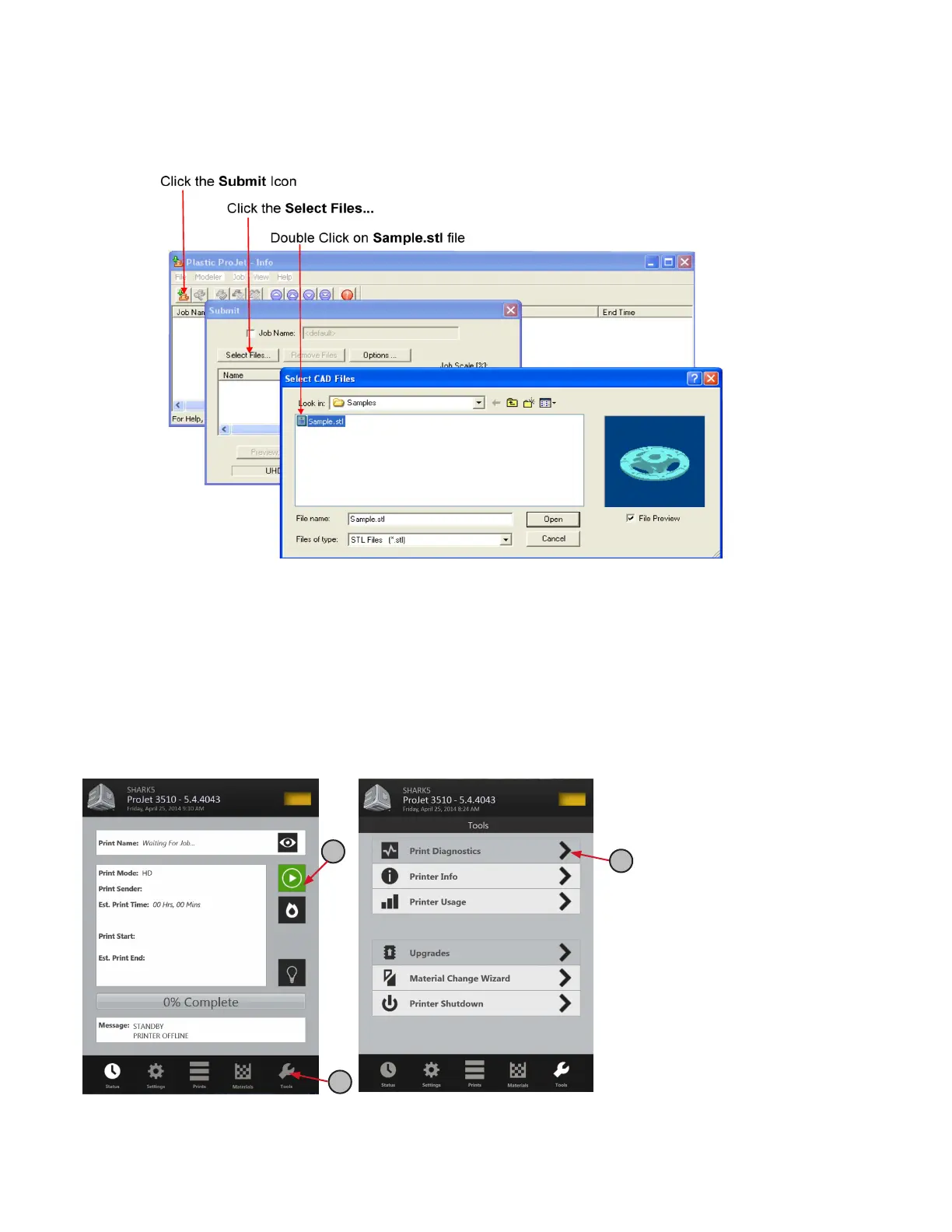
CREATE STL FILE(S) TO BUILD
The printer builds 3-D models from les using industry-standard .STL (Stereolithography) and CTL format. Most popular 3-D modeling
CAD software packages can save les in STL format. Sample STL les are in the \3-D Modeling Client\Samples folder.
START A TEST PRINT OR PRINT DEMO
1. Ensure that the platform is clear and the door is closed. Click on the Online/Ofine button (A) to bring printer Ofine.
2. Click on the “Tools” icon (B) and select “Print Diagnostics” (C) on the menu. Select “Test Print” or “Demo Print” (D) and click on
“Yes” (E) to conrm printer is online. The printer will begin printing. If printer is ofine, click “No” and return to the “Status Screen”
to take printer Ofine. Return to the “Test Print / Demo Print” menu to start your print.
3. After the print is completed, the message “Remove Print” will display in the “Messages” dialog box. Open the printer door, and
remove the print platform as described in Step 4, “Print Platform Installation.” To remove part removal and post processing
instructions, refer to VisiJet® Part Processing User Guide located in 3DS Central.
A
B
C



 To Next Page