3D Systems, Inc.
45
MANAGE A PRINT JOB
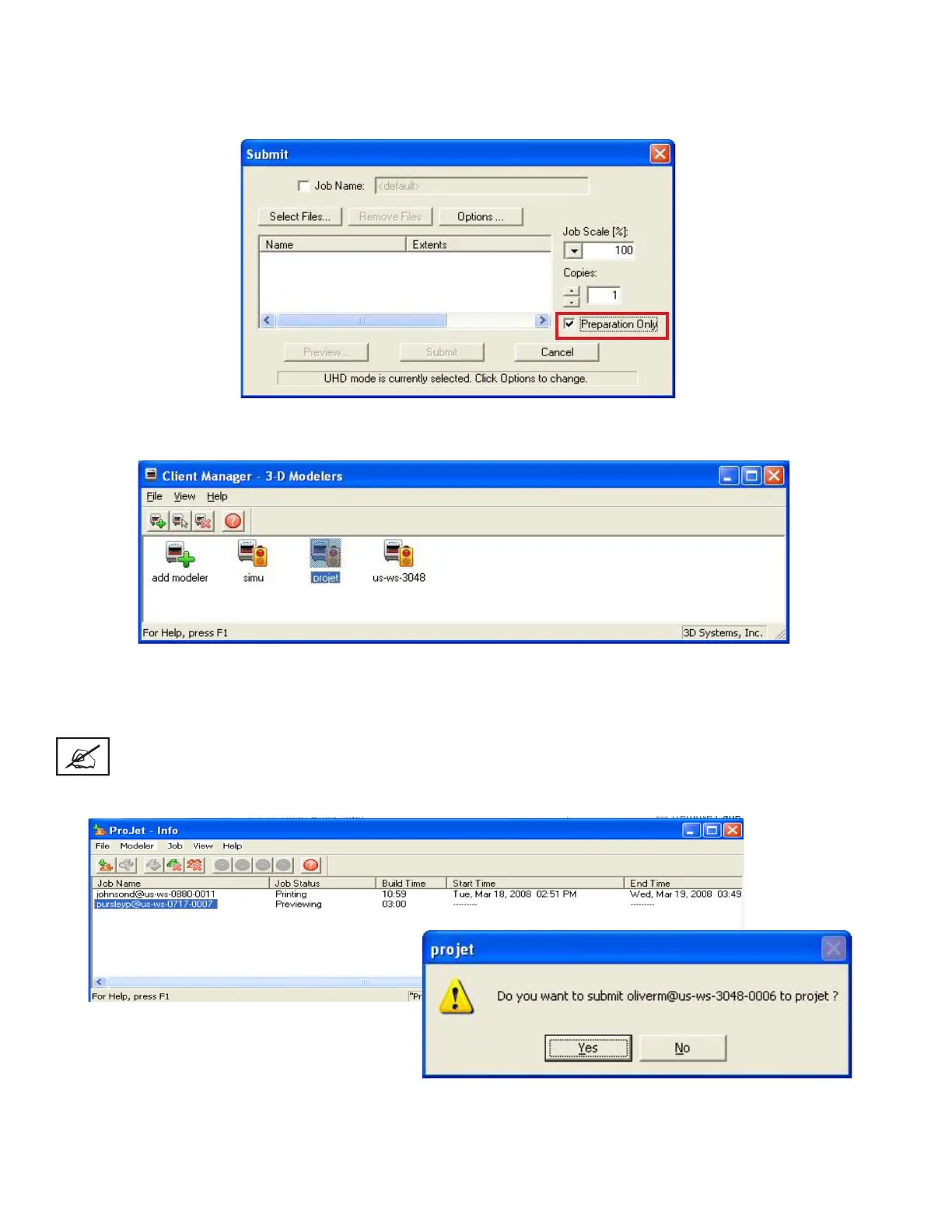
• The client software will not send print jobs to the printer until job conrmed by selecting “Preparation Only” check box
in the “Submit” dialog box or resubmit a saved build job.
• Click printer’s icon in client software to open printer’s Info window.
• Select build job with Job Status of Needs Conrm or Saved.
• Click Conrm button or choose Job > Conrm located on the tool bar of the printer window. A dialog box with ask if you
want to submit; click Yes.
NOTE Conrming saved jobs generates a Pending build job whose name lacks the “_s” sufx. However,
saved jobs remain in the queue.




 To Next Page