Note
The live view can be set as follows.
Open the main menu, then click on “Configuration”. Then
click on “Liveview”:
The following settings are available in the TAB “General”:
VGA/HDMI
Select the connection where the set-
tings are changed
Different camera layouts
1x1, 2x2, 1x5
Switching time between the individu-
al cameras and the sequence dis-
play
Activates the audio output
(VGA/HDMI) for the live view.
Activate/deactivate the status bar
Allocate monitor for the output of
events
Full Screen Moni-
toring Duration
in seconds, where the event on the
allocated monitor will be displayed.
in seconds, the duration of the Pop-
up window when an event occurs.
NoteVGA monitor connected:
A connected VGA monitor automatically becomes
the main monitor where the audio output is also
assigned. The BNC output Video Spot Out output
displays the cameras in sequence and in full
screen.
No HDMI monitor connected:
If the HDMI cable is not connected to the monitor
at the start, the main video signal is emitted at the
Main VGA connection. Connect the VGA cable
and start the recorder again to perform the auto-
matic detection.
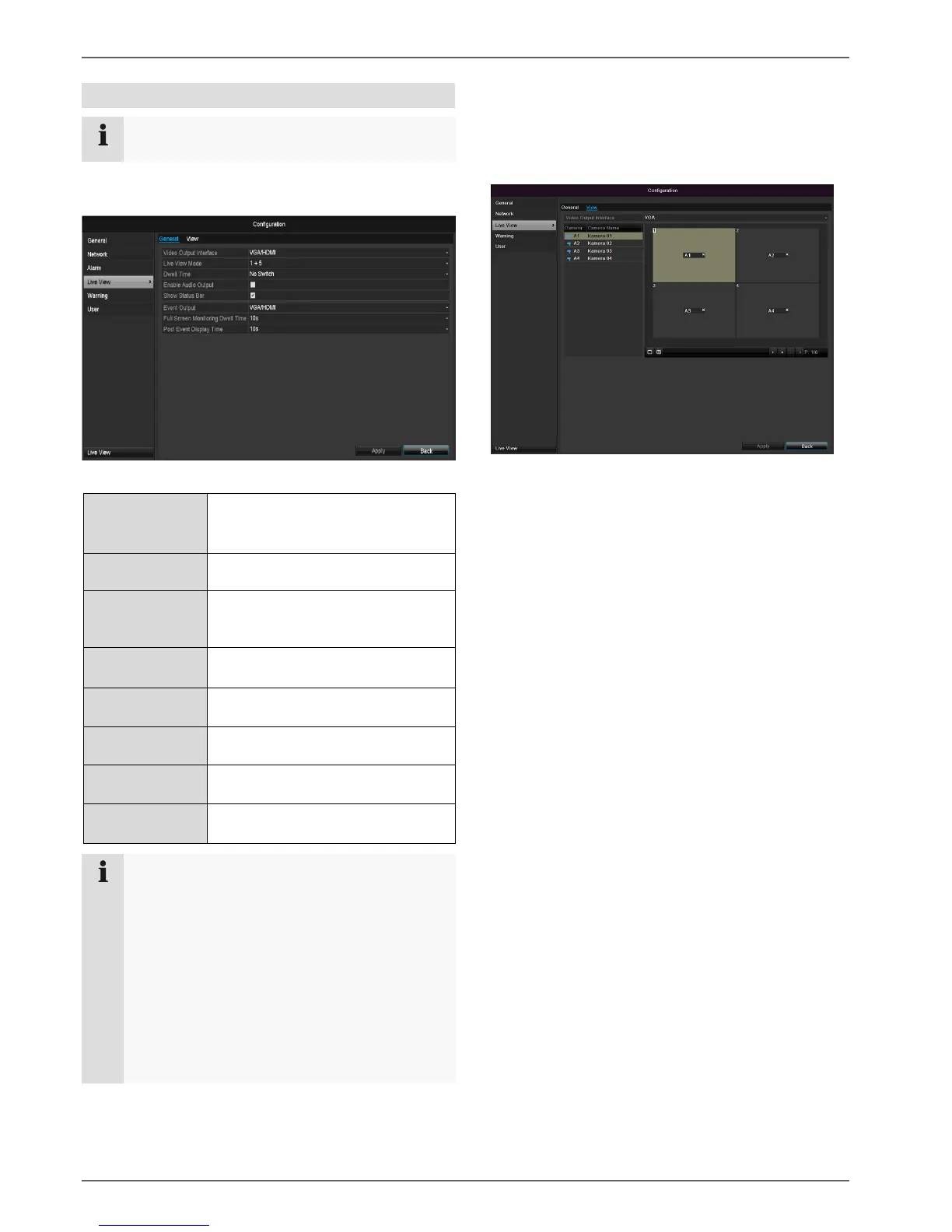
Setting the camera output
You can display a maximum of 4 cameras simultaneously
in the live view.
Select the display mode.
1 x 1
2 x 2
1 x 5
The camera signal is assigned to the corresponding
image section using the navigation keys.
“X” means that this camera is not displayed.
Click on Apply to accept the settings.


 To Next Page
 Loading...