Access Sensor Technologies UPAS User Guide 35
Install and Run the App on an Apple iOS Operating System
The UPAS mobile device App is available on the App Store for iOS devices. The
current revision of the App (version 2.1.5) is backwards compatible with all
firmware revisions of the UPAS. It requires iOS 9.0 or later and is compatible with
iPhone, iPad, and iPod touch devices.
1 Find the App Store icon on your mobile iOS device desktop .
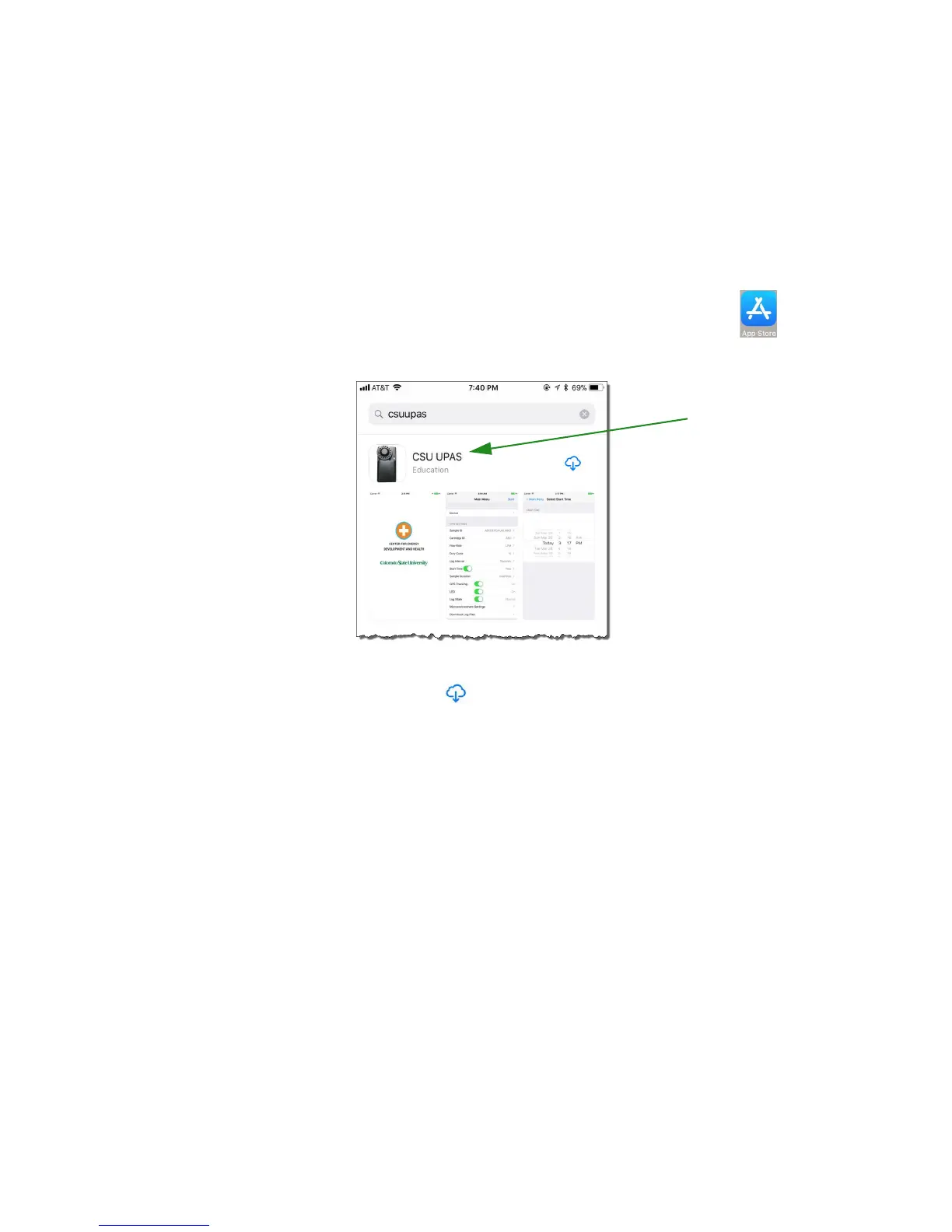
2 Search for CSU UPAS to find the application. This is a free App.
3 Tap the cloud icon to download and install the application on your
mobile device.
4Tap Open to run the App.
Running the UPAS iOS App
Users with mobile devices running the Apple iOS operating system can download
the current UPAS App from the Apple Store via the following steps.
1Tap Device button to scan for available UPAS Samplers. This provides a
list of UPAS devices available via Bluetooth.
2 Tap the UPAS device with the serial number of the Sampler you want to
use. This pairs the UPAS Sampler with your App.
When you tap the Start button in the upper right corner of the App, it prompts you
and indicates that you are about to start the UPAS sample run. Tap OK.
Initiates the sampling and data logging process. Note the UPAS power button
light changes, red light means pumps are on but not up to speed (not ready).
Green means pumps are up to speed (ready).


 To Next Page