Access Sensor Technologies UPAS User Guide 43
Using the Start With Set Time = (Future Date/Time) Option
If you want to start a sample run at some future date and time, follow these
steps:
1Verify that Select START WITH SET TIME is displayed (or toggle START ON
NEXT POWER-ON to turn it back to START WITH SET TIME).
2 Click START TIME button to bring up the calendar for date
3 Select the intended start date from the calendar, and click OK
4 A clock appears. Similarly, select the time of day for the programmed start
in hours, and then minutes, and then click OK.
5 Then when the future start date/time have been correctly entered, click
the START button and OK on the resulting Pop-up. This puts the UPAS into
a sleep – the UPAS automatically begins sampling when the programmed
start date/time are reached.
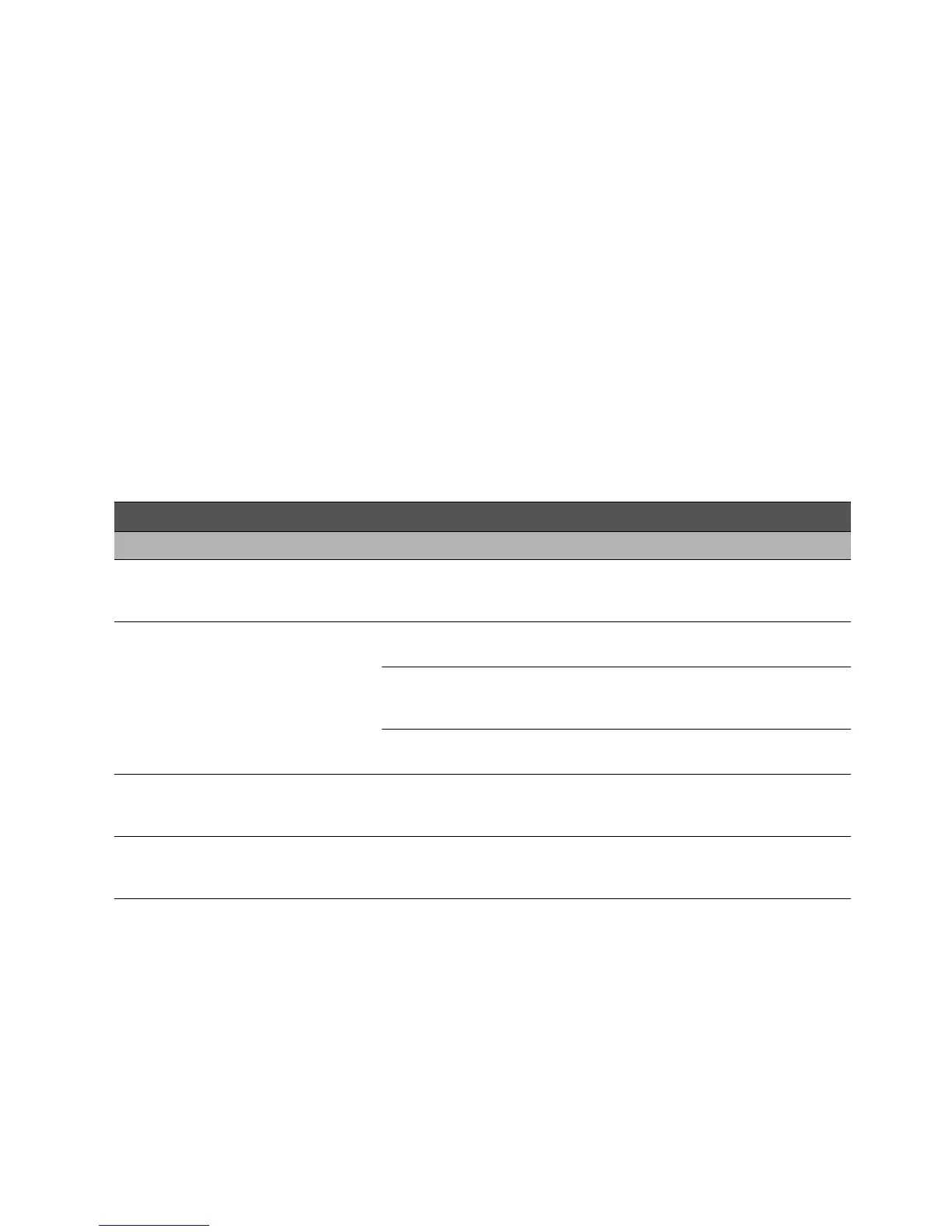
Active Sampling Sequence if START WITH SET TIME = FUTURE DATE/TIME Option Is Used
Step Sequence Item UPAS Status Indicator Definition
1
Click START to initialize
sampling sequence.
Status light is cyan
After clicking START, the UPAS
disconnects from the mobile
device/APP.
2
Pre-sampling waiting time
(the UPAS displays one of
these three status codes)
Blue (cyan) light blinks once
GPS Date/Time is set and the
signal is available.
Orange light blinks repeatedly
GPS is off or no GPS Date/Time
set (or GPS has been
intentionally turned OFF).
Magenta light blinks once
GPS Date/Time is set but GPS
signal is not currently available.
3
Active sampling/pumping
begins. UPAS flow control
not yet set.
Status light turns red
Pumping starts, UPAS adjusts
flow rate.
4
Active sampling/pumping
within flow control
parameters.
Status Light turns green (or is off if
toggled off in App sample window).
UPAS now sampling normally,
with flow control within
parameters.


 To Next Page